



Create a trigger in a few steps
If you just need the essentials, follow this:
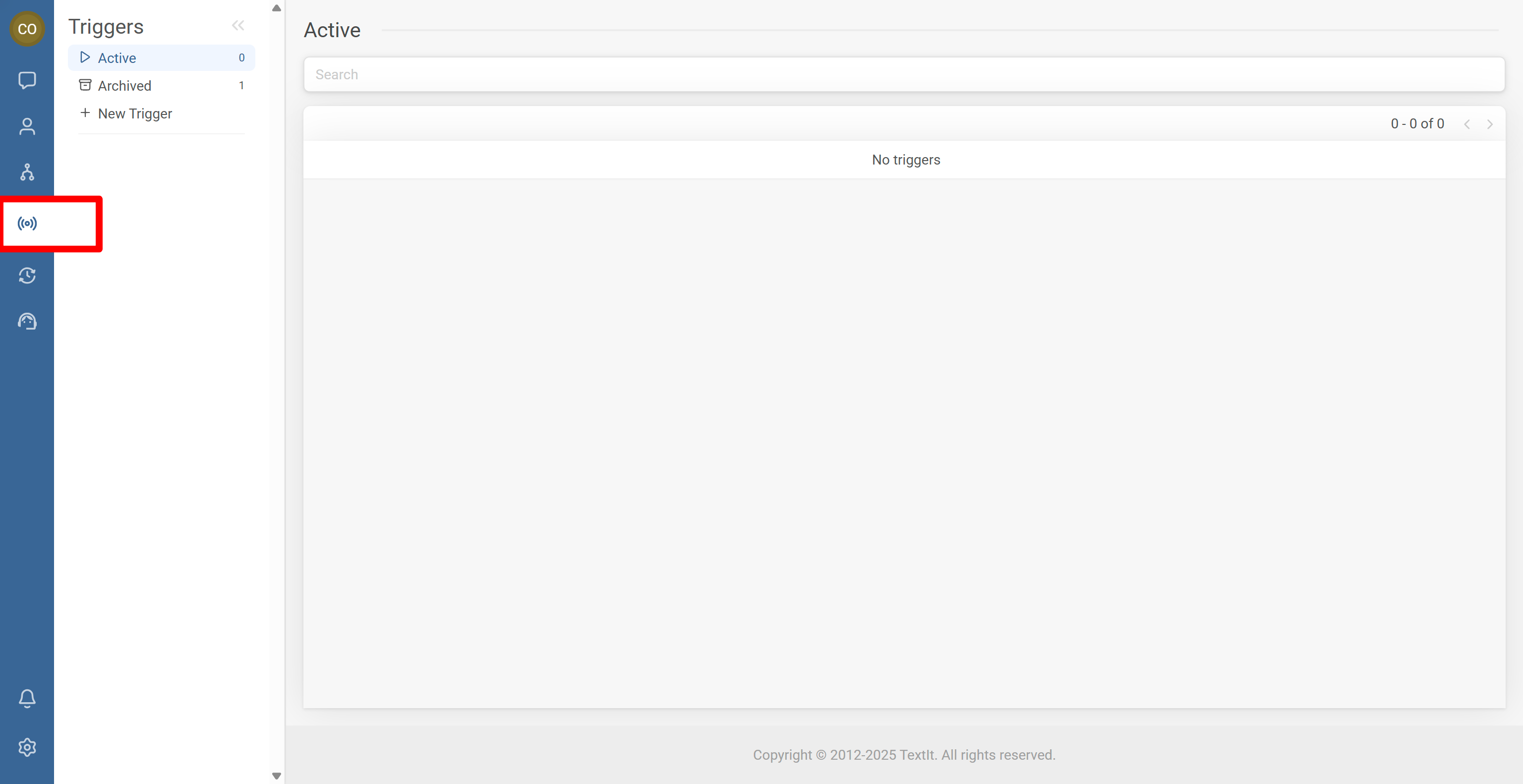
- Open the Triggers tab from the left sidebar
- Click + New Trigger and choose the trigger type
- Select the flow to start and configure options (including group filters when needed)
- For scheduled triggers, confirm your workspace timezone before testing
- Test with a real message/call (or a near-future schedule) and review logs
You’re done. Your trigger can now launch the right flow at the right time based on messages, calls, referrals, tickets, or schedules.
Step-by-Step Process
- In your workspace, open the left sidebar.
- Click the Triggers tab.
- Click + New Trigger.
- Choose the trigger type that matches your use case.
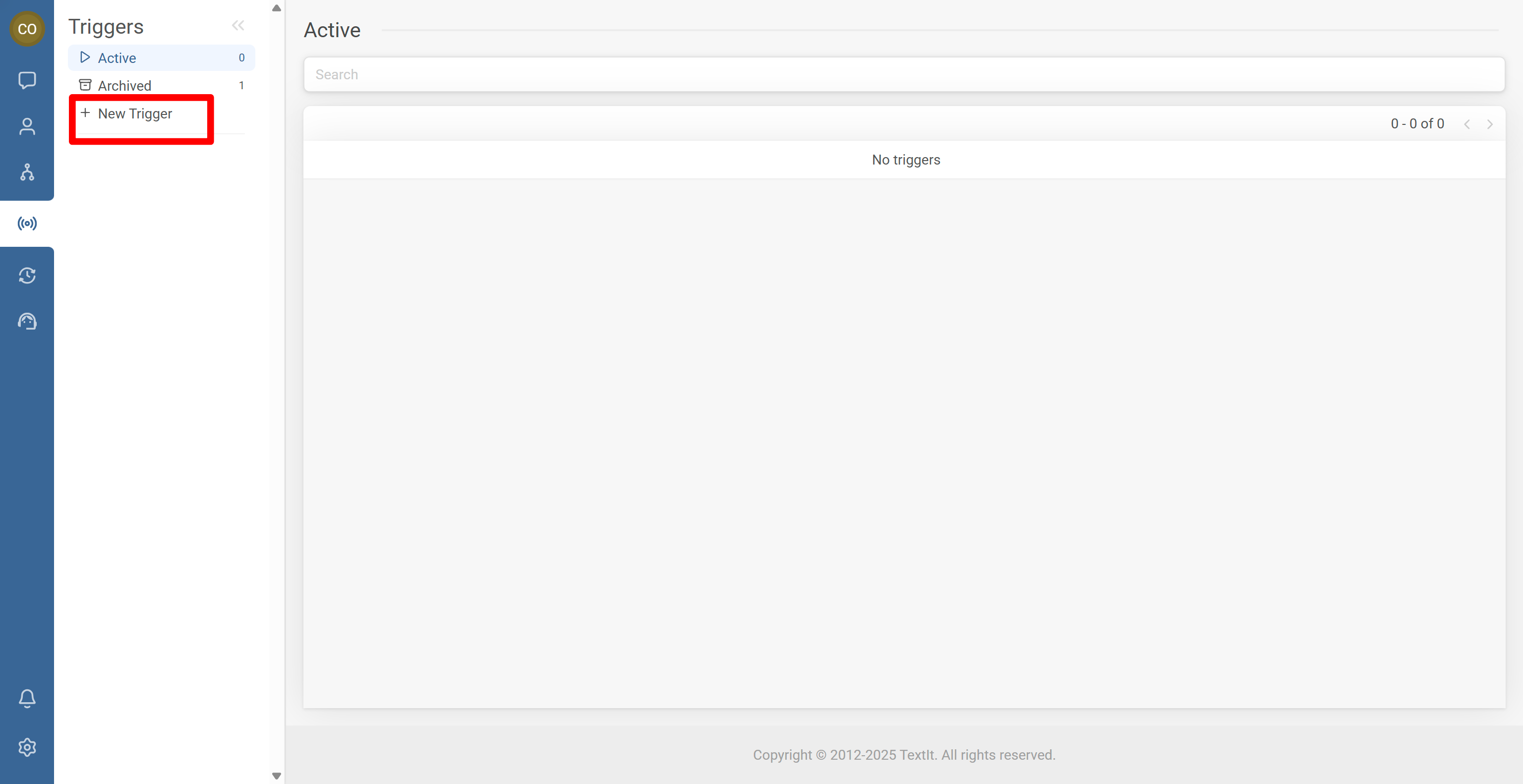
Common trigger types include:
- Keyword trigger: starts a flow when a contact sends a specific keyword.
- Unmatched message trigger: starts a flow when a message does not match any existing keyword triggers.
- Scheduled trigger: starts a flow in the future or on a recurring schedule.
- Missed call trigger: starts a flow after receiving a call.
- New conversation trigger: starts a flow when a contact initiates a new conversation.
- Ticket closed trigger: starts a flow after a support ticket is closed.
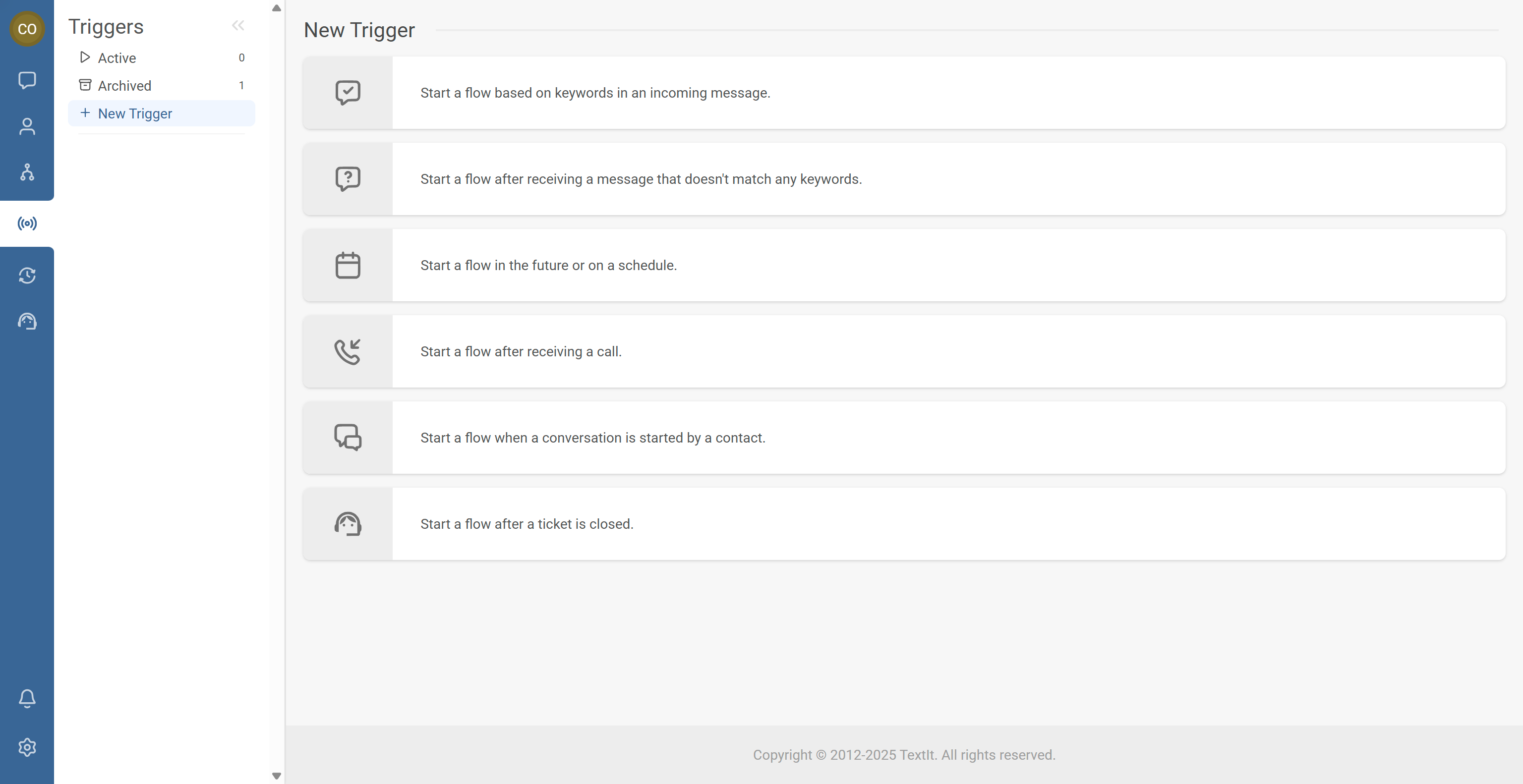
- Select the flow you want the trigger to start.
- Configure the trigger options based on the type you selected.
- If needed, add group inclusion/exclusion rules.
- Save the trigger.
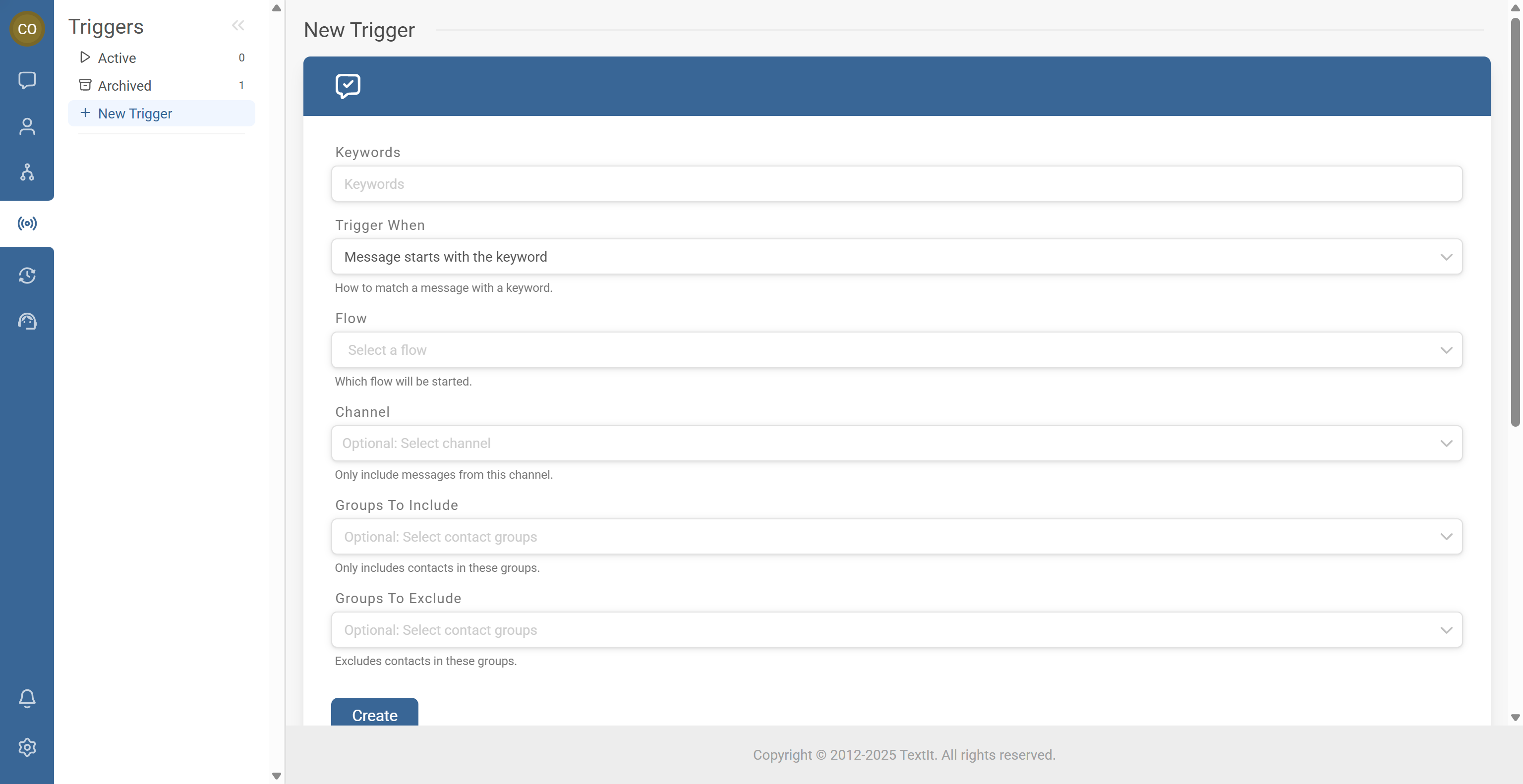
Scheduled triggers run according to your workspace’s configured timezone.
- Send a real message (for keyword/unmatched triggers) or place a test call (for missed call triggers).
- For scheduled triggers, set a near-future run time for a quick test.
- Review logs to confirm the trigger fired and the flow started as expected.
Common Issues & Quick Fixes
Problem: The trigger fires, but the flow doesn’t start.
Fix: Confirm the trigger is enabled, verify it points to the correct flow, and review group inclusion/exclusion rules to ensure the contact is allowed to start the flow.
Problem: My keyword trigger doesn’t work.
Fix: Check the keyword spelling, look for conflicting keyword triggers, and confirm another trigger isn’t taking priority over the one you expected.
Problem: A scheduled trigger doesn’t run when expected.
Fix: Confirm your workspace timezone settings, then recheck the schedule’s date, time, and recurrence configuration.
Problem: An unmatched message trigger causes loops.
Fix: Ensure the flow routes contacts to a useful outcome and avoid logic that immediately puts contacts back into the same unmatched condition. Include a clear fallback path such as a menu, help flow, or human handoff.