



Schedule a flow in a few steps
If you just need the essentials, follow this:
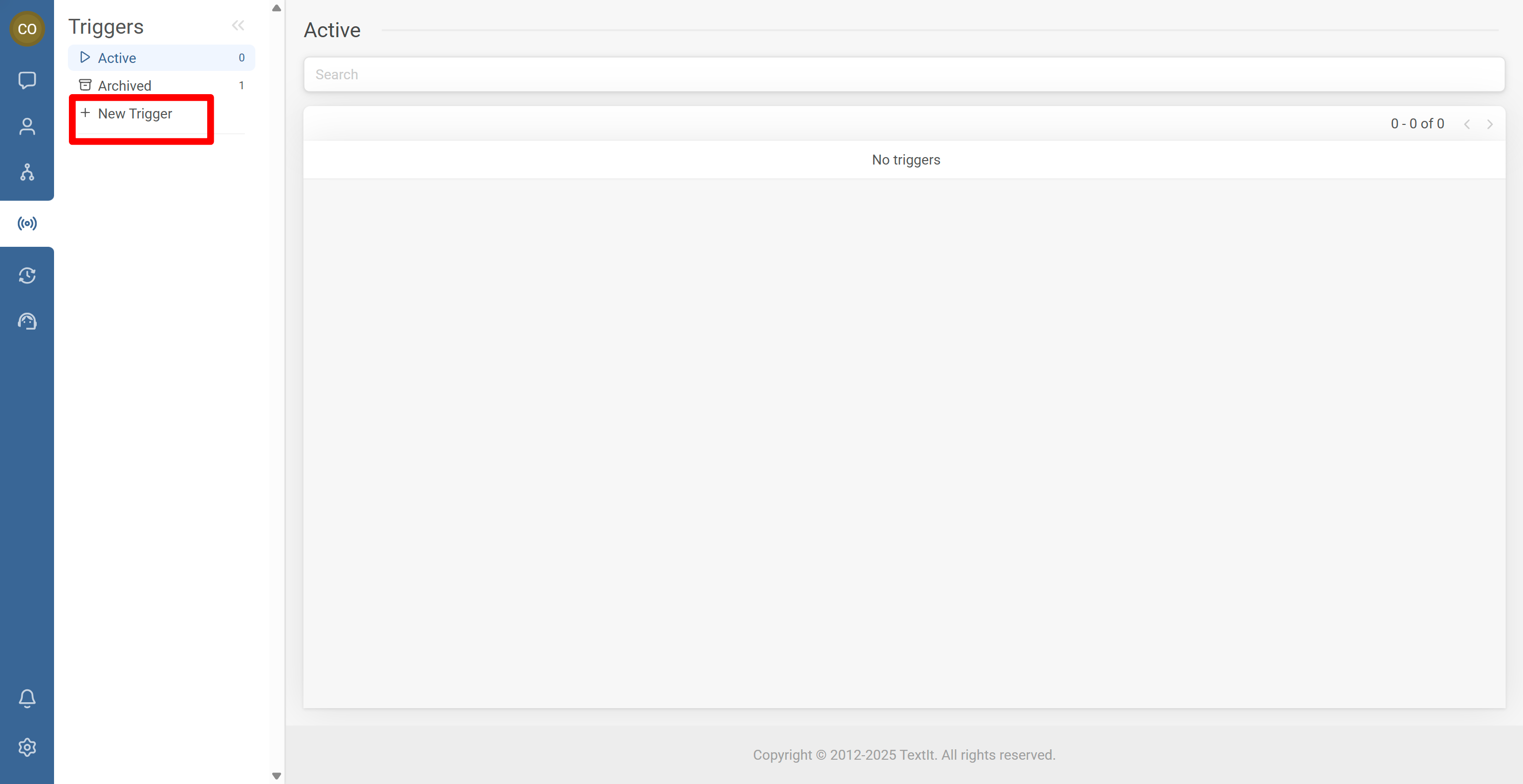
- Go to Triggers and click + New Trigger
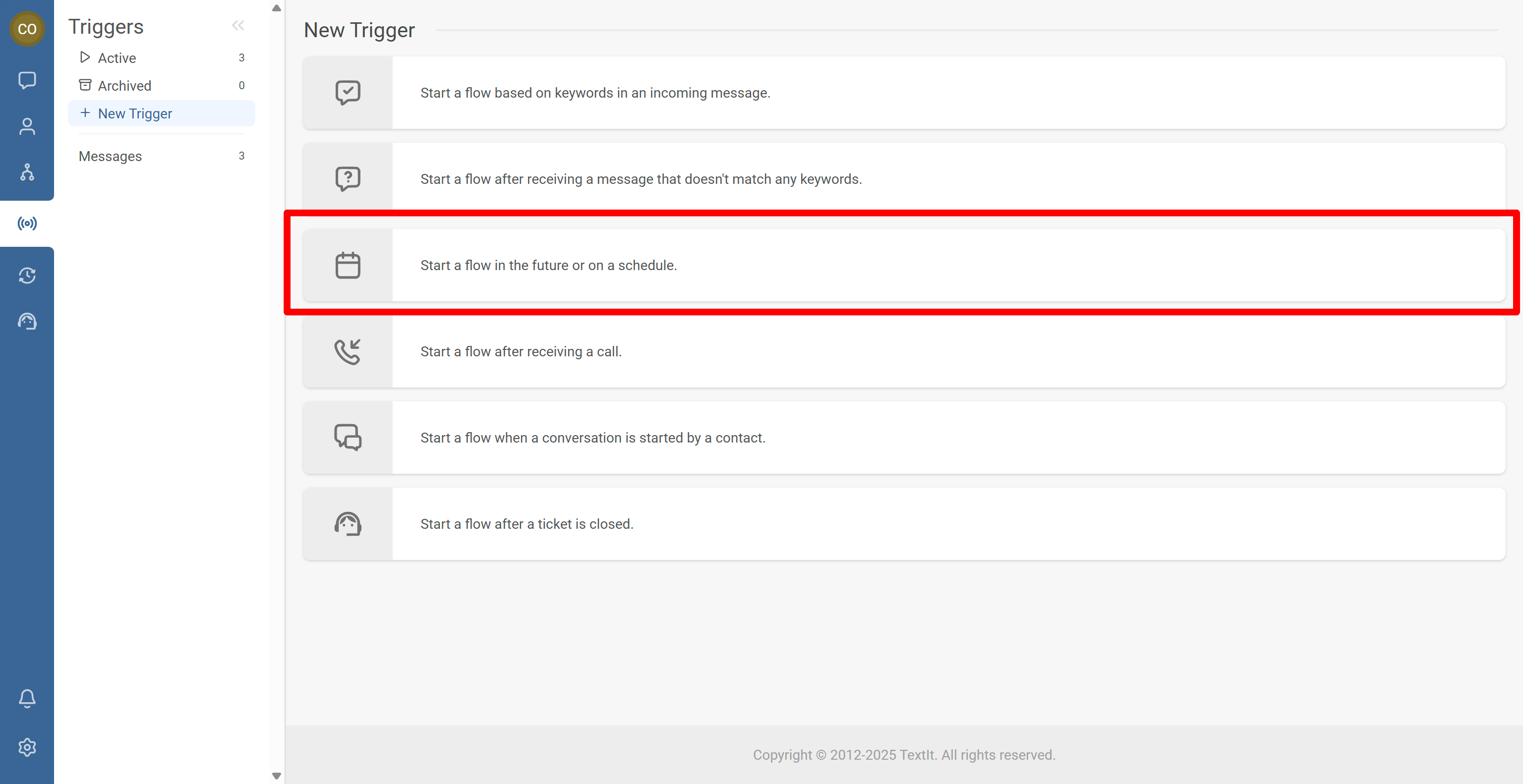
- Select Start a flow in the future or on a schedule
- Set the date/time and verify the workspace timezone
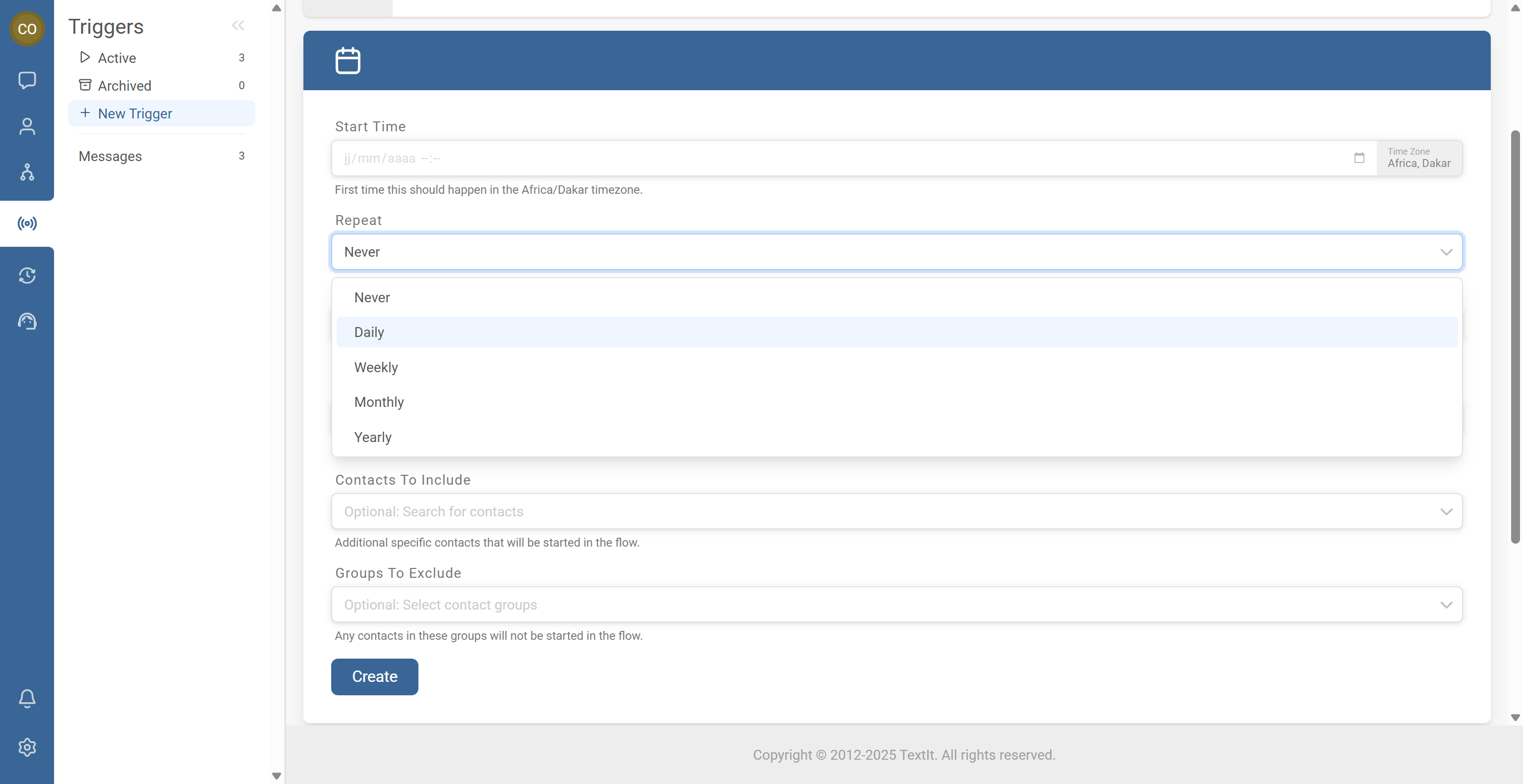
- Add a repeat rule (daily/weekly/monthly) if needed
- Select the flow, review group filters, save, and test with a near-future run
You’re done. The flow will start at the scheduled time (and repeat if configured) for the contacts allowed by your group filters.
Step-by-Step Process
1
Create a new scheduled trigger
- Go to the Triggers tab.
- Click + New Trigger.
2
Choose the scheduling trigger type
- Select Start a flow in the future or on a schedule.
Warning: Timezone matters. Scheduled triggers run using your workspace timezone. If something fires “at the wrong time”, check Workspace Settings → Timezone first.
3
Set the date and time
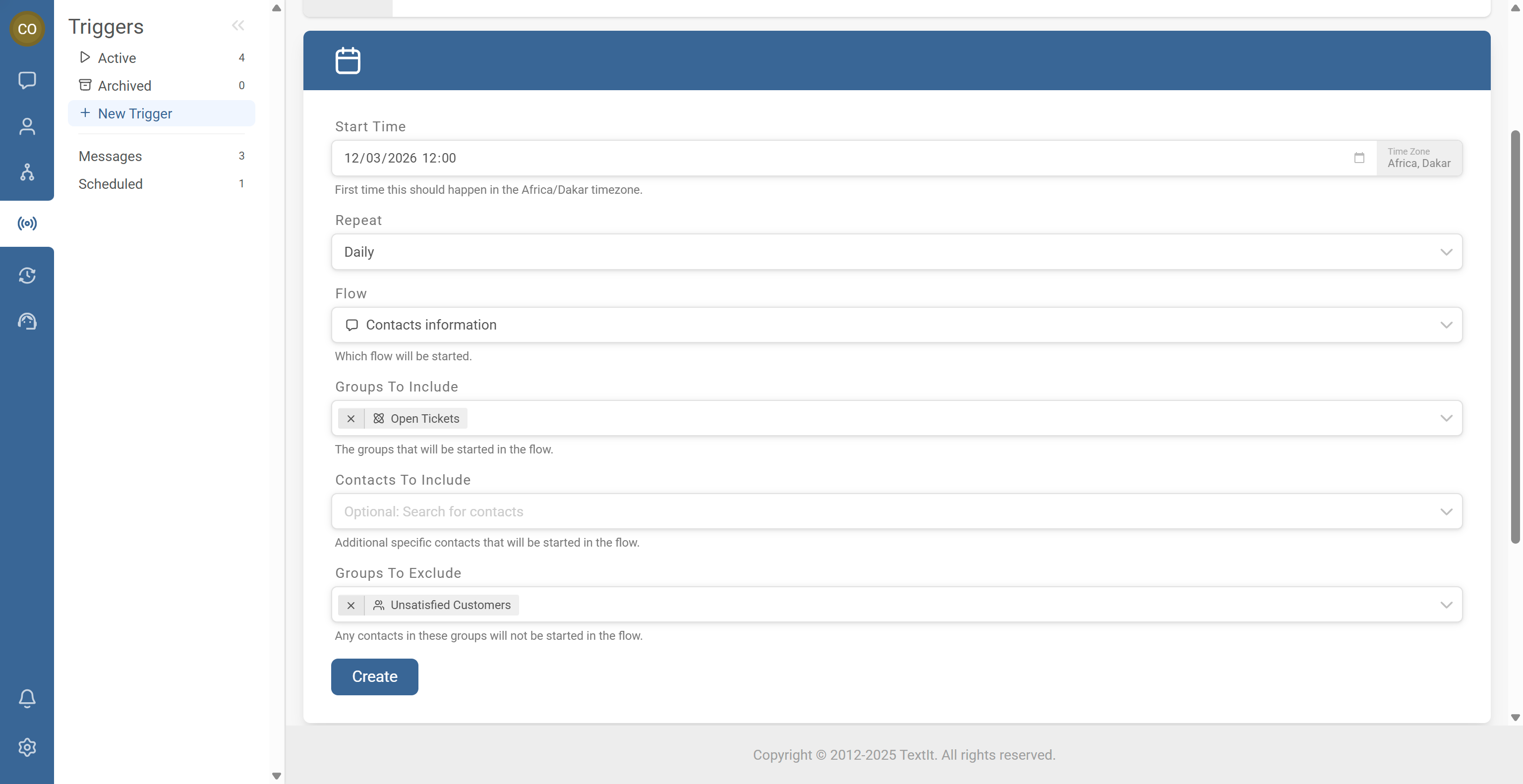
- Choose the date and time when contacts should enter the flow.
- Confirm the timezone displayed matches the timezone you expect the schedule to use.
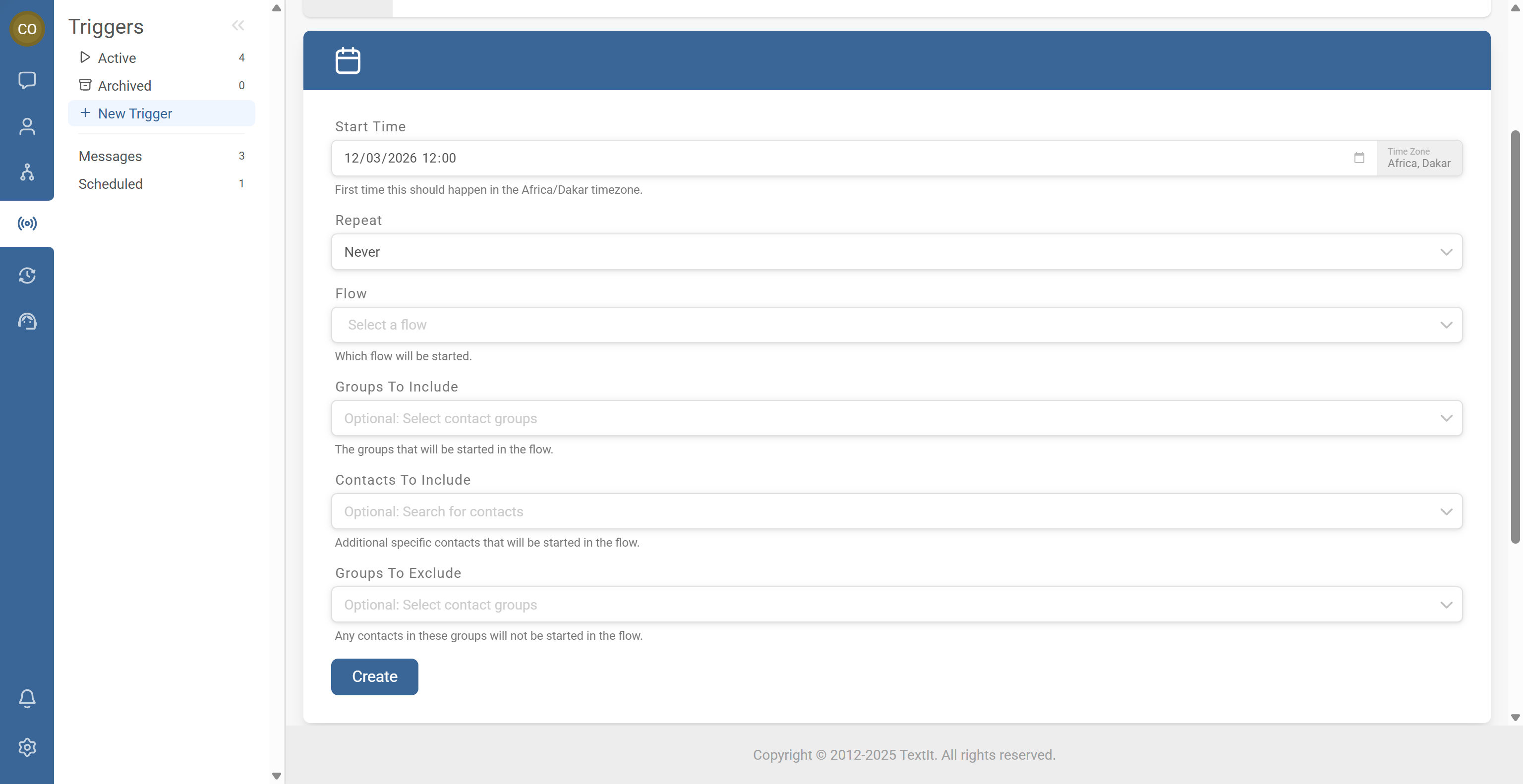
Note: The timezone displayed comes from workspace settings. If it’s incorrect, update your workspace timezone before relying on the schedule.
4
Add a repeat rule when needed
You can choose to repeat the trigger on a regular cadence.
- Daily
- Weekly
- Monthly
Tip: Prefer repeating schedules for recurring programs. For monthly check-ins or weekly reminders, repeating triggers are simpler than creating many one-off triggers.
5
Apply group filters and select the flow
- Optional: Include and/or exclude specific groups to control who starts the flow when the schedule runs.
- Select the flow you want to start on the schedule.
- Click Create to save.
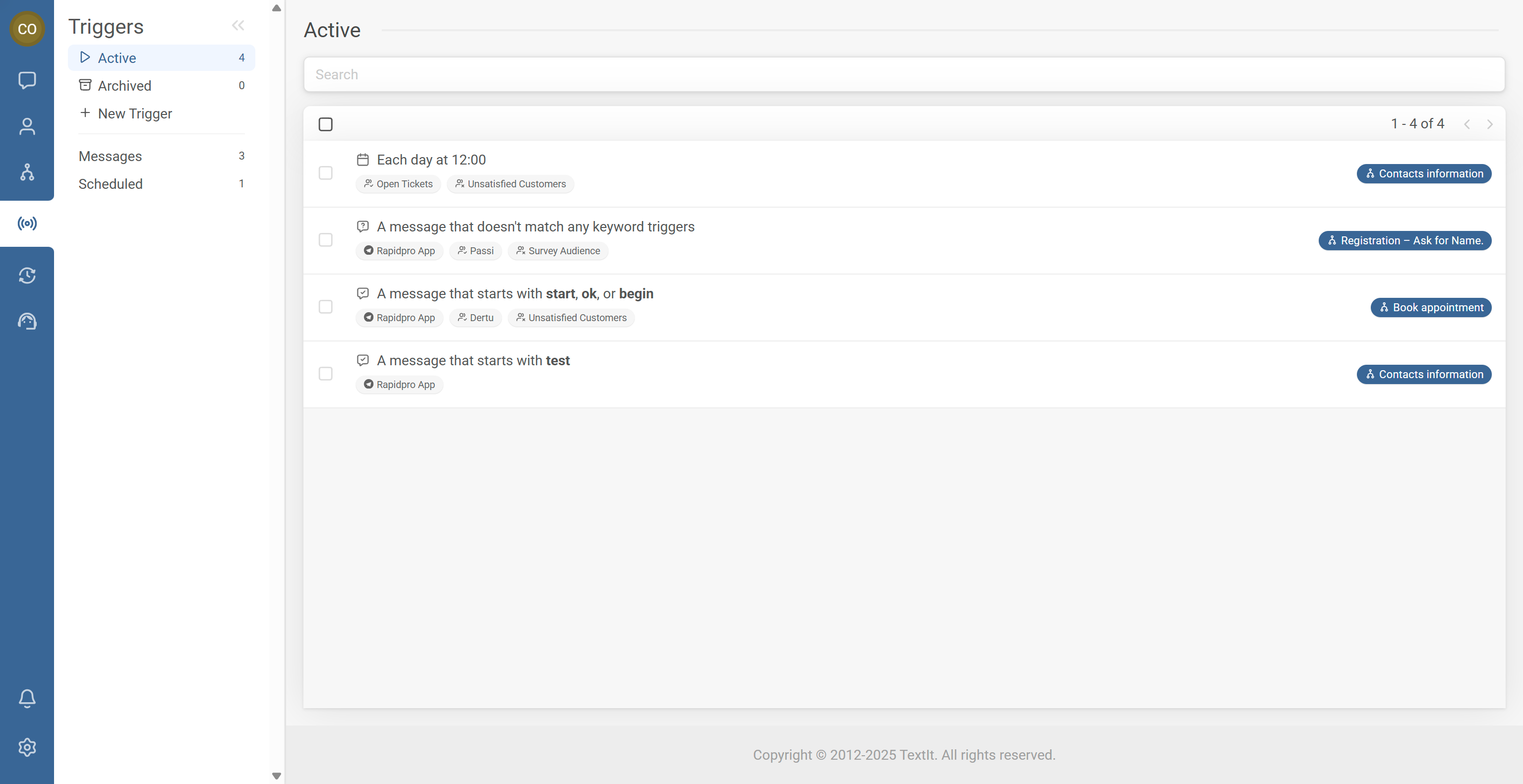
- Confirm it appears in your list of active triggers.
Warning: Group filters can exclude expected contacts. If someone isn’t in an included group (or is in an excluded group), they won’t start the flow even when the schedule runs.
Tip: Test with a near-future run. Set the first run for a few minutes from now to confirm everything works before committing to a long schedule.
6
Example schedule
This example trigger:
- Runs on the 21st of each month
- Starts contacts at 15:45
- Includes members of the Supervisors group
- Excludes members of the Dormant group
- Starts the Crop Survey flow
Common Issues & Quick Fixes
Problem: The trigger runs at the wrong time.
Fix: Check Workspace Settings → Timezone, then reconfirm the trigger’s date/time (especially after any timezone changes).
Problem: Some contacts don’t receive the scheduled flow.
Fix: Review group include/exclude rules and confirm contacts are in the expected groups at the time the trigger runs.
Problem: The trigger doesn’t appear to run.
Fix: Confirm the trigger is enabled and listed as active, then schedule a test run a few minutes ahead and check logs/history.