


Set your timezone and date format in minutes
If you just need the fast path, follow this:
- Open Workspace settings (gear icon)
- Go to Timezone & Date Format settings
- Select the correct timezone for your workspace
- Choose your date format (e.g., DD/MM/YYYY) and save
- Verify the change on a scheduled item (campaign/event/message)
- Align your team and imports to avoid date confusion
You’re done. Your workspace will now display and interpret dates/times consistently across the UI.
Step-by-Step Process
- Log in to your RapidPro.app workspace.
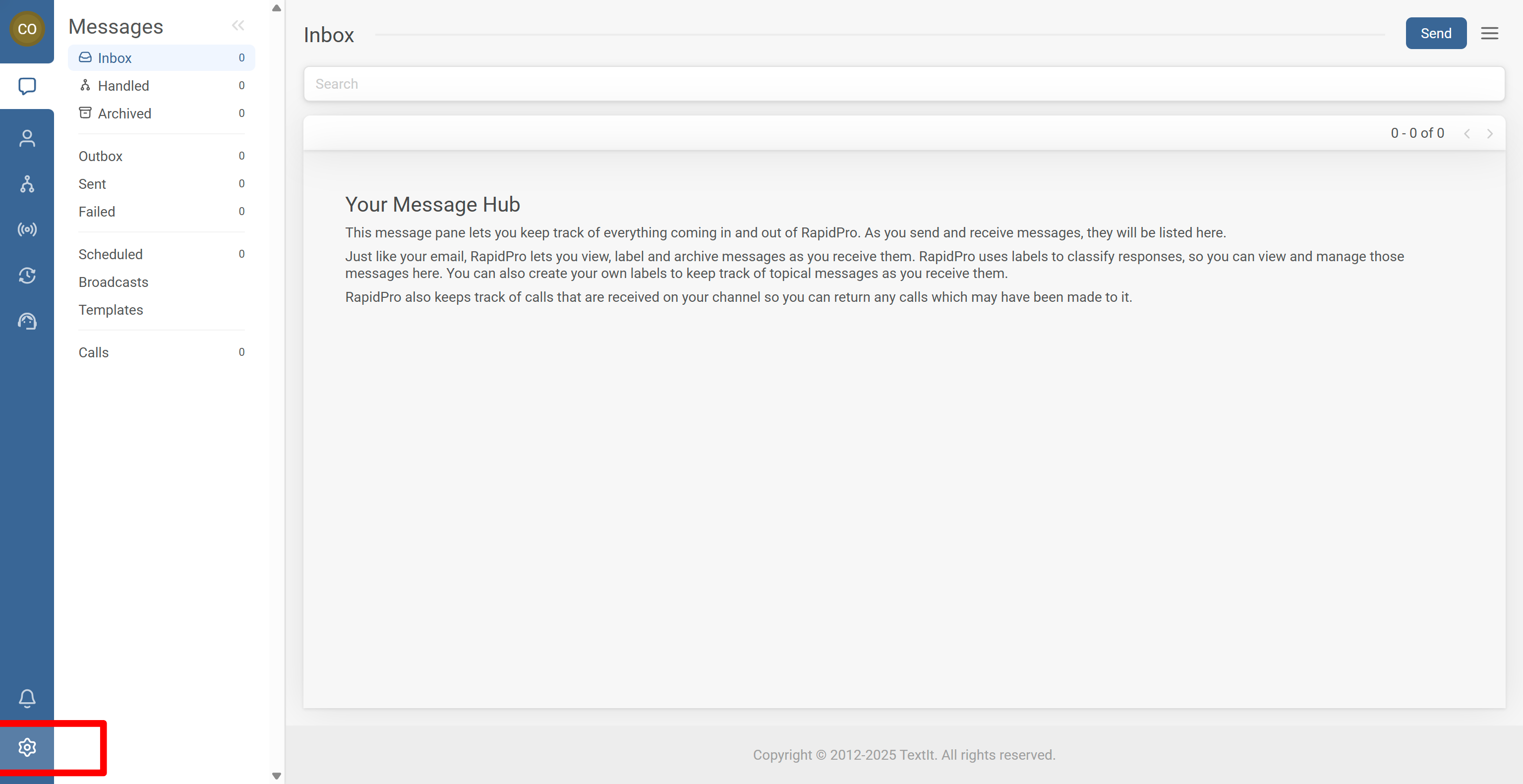
- In the left sidebar, click the Settings gear icon to open Workspace settings.
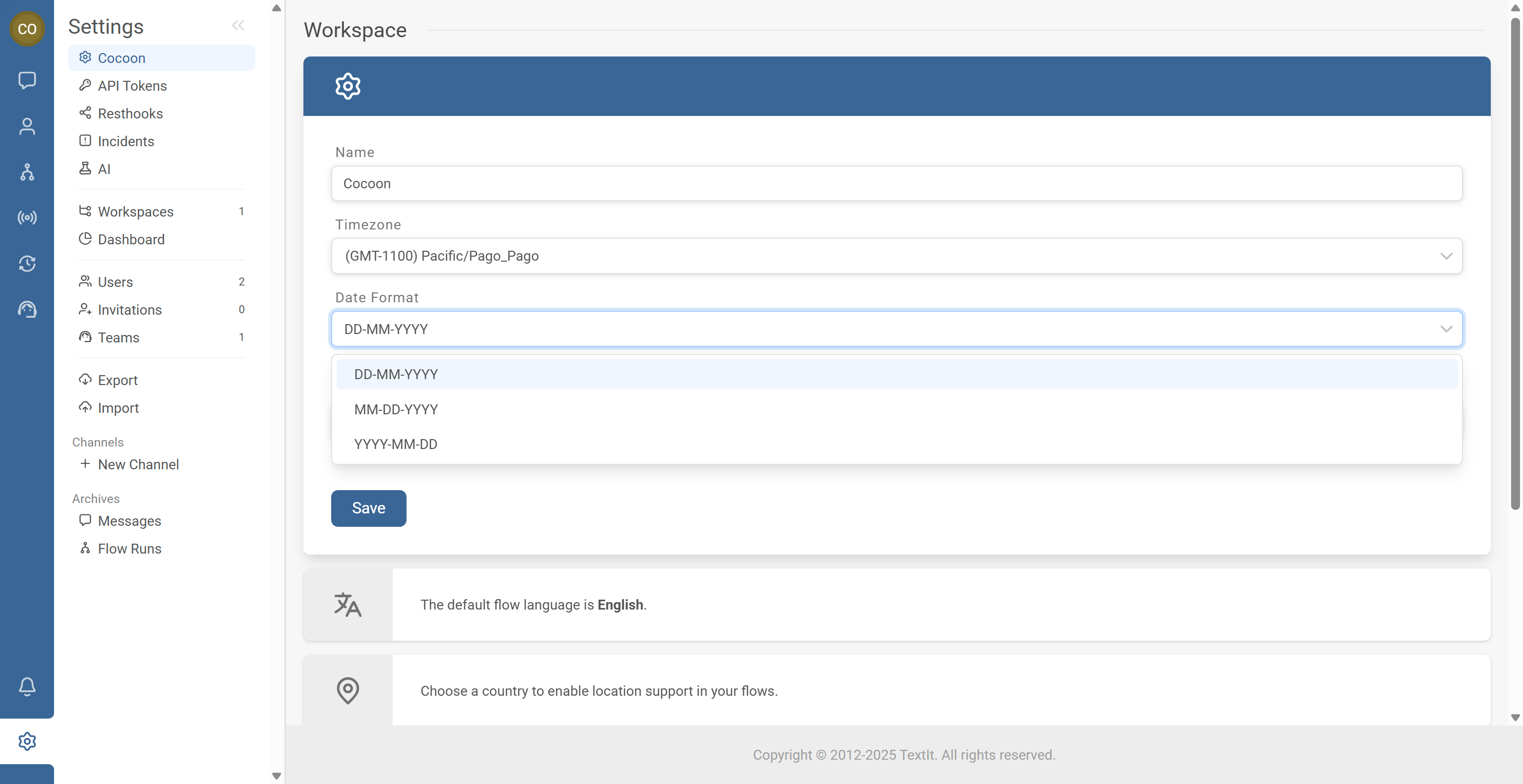
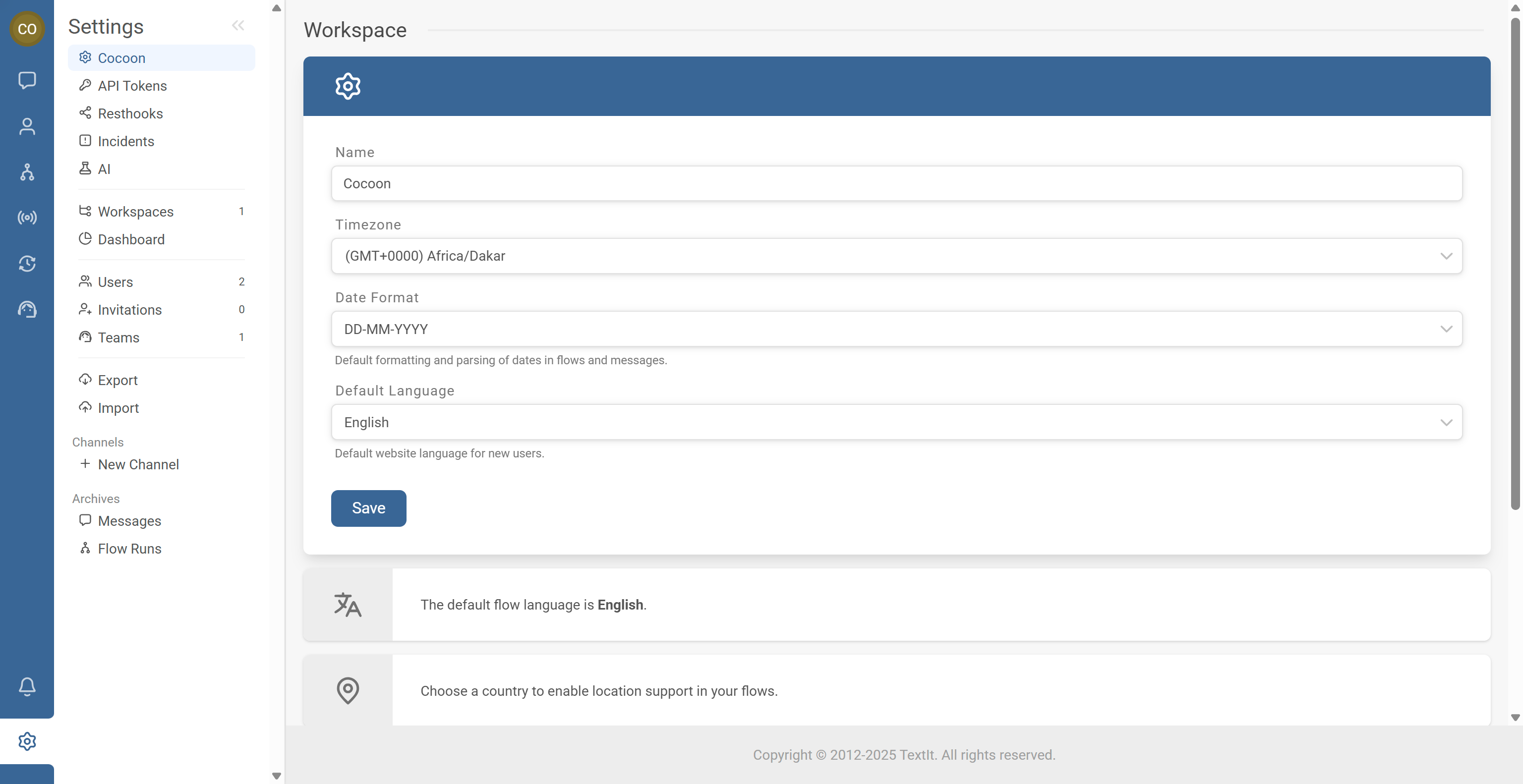
- In Workspace settings, locate the section for Timezone and Date format.
- Open the panel where these settings can be edited.
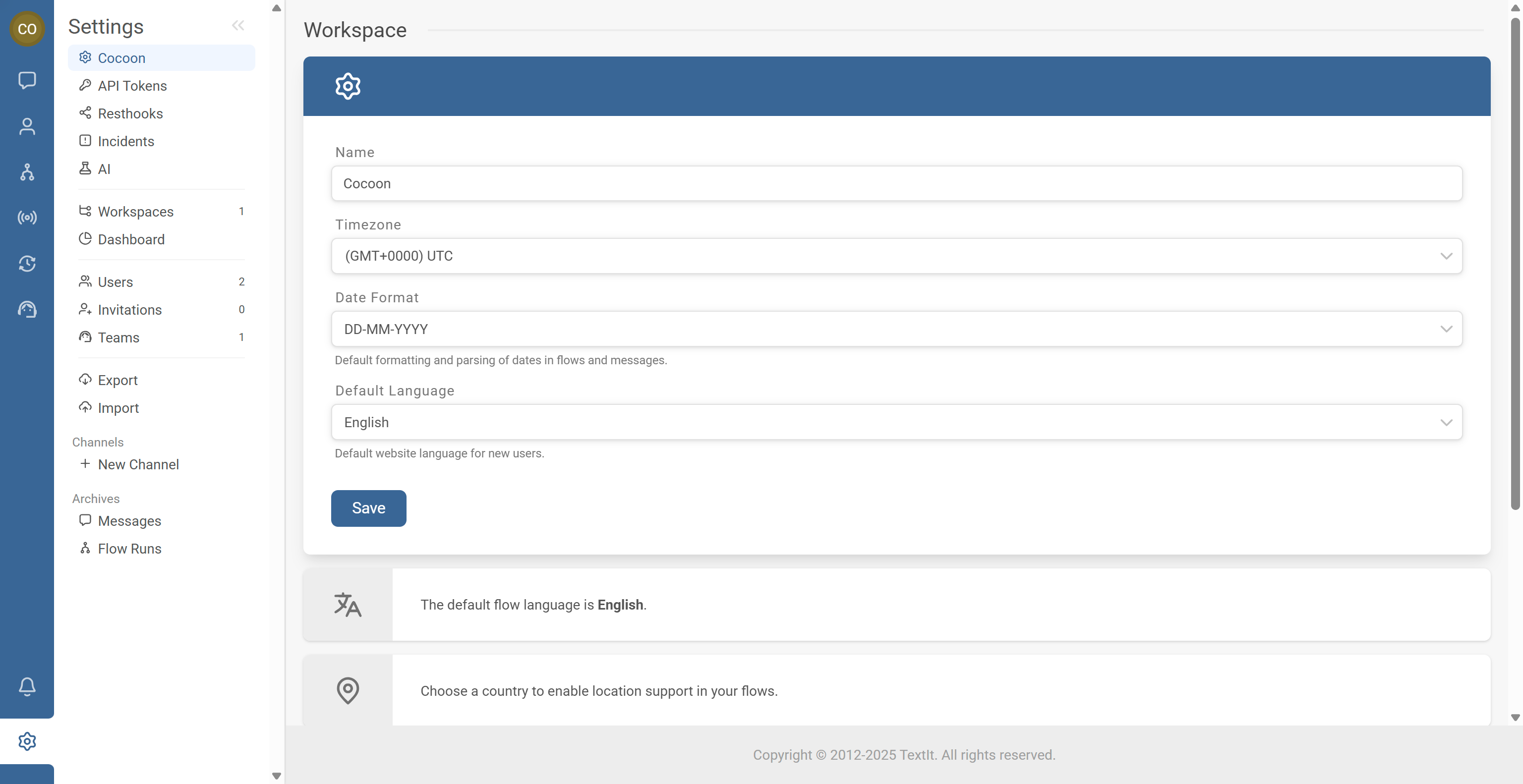
- Find the Timezone dropdown.
- Select the timezone your operations should follow (typically where your team/program runs).
- Confirm the selection is correct before saving.
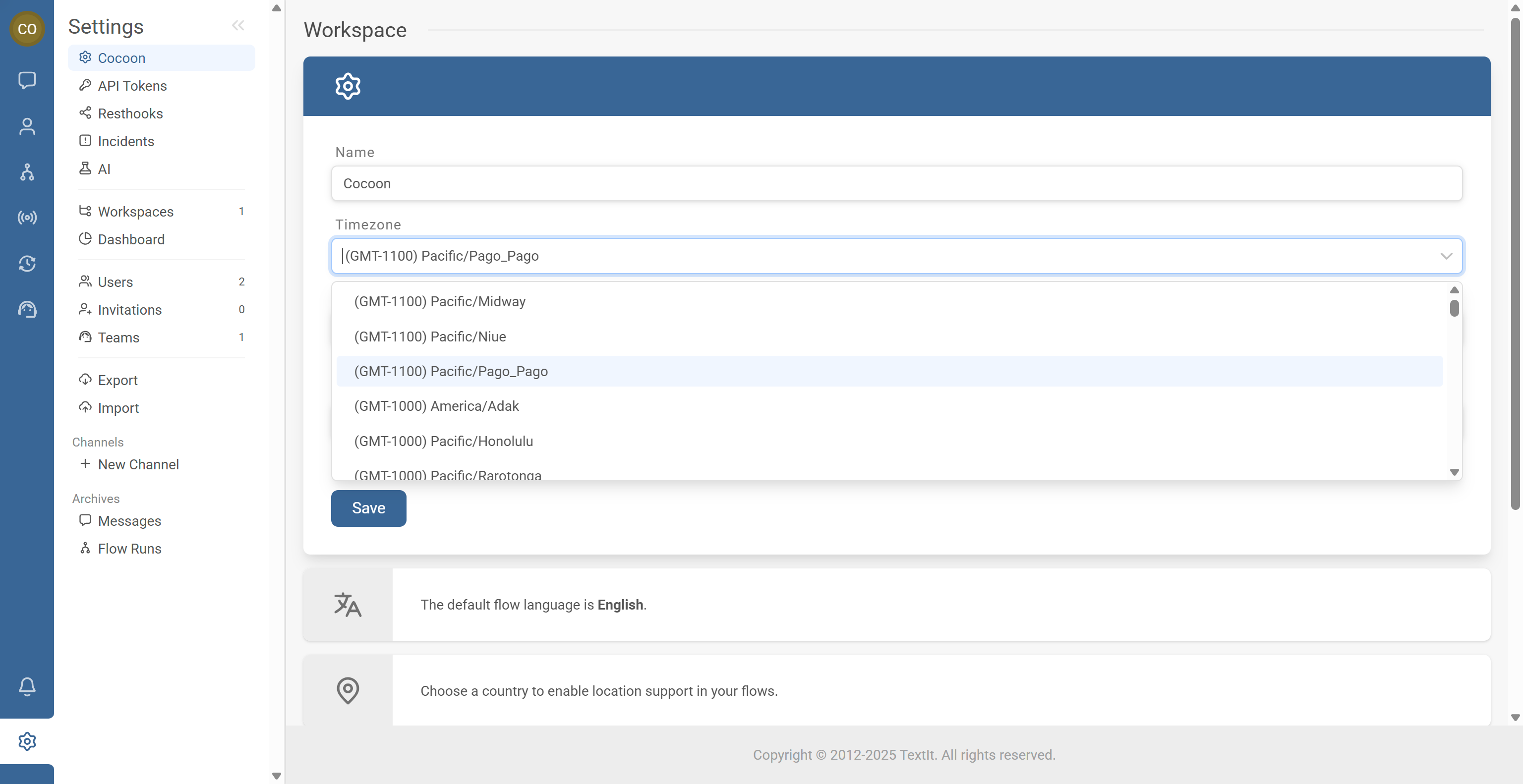
- Find the Date format setting (examples: DD-MM-YYYY or MM-DD-YYYY).
- Select the format your team and audience will use most consistently.
- Click Save to apply the change.
- Open a feature that displays dates/times, such as:
- Campaign events (scheduled messages/flows)
- Scheduled messages
- Recent logs where timestamps appear
- Confirm that:
- The time matches the expected timezone
- The date displays in the format you selected
- Tell your team what the workspace “standard” is (timezone + date format).
- When collecting dates from users in flows, always specify the format in the message (example: DD/MM/YYYY).
- When importing/exporting spreadsheets, ensure date columns match the same convention.
Common Issues & Quick Fixes
Problem: My scheduled events are running at the “wrong time”.
Fix: Confirm the workspace timezone is correct, then re-check the schedule times. If you recently changed the timezone, review upcoming campaign events and adjust times if needed.
Problem: Dates look confusing (example: 03/04/2025) and my team interprets them differently.
Fix: Standardize the workspace date format (DD/MM/YYYY vs MM/DD/YYYY) and document it internally. In flows, always show the expected format plus one example date.
Problem: Imported contact date fields are swapped (day/month) after upload.
Fix: Check the date format used in your import file and make sure it matches the workspace standard. Re-import after correcting the source file format (or convert dates to an unambiguous format before importing).
Problem: I can’t find the timezone/date settings in Workspace settings.
Fix: Confirm your role has admin-level permissions for workspace settings. If you still can’t see it, ask an admin to update the settings (or contact support if the menu is restricted in your environment).
Problem: Some timestamps still look “off” in reports or exports.
Fix: Refresh the page and re-check. Then verify which screen you’re viewing (some exports/logs may show standardized timestamps). If the mismatch persists, capture screenshots of the settings + the screen and share them with support.