


Manage users and roles in a few steps
If you already know what multi-login is and just need the “fast path”, follow this:
- Open the Users & Invitations area in workspace settings
- Send a new invitation to your teammate
- Choose the right role (Admin, Editor, or Agent)
- Review and, if needed, cancel pending invitations
- Update existing users’ roles from the Users tab
- Remove access when someone leaves the workspace
- Let admins know when new members join via email notifications
You’ll keep access secure while giving each teammate the right level of permissions.
Step-by-Step Process
-
- Log in to your RapidPro.app workspace.
- Look at the left-hand navigation menu.
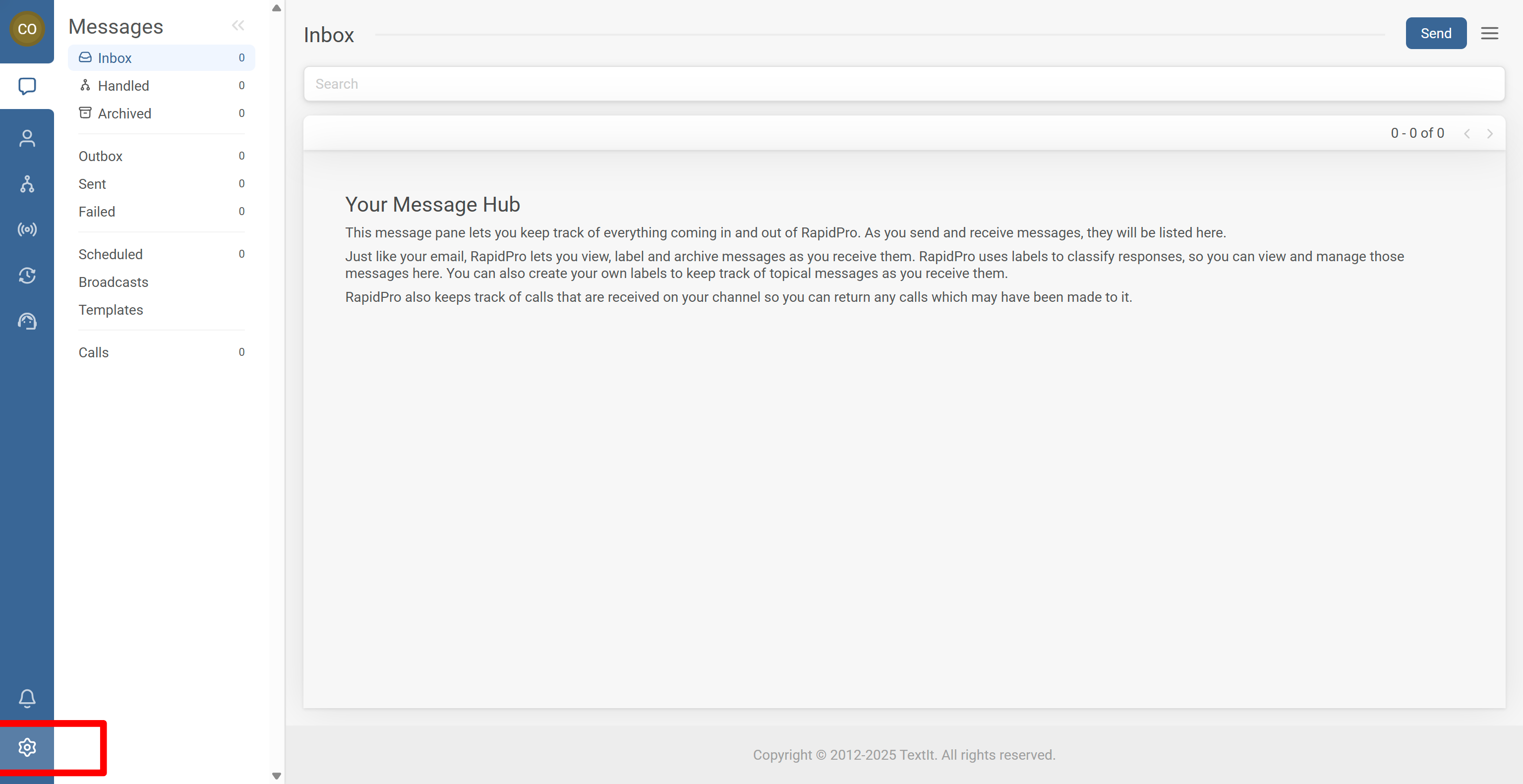
- Click the Settings icon (gear) at the bottom of the sidebar to open the workspace settings.
- On the settings screen, locate and open the section that manages Invitations.
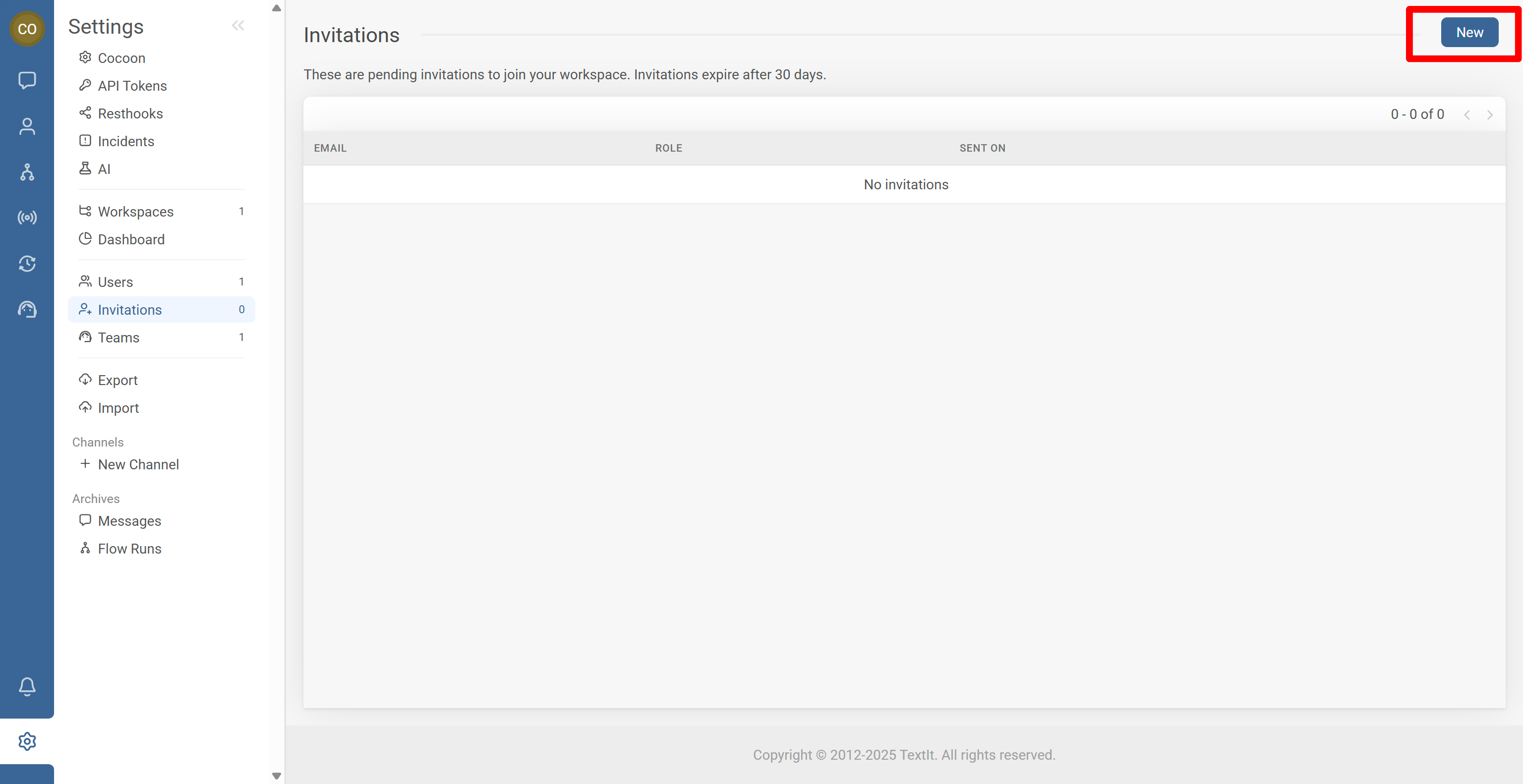
- Go to the Invitations tab.
- Click the New button, usually located in the top-right corner of the invitations list.
- In the invite form, enter your teammate’s email address.
- Choose the role you want to assign to this new user (see the next step for role descriptions).
- Review the details and click Send invitation.
Once sent:
- The invitation appears in the Invitations list as pending.
- The invitee receives an email with a link to create their password and access the workspace.
When you invite someone, you must choose a role. Roles define what each user can see and do in your workspace.
Editors
Editors are designed for teammates who build and manage day-to-day communication.
They can:
- Create and edit flows, campaigns, and triggers
- Start flows and send messages
- Manage contacts (update information, group membership, etc.)
- Export flows, contacts, and messages
- Import and export flows for reuse
They cannot:
- Change core workspace settings (like timezone, language, or billing)
- Manage other users’ roles or invitations
Admins
Admins have full control over the workspace.
In addition to everything Editors can do, Admins can:
- Manage users and roles (invite, update, remove)
- Change workspace settings such as language and timezone
- Configure account-level settings and integrations
Agents
Agents are focused on live support and ticket handling.
They can:
- View and respond to tickets or live chats
They cannot:
- Edit flows, campaigns, or triggers
- Send broadcasts or manage contacts
- Change workspace settings, users, or roles
- Open the Invitations tab again.
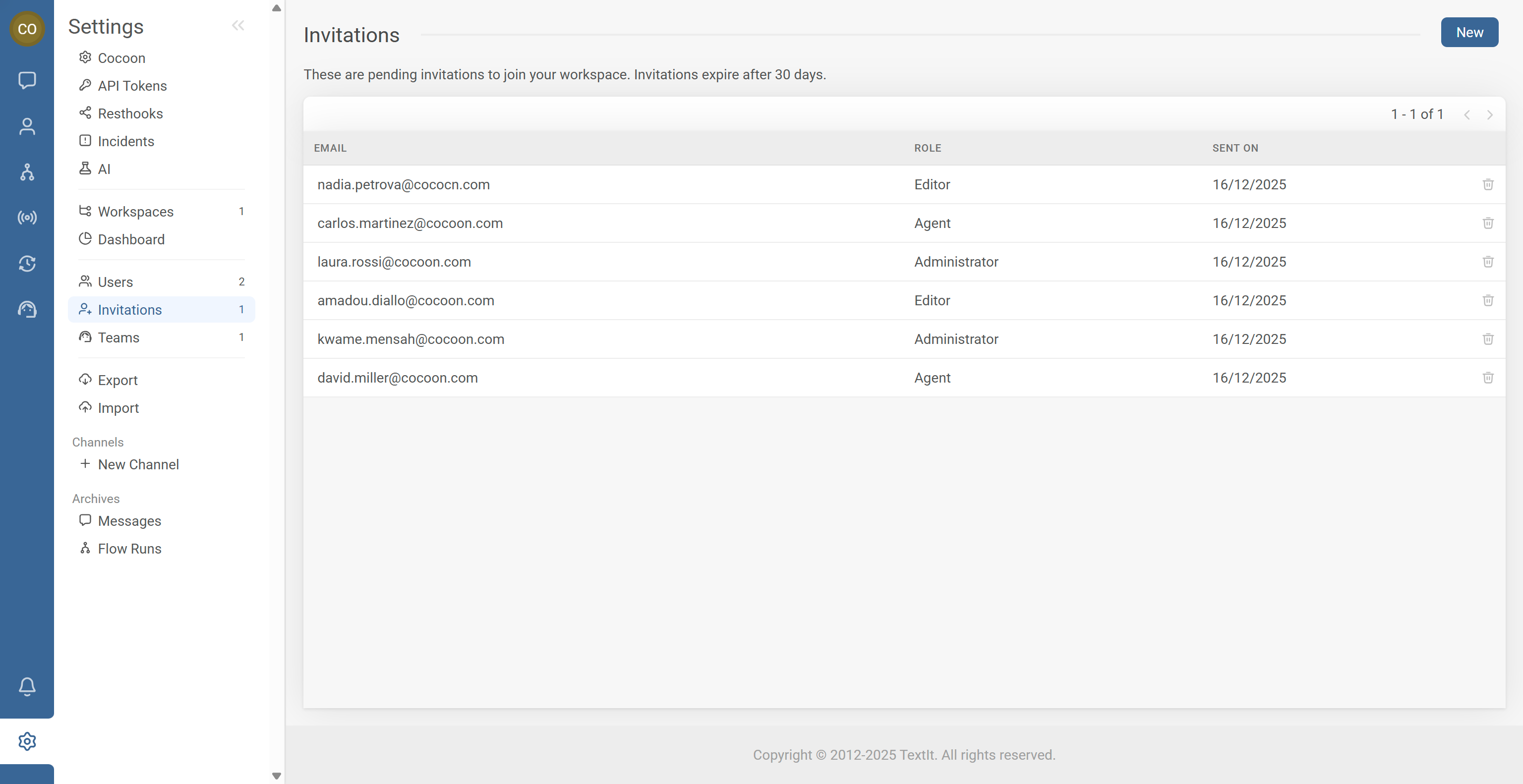
- Review the list of all pending invitations, including:
- Invitee email address
- Assigned role
- Invitation status or date
If you sent an invitation by mistake or the user should no longer join:
- Locate the correct invitation in the list.
- Click the trash icon at the far right of the row to cancel the invite.
After the invitee accepts:
- The user disappears from Invitations.
- They appear in the Users tab as an active user.
- Go to the Users tab to see all current members of your workspace.
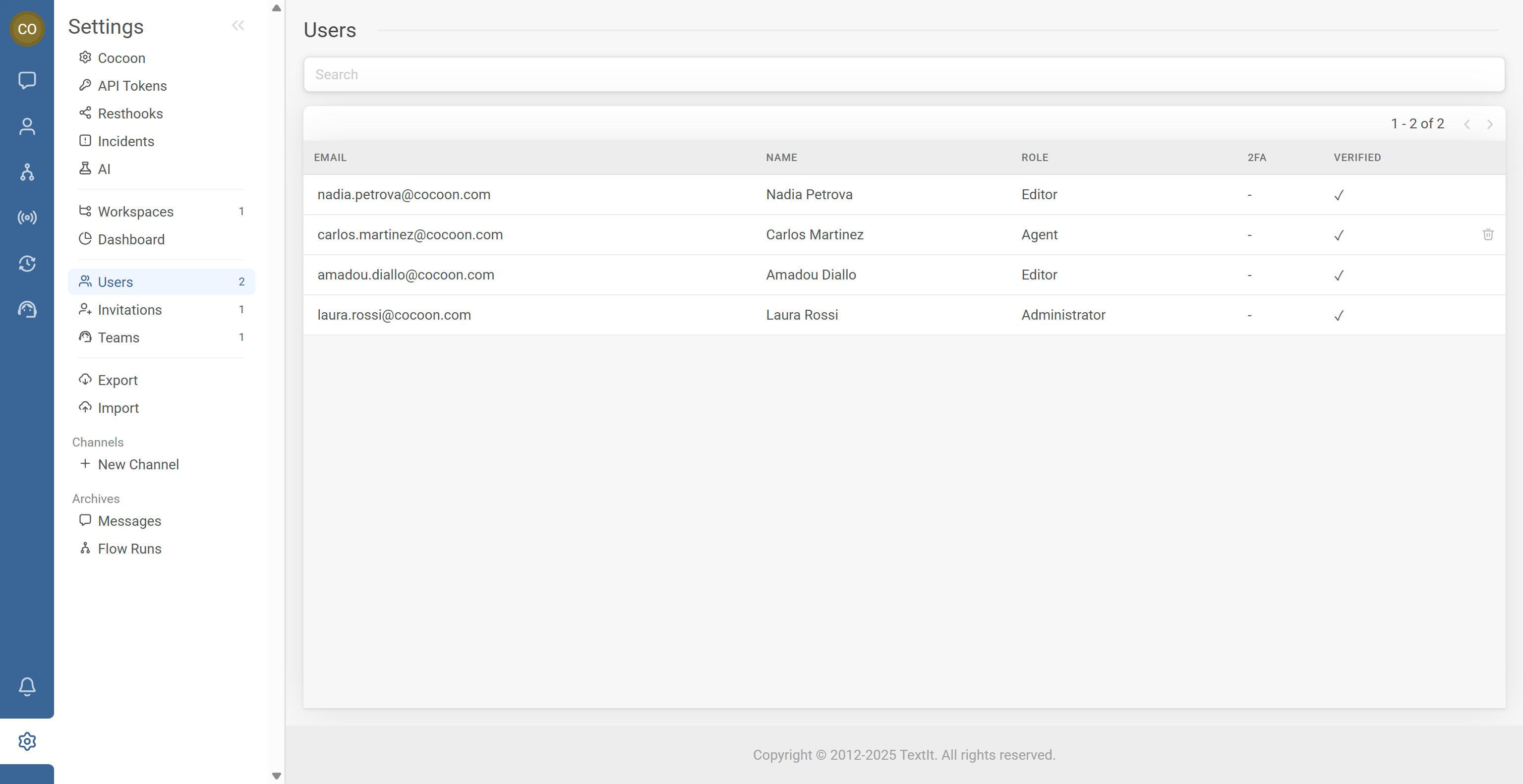
- Use the search bar at the top of the list to quickly find a user by name or email if your workspace has many users.
- Click on a user’s name or email to open their user details.
- In the user details screen:
- Change their role (e.g., from Agent to Editor, or Editor to Admin).
- Click Save to apply the changes.
If someone leaves the organization or no longer needs access:
- On the Users tab, locate their entry in the list.
- At the far right of their row, click the trash icon.
- Confirm the removal when prompted to revoke this user’s access to the workspace.
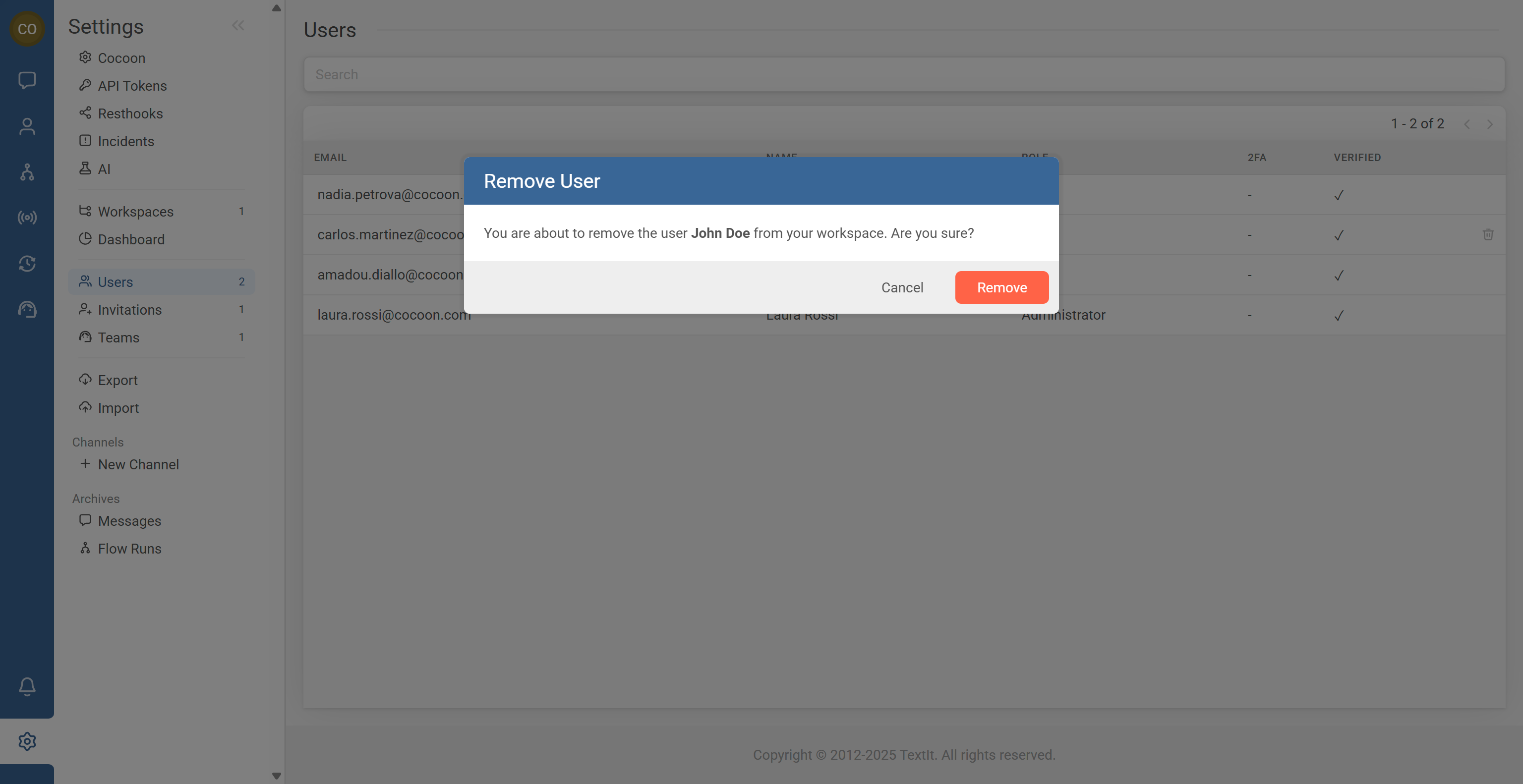
Once removed:
- The user can no longer log into this workspace.
- Their past activity (flows created, messages sent, etc.) typically remains in the history, but they lose live access.
When a new user accepts an invitation:
- Workspace administrators receive an email notification confirming that a new member has joined.
- This helps admins keep track of who has access, especially in larger teams or regulated environments.
Multi-login lets you invite multiple users with their own accounts and roles. In addition, RapidPro.app also supports multi-session for a single user account.
That means you can stay logged in with the same account on multiple devices at once, such as:
- Laptop at the office
- Desktop in the control room
- Browser on your home computer
- Tablet or mobile browser in the field
There is no hard limit on the number of active sessions for one user.
To log out from a device:
- Click your profile icon / initials in the interface.
- Select Log out.
Common Issues & Quick Fixes
Problem: Invitation email not received
Fix:
- Ask them to check Spam / Junk / Promotions folders.
- Confirm that you entered the correct email address (no typo).
- Resend the invitation if necessary by removing the old invite and creating a new one.
- If your organization has strict filters, ask IT to allow emails from your RapidPro.app domain.
Problem: User accepted the invite but cannot see what they expect
Fix:
- Go to the Users tab and check the user’s role (Agent, Editor, Admin).
- If they should build flows or send messages, make sure they are at least an Editor.
- If they should manage settings and other users, assign Admin.
- Click Save after changing the role and ask the user to refresh their browser.
Problem: User can’t find their invite or logs in with the wrong account
Fix:
- Confirm which email address was invited (e.g.
name@organization.orgvsname@gmail.com). - Ask the user to log out and log back in using the same email that received the invitation.
- If they accidentally created a separate account with another email, remove that user and reinvite the correct one.