


Test any flow in minutes (fast path)
If you just want the basics, follow this:
- Open any flow in the flow editor
- Click the phone icon on the right to open the simulator
- Reply like a contact would to complete the flow
- Check the action log for results and updates (e.g.,
@results.name) - Switch the flow language first if you want to test a specific language
You’re done. If the simulator conversation and the action log look correct, your flow is ready for real testing.
Step-by-Step Process
- Log in to your RapidPro.app workspace.
- Go to the Flows section.
- Click the flow you want to test to open it in the flow editor.
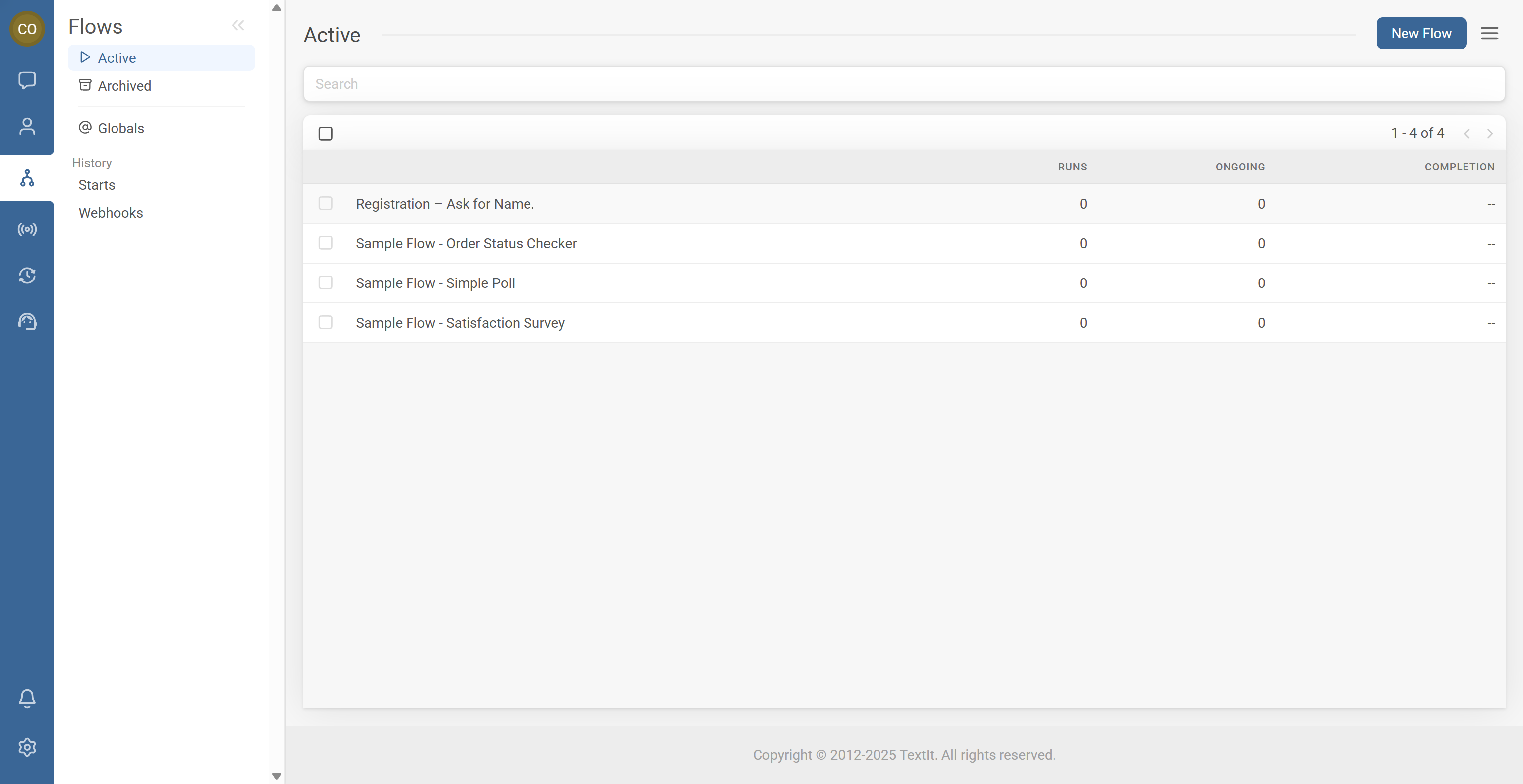
- In the flow editor, look at the right-hand side of the screen.
- Find the phone icon (simulator icon).
- Click the phone icon to open the simulator panel.
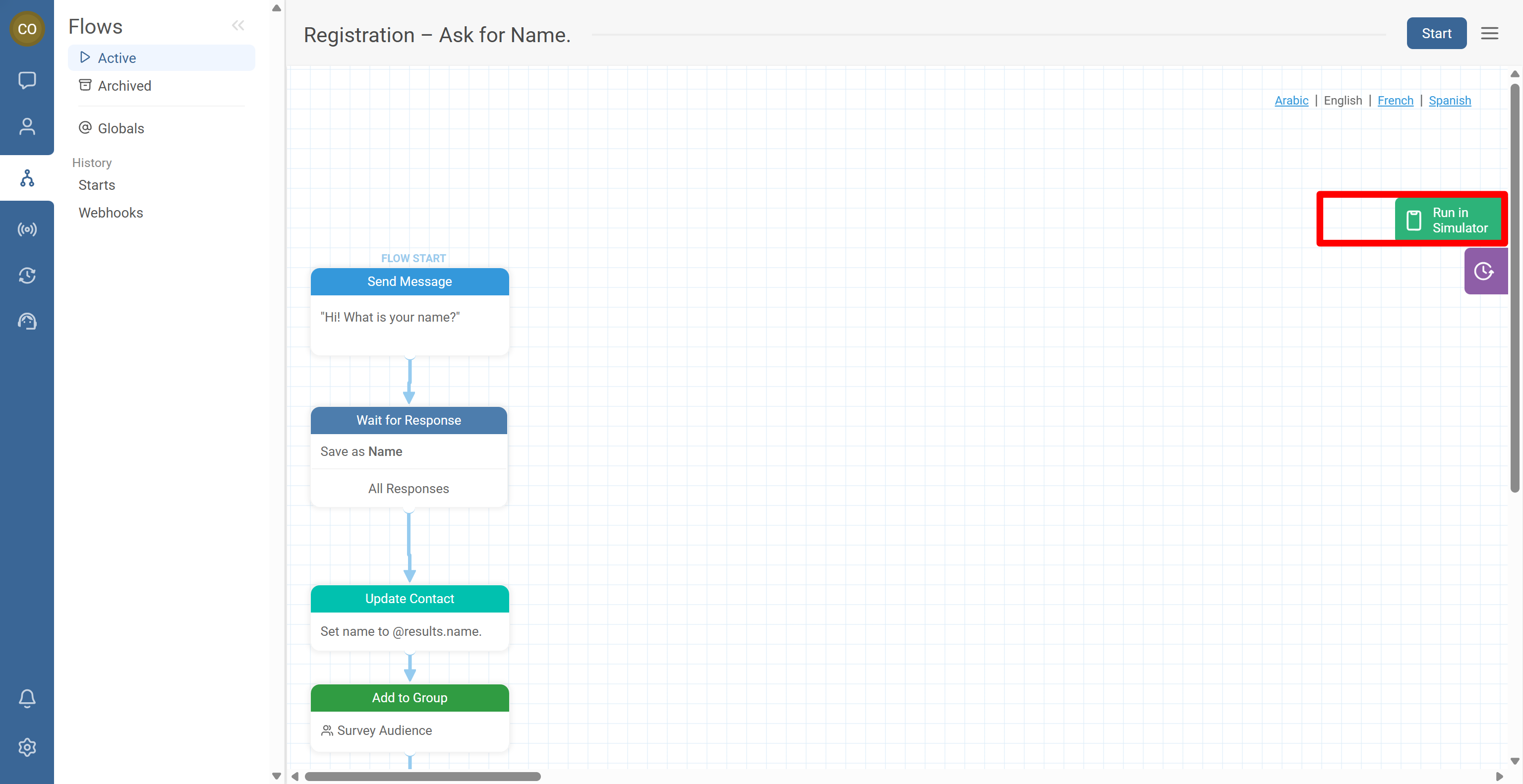
Once opened, the simulator starts the flow and initiates the first step automatically.
- Read the first message shown in the simulator.
- Reply as if you were the contact (for example, type “Jane Doe” when asked for a name).
- Continue responding to prompts until the flow completes.
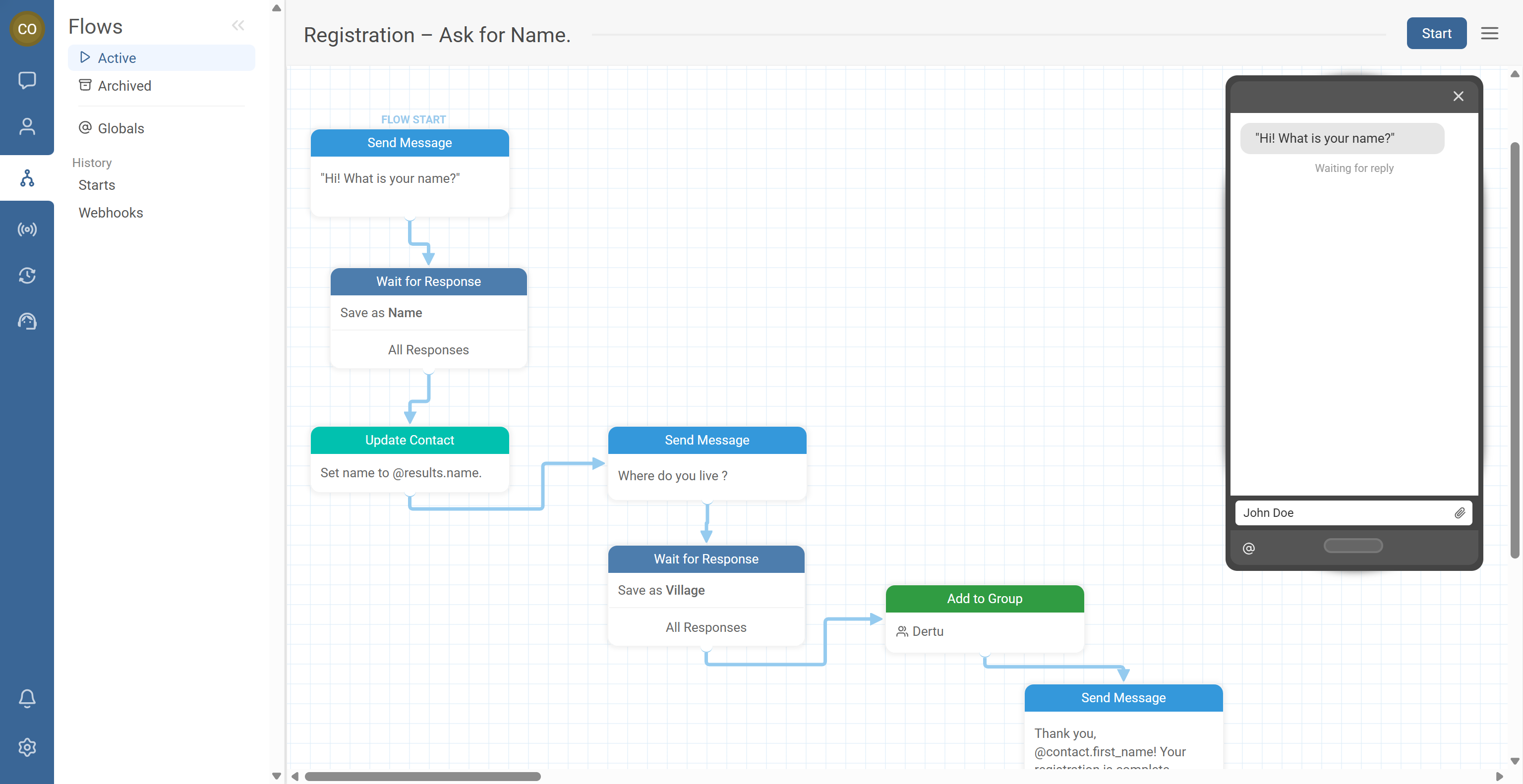
As you progress:
- You’ll see exactly what the contact would see.
- You can confirm wording, sequencing, and branching behavior.
The contact view shows the conversation, but the simulator also includes an action log that records internal actions.
Use it to verify things like:
- A response was stored in a result variable (e.g.,
@results.name). - A contact field was updated (e.g., Name changed to “John Doe”).
- A variable was assigned (e.g.,
@results.village = Passi). - The contact exited the flow.

@results.* assignment), your flow may look fine in chat but fail to store or route data correctly.Common Issues & Quick Fixes
Problem: I can’t find the simulator icon.
Fix: Confirm you’re in the flow editor (not just the Flows list). Expand your browser window—on small screens the simulator may be collapsed or hidden. Look for the phone-shaped icon on the right edge of the editor.
Problem: The simulator starts, but the flow doesn’t do anything.
Fix: Check that your flow has a valid starting path (a Send Message or other action connected from the start). Confirm there are no broken connections between nodes. If the flow waits for a response, type a response in the simulator input field.
Problem: The action log doesn’t show the updates I expected.
Fix: Verify your Wait for Response node saves the result (e.g., result name = name). Confirm your Update the Contact node uses the correct variable (e.g., @results.name). Re-run the simulation from the beginning and watch the action log step-by-step.
Problem: The simulator is using the wrong language.
Fix: Select the correct language in the flow editor first, then restart the simulator. Confirm translations exist for that language inside the flow.