


Create your account in a few steps
If you just want the short version, follow these steps:
Step-by-Step Process
1
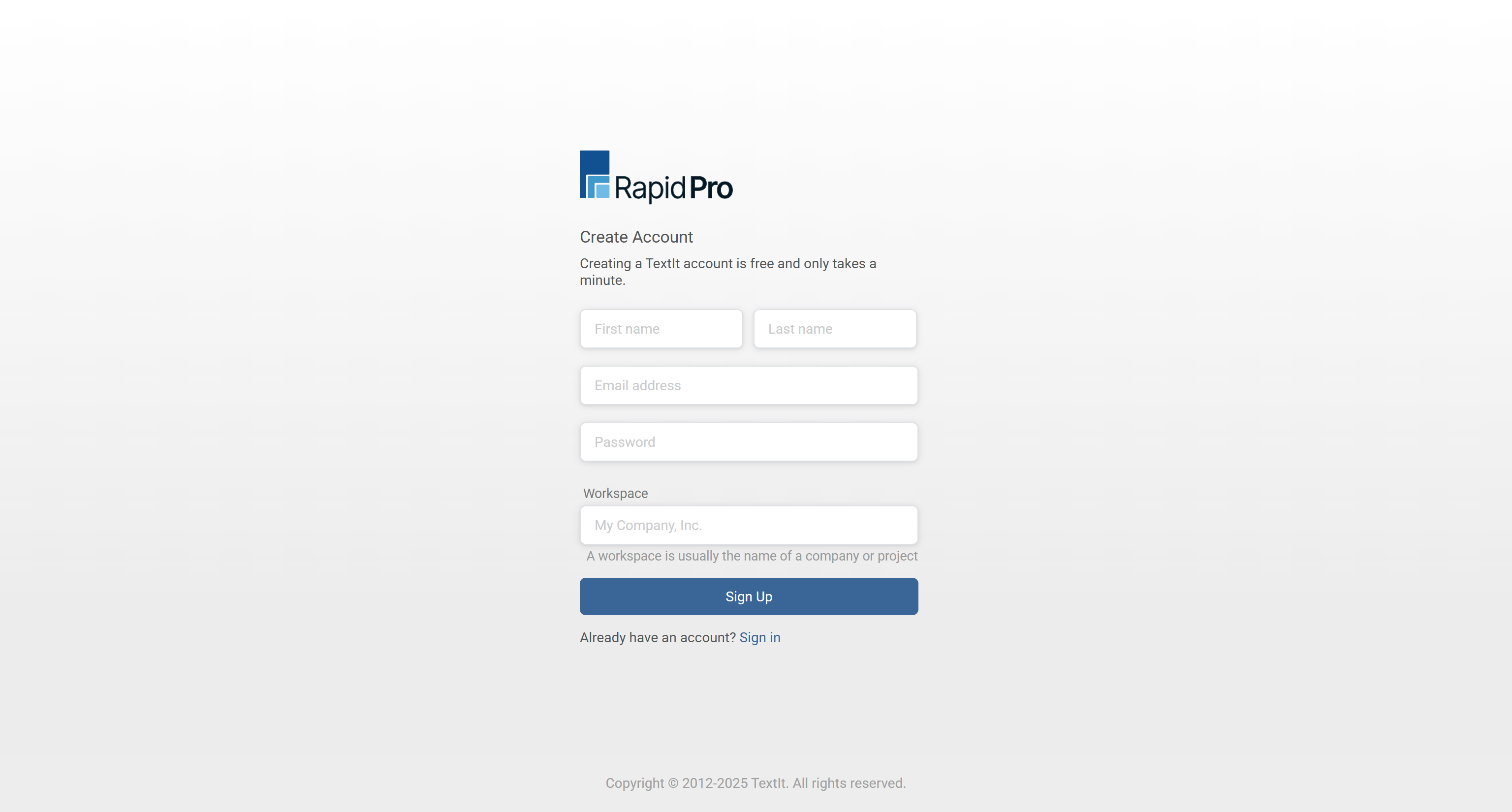
Open the sign-up page
- Open your preferred web browser (Chrome, Firefox, Edge, etc.).
- In the address bar, type:
https://demo.rapidpro.app/accounts/signup/ - Press Enter and wait for the sign-up page to load.
Note: Once your workspace is created, your access URL will follow this format:
https://workspace-name.rapidpro.app
https://workspace-name.rapidpro.app
Tip: Bookmark the sign-up or login URL if you will frequently log in from the same device.
2
Fill in your personal details and workspace
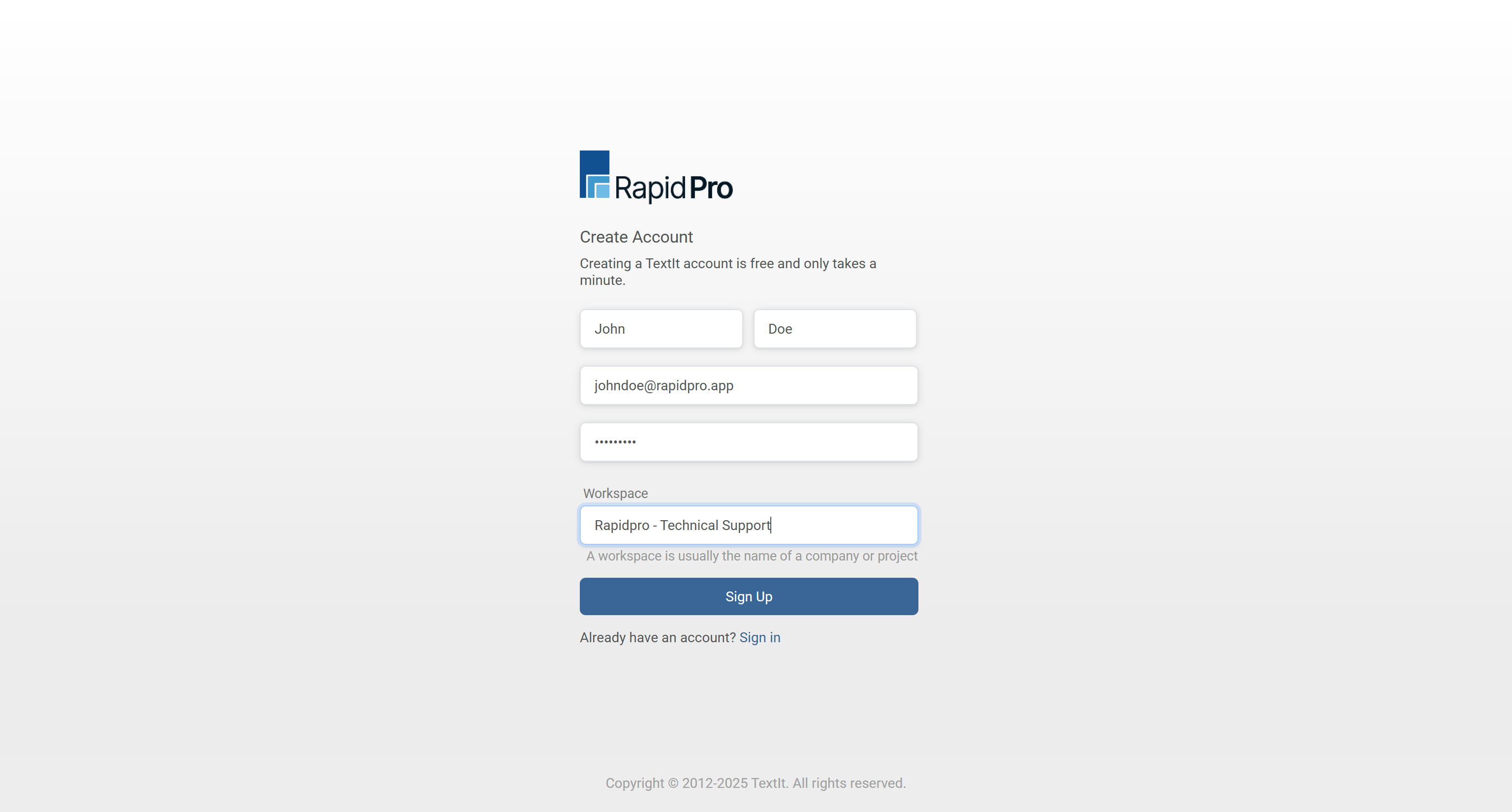
- In the First name field, enter your first name (e.g., “John”).
- In the Last name field, enter your lat name (e.g., “Doe”).
- In the Email field, enter the email address you want to use for your RapidPro.app account.
- Ideally, use a work or project email, not a personal one.
- In the Password field, choose a strong password:
- At least 8–12 characters.
- A mix of letters, numbers, and symbols.
- In the Workspace field, enter the name of the workspace you want to create. For example:
- Your organization name: “Ministry of Health – Hotline”
- A project name: “Youth Hotline Pilot”
Warning: Make sure the email address is valid and accessible. You won’t be able to complete sign-up without validating it.
Technical Detail: The Workspace name may be used internally to identify your environment and can appear in workspace lists or administration screens.
3
Submit the registration form
- Double-check your details:
- Correct spelling for your name and workspace.
- No typo in your email.
- Click the Sign up button at the bottom of the form.
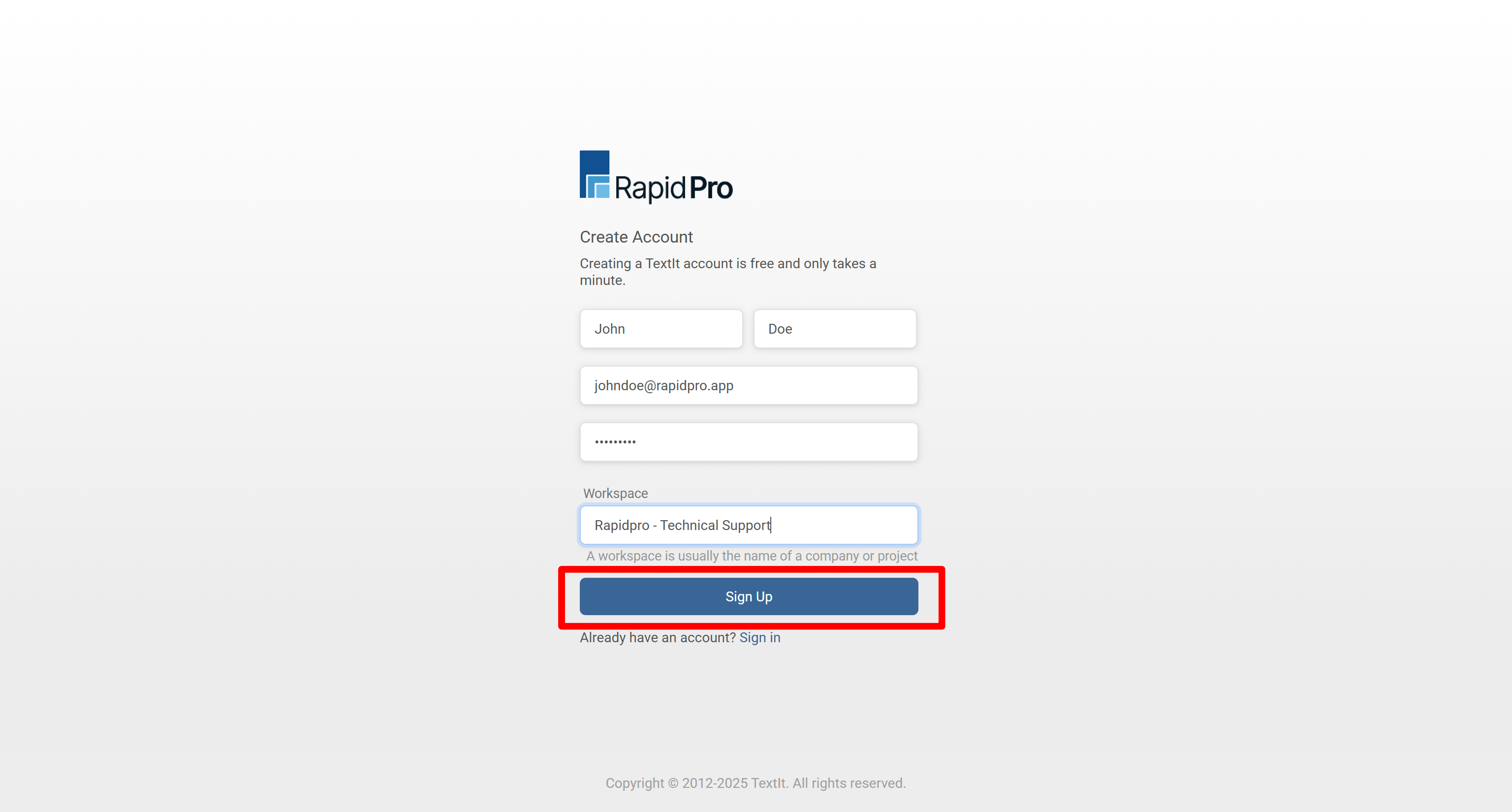
- If everything is valid, RapidPro.app will:
- Create your account in a pending verification state.
- Display a message instructing you to verify your email.
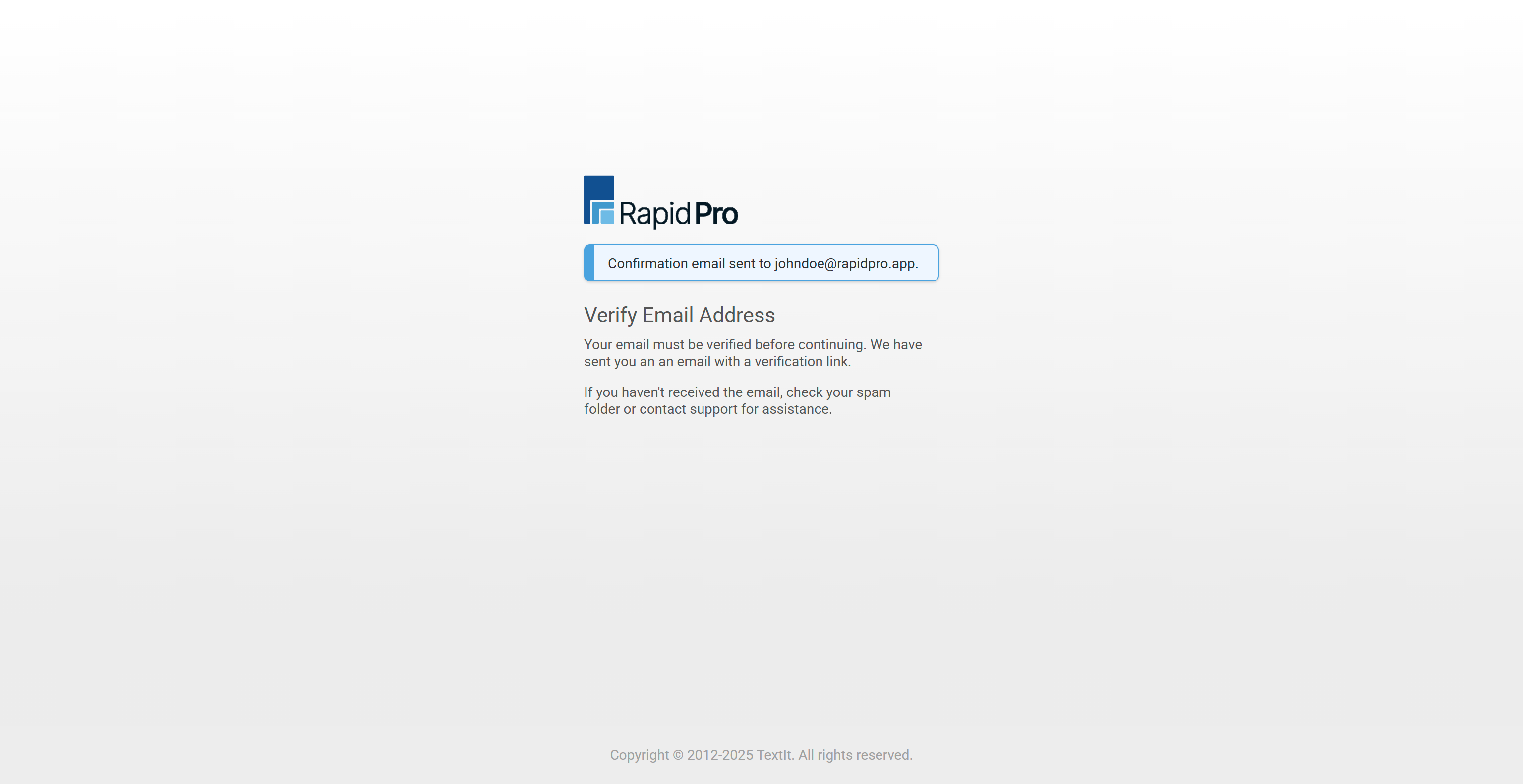
Tip: If the form shows an error (e.g. “This email is already registered”), correct the indicated field and click Sign up again.
4
Verify your email address
To activate your account, you must confirm your email.
- Open the inbox of the email account you used during sign-up.
- Look for an email from RapidPro.app with a subject like “Verify your email address”.
- If you don’t see the email:
- Refresh your inbox.
- Check your Spam, Junk, or Promotions folders.
- Wait a couple of minutes in case of delivery delay.
- Open the verification email.
- Click the verification link inside the message.
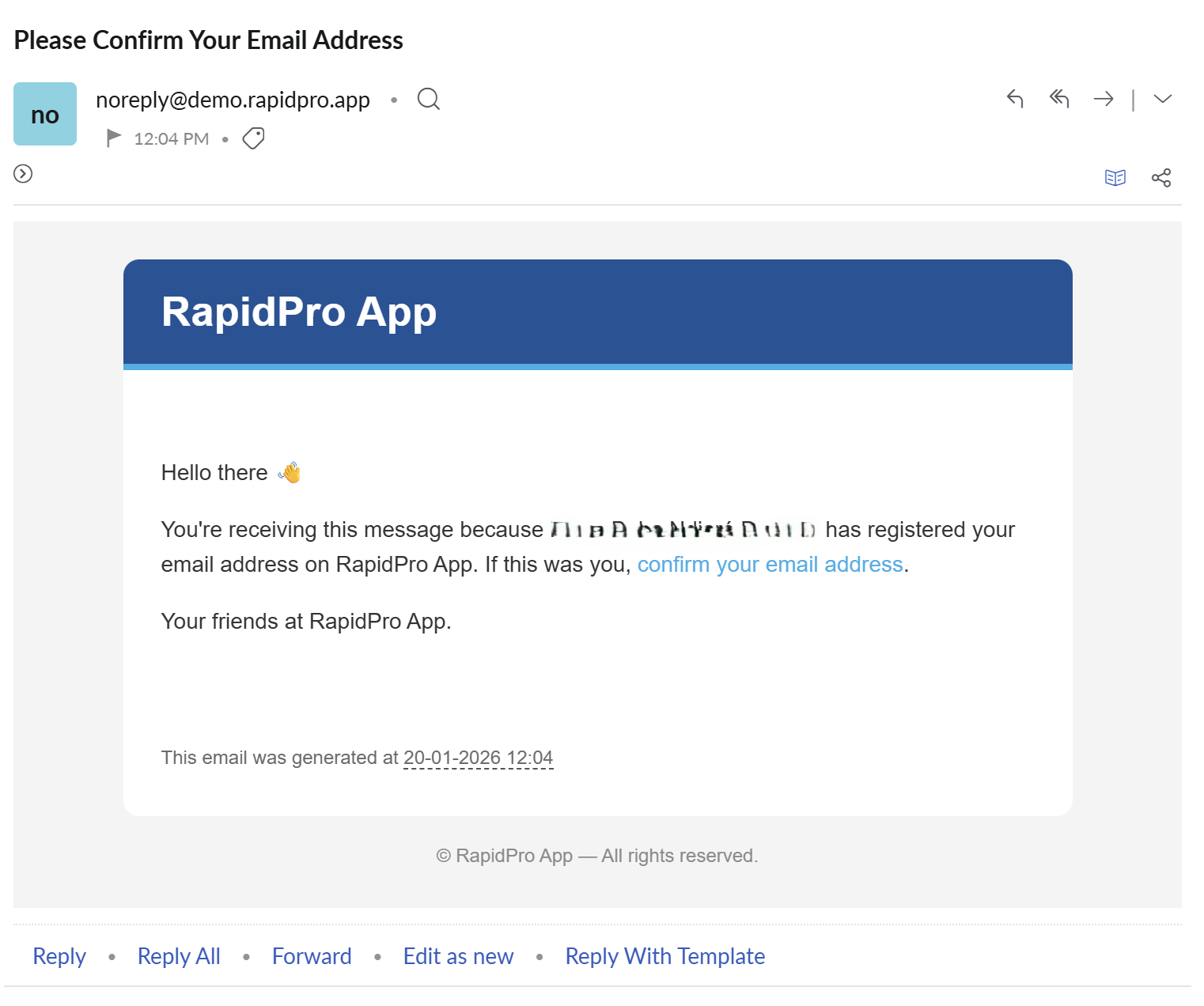
- After clicking the link, you’ll be redirected to the login page (or you can manually open the login URL
https://demo.rapidpro.app/accounts/login/).
Warning: If you do not verify your email, you will not be able to continue using RapidPro.app or access your workspace.
Tip: If you still don’t receive any email after several minutes, contact your administrator or support. Some organizations have strict email filters.
5
Log in to your new account
- Go to the login page (for example
https://demo.rapidpro.app/accounts/login/). - Enter the email you used during sign-up.
- Enter your password.
- Click Sign in.
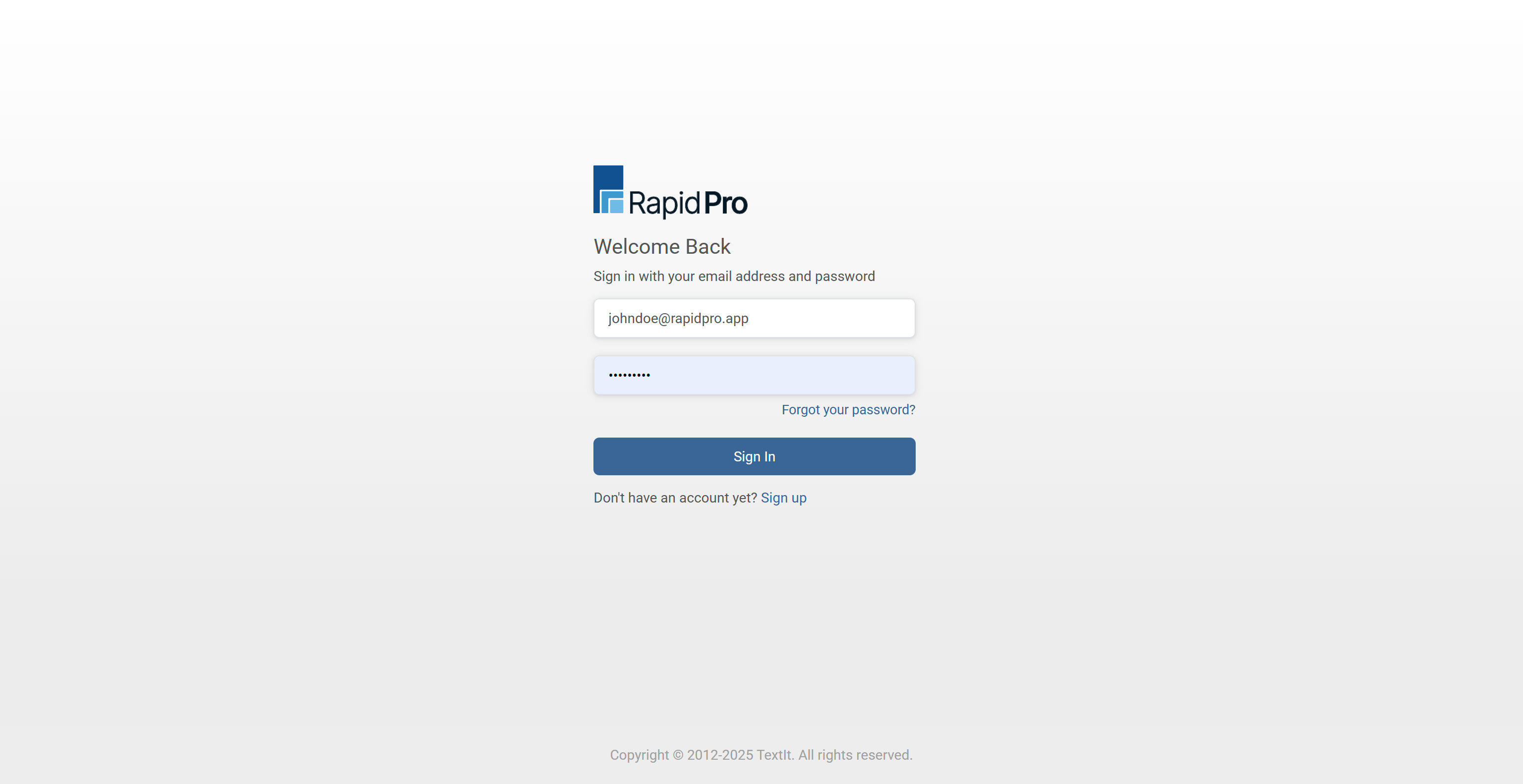
If login is successful, you’ll be redirected to your RapidPro.app workspace dashboard, where you can start configuring channels and building flows.
Common Issues & Quick Fixes
Problem: I don’t receive the verification email.
Fix:
- Confirm you typed the correct email in the sign-up form.
- Check Spam/Junk folders.
- If you still don’t see it, ask your IT team if emails from RapidPro.app are being blocked, or contact support.
Problem: The system says my email is already in use.
Fix:
- Try logging in using that email and click Forgot password? if needed.
- If you believe this is an error, contact your administrator to check if an account already exists for you.
Problem: I verified my email but can’t log in.
Fix:
- Ensure you are using the same email address you used during sign-up.
- Confirm there are no extra spaces before or after your email when you paste it.
- Reset your password if necessary.