


Review your workspace settings in a few steps
If you already know what the settings page is and just need the essentials:
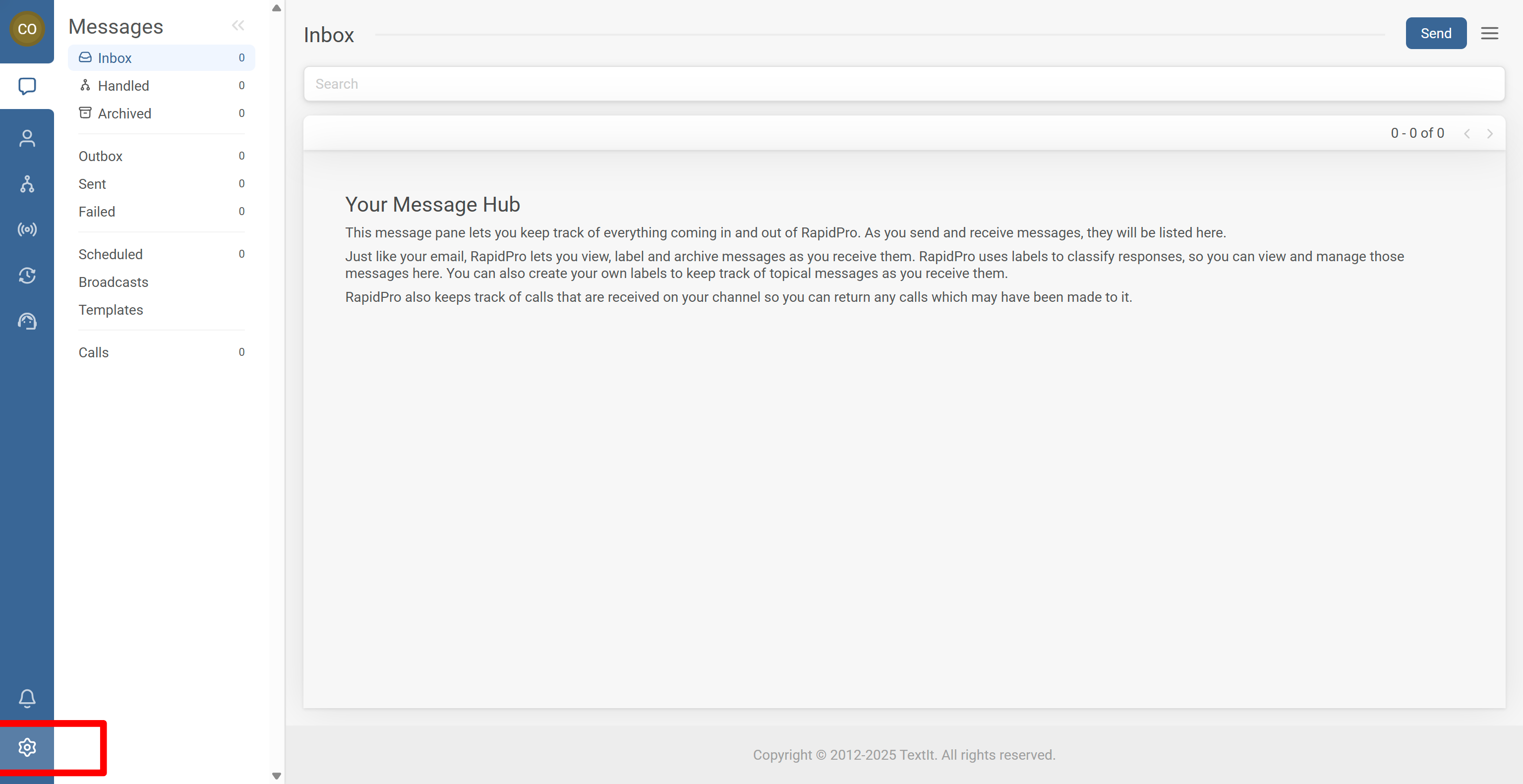
- Open your workspace settings from the gear icon in the left sidebar
- Check your Channels and any child workspaces
- Configure workspace name, timezone, and languages
- Review your reply-to email, dashboard, and billing
- Manage users & roles and your API tokens
- Configure resthooks and monitor incidents
- Review archives for flows and messages
This keeps your workspace organized, secure, and aligned with how your team works.
Step-by-Step Process
1
Open your workspace settings page
- Log in to your RapidPro.app workspace.
- Look at the left-hand sidebar.
- At the bottom of the sidebar, click the gear icon (Settings).
- This opens the workspace settings page for the current workspace.
Tip: If you work in multiple workspaces (for example demo and production), check the workspace name or switcher to confirm you’re adjusting the correct environment.
2
Manage channels and child workspaces
Your workspace settings page is where you control messaging and sub-workspace structure.
Manage channels
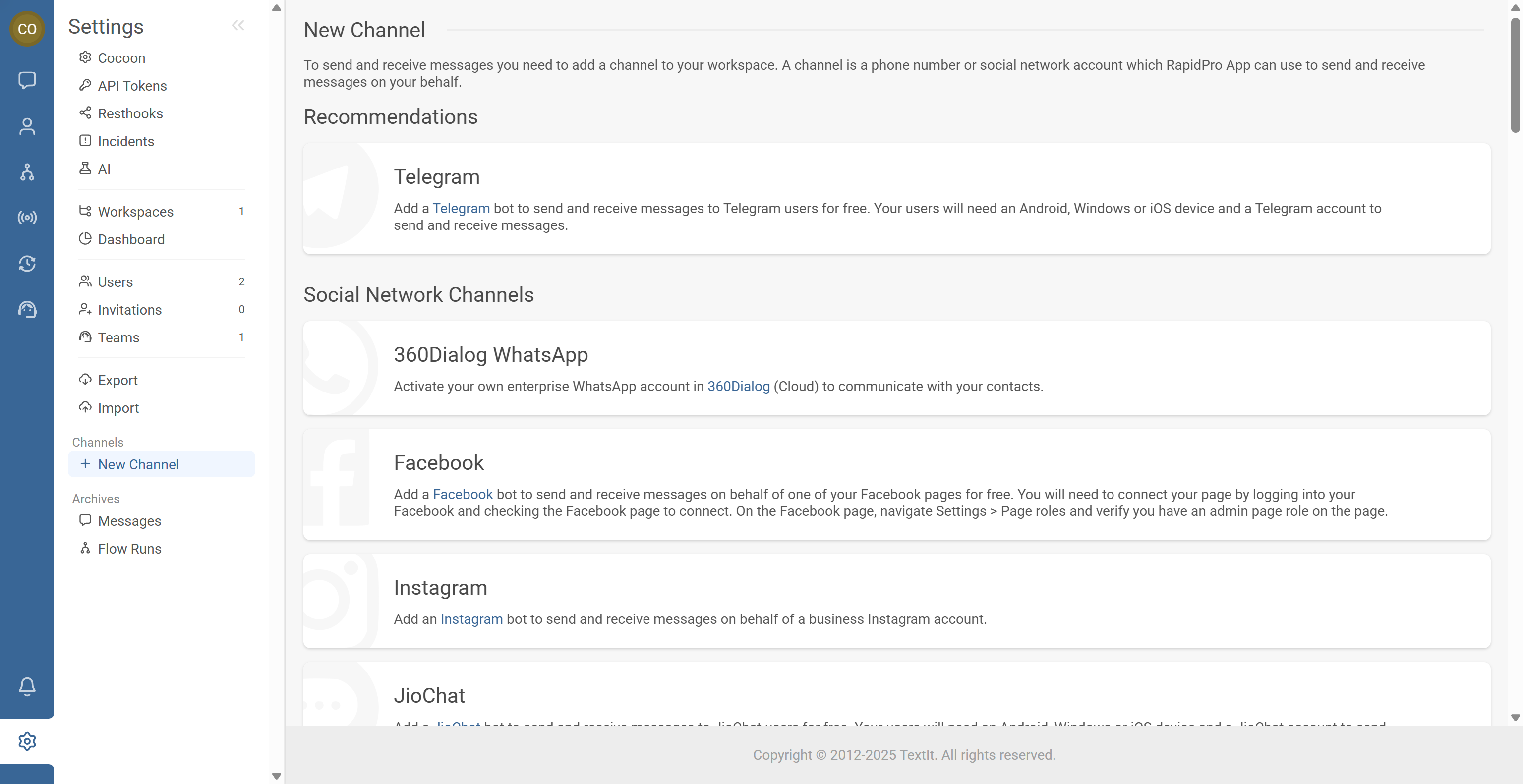
- In workspace settings, open the Channels section.
- From here you can:
- View all connected channels.
- Add a new channel (for example SMS, WhatsApp, or other social messaging).
- Remove or disconnect channels you no longer use.
Warning: If you remove all channels, your flows will not be able to send or receive messages.
Manage child workspaces
- In workspace settings, open the Child workspaces or equivalent section.
- View, add, or manage any child workspaces linked to the current workspace.
3
Configure workspace identity, time, and language
Use workspace settings to make sure dates, times, and language match your operations.
Set workspace name
-
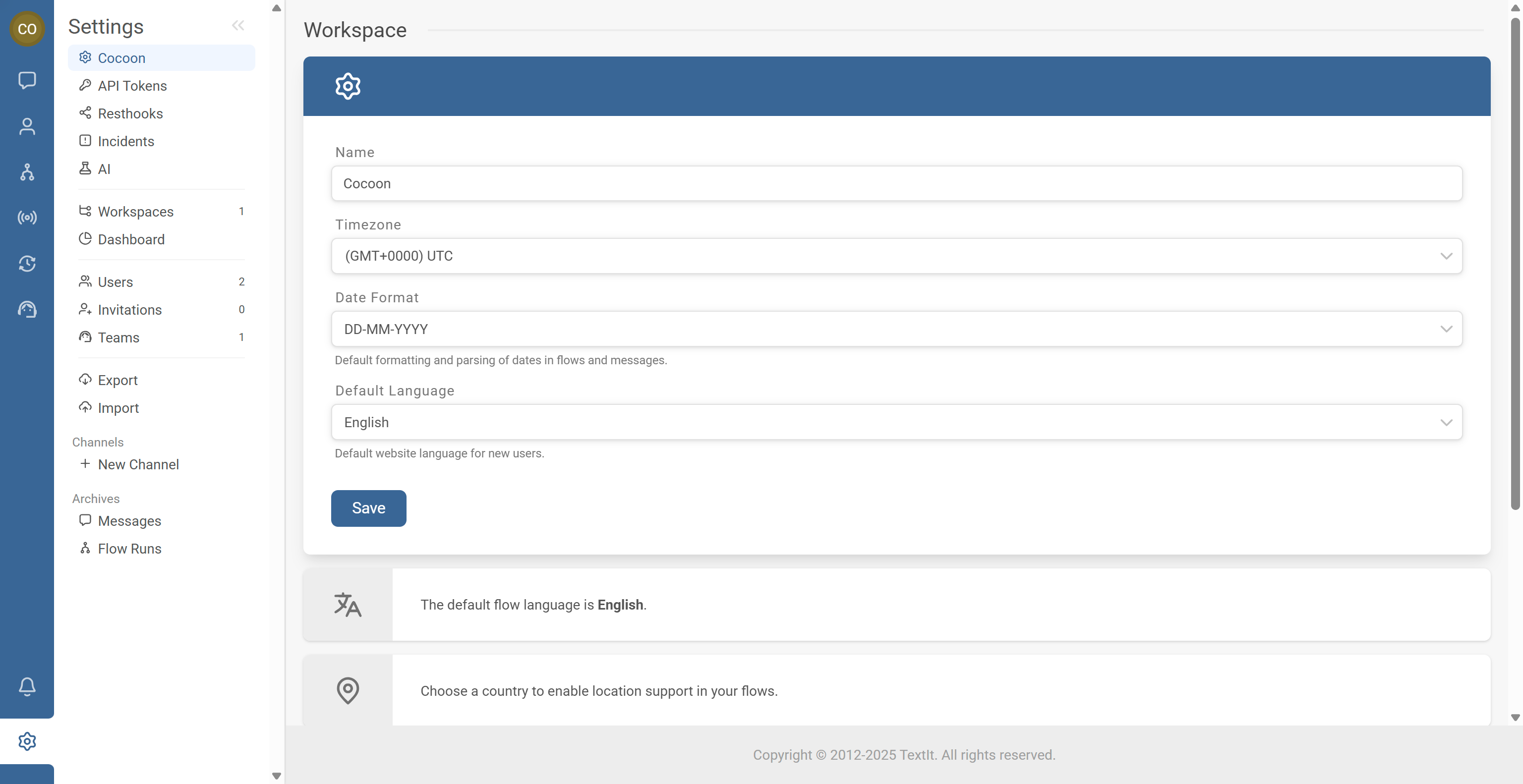
- In workspace settings, find the Workspace name field.
- Edit the name to something clear and meaningful (for example “MOH Hotline – Production”).
- Save your changes.
Adjust timezone and date/time format
- Open the Timezone & date/time format section.
- Choose the correct timezone for your main operations.
- Select the date and time format your team expects (for example
DD/MM/YYYYorMM/DD/YYYY). - Save the settings.
Configure languages
- Open the Language section.
- Set your default language for the workspace.
- Add any additional languages you want to support for translations in flows and messages.
Tip: Align your workspace timezone with your main broadcast schedules so that campaigns and flows trigger at the right local time.
4
Configure reply-to email, dashboard, and billing
Reply-to email
- In workspace settings, find the Reply-to email field.
- Enter the email address where replies to certain notifications or outbound emails should be directed.
- Save your changes so that responses go to the right team inbox.
Workspace dashboard
- From workspace settings, use the Dashboard tab to view high-level metrics.
- Use this to monitor volume, activity, or performance at a glance.
Billing page
- In workspace settings, open the Billing or Subscription section.
- From here, admins can:
- Review the current plan.
- See usage information.
- Manage payment details or invoices (depending on your deployment).
Warning: Access to billing is typically restricted to Admins. If you don’t see billing options, you may need your role updated.
5
Manage workspace access and API tokens
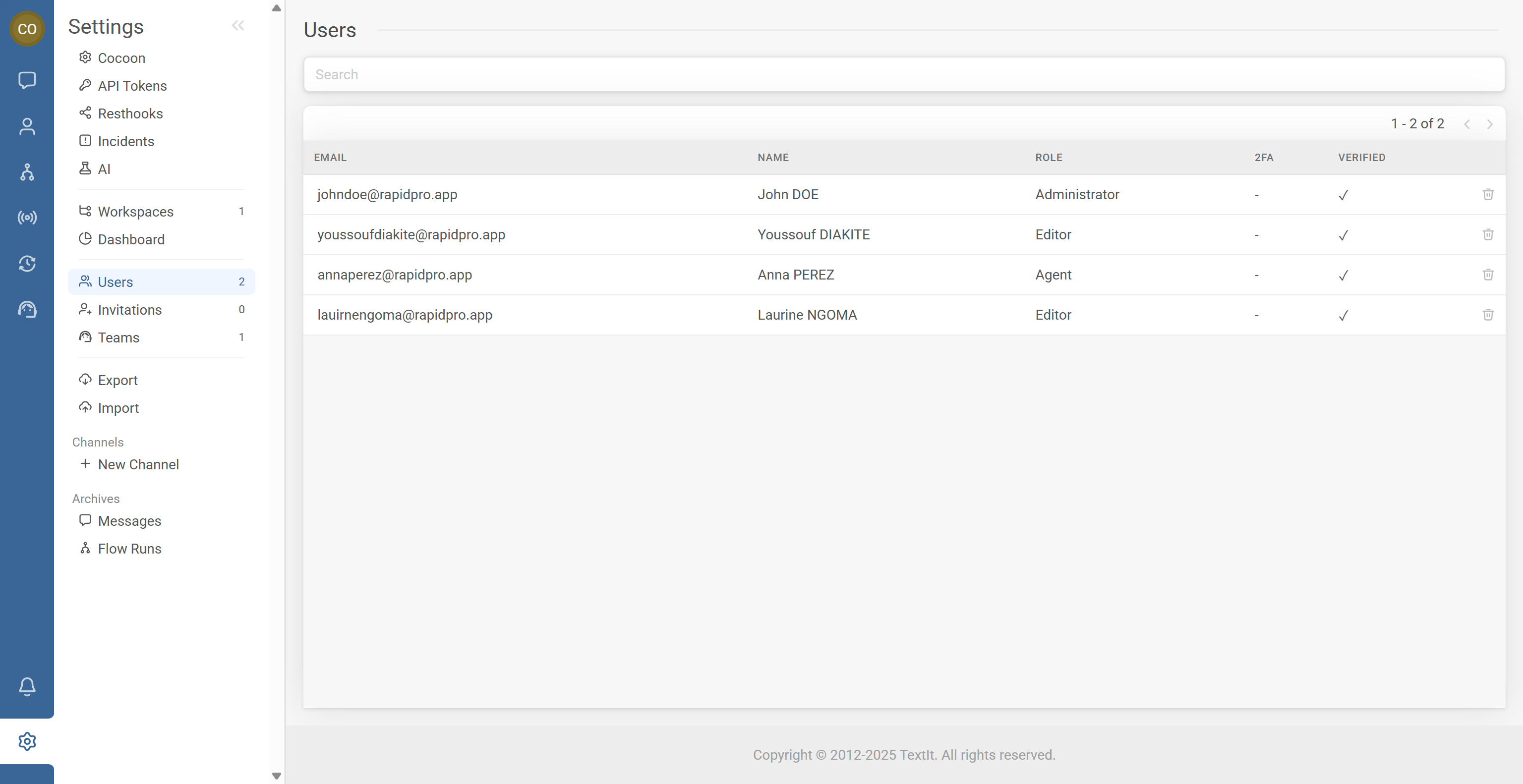
Manage who has access to your workspace
-
- In workspace settings, go to Users.
- From here, you can:
- See who currently has access.
- Invite new users and assign roles (Agent, Editor, Admin).
- Update roles or remove users who no longer need access.
Manage your API tokens
- In workspace settings, open the API Token section.
- Here you can:
- View your personal API tokens.
- Create a new token (up to the allowed maximum per user).
- Delete tokens you no longer use.
Tip: Use different API tokens for different integrations when possible, and delete tokens that are no longer needed to keep your API surface smaller and safer.
6
Configure resthooks and monitor incidents
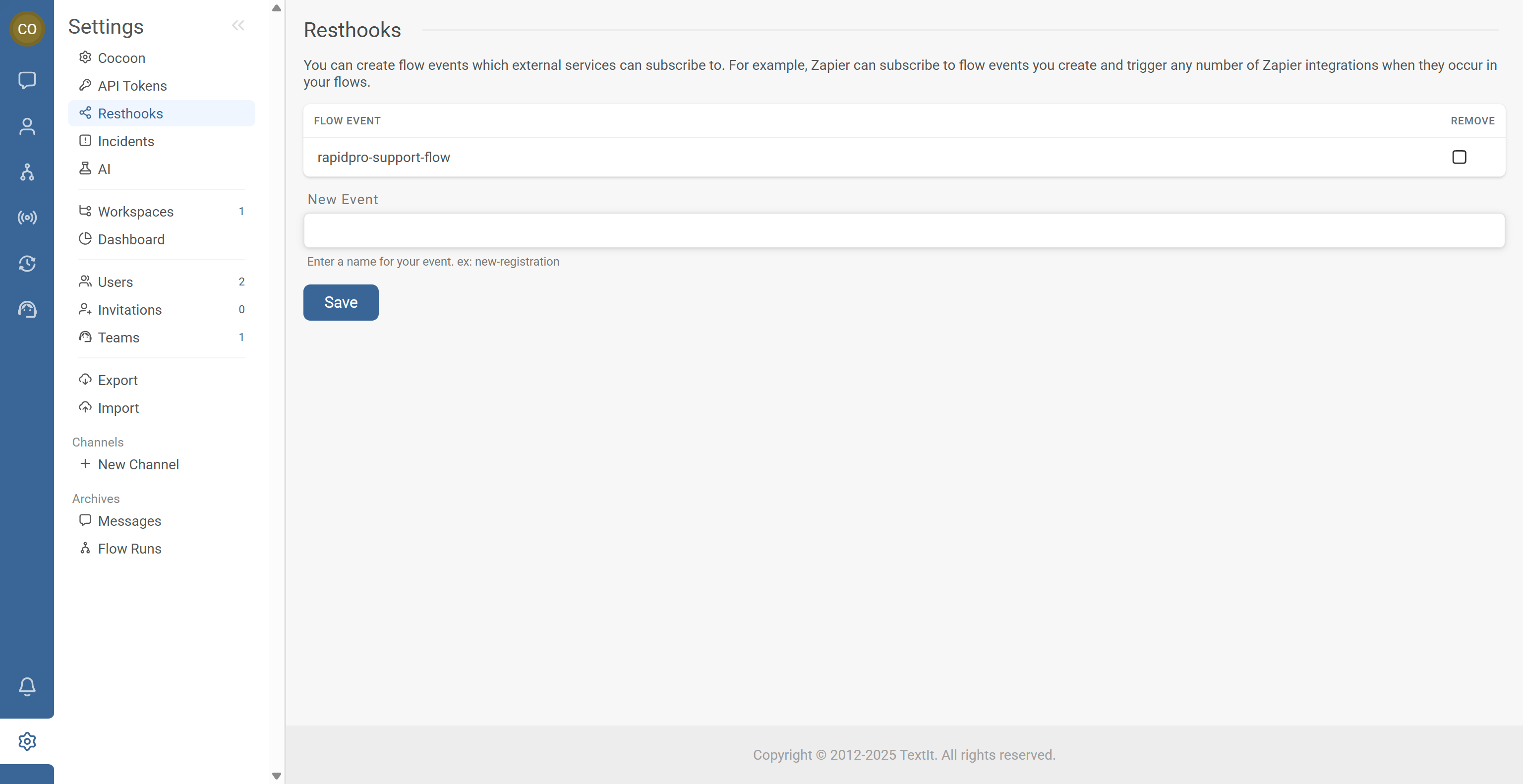
Resthooks (flow events for external services)
- In workspace settings, open the Resthook section.
- Configure flow events that external services can subscribe to.
- Use this to notify tools such as Zapier or custom systems when events happen in your flows.
- In workspace settings, open the Incidents section.
- Check for any open issues, such as:
- Workspace suspension.
- Channel connectivity problems.
- Other system-level incidents affecting messaging or flows.
Warning: If incidents show that your workspace or a channel is suspended or degraded, flows may fail to send. Always investigate and resolve incidents promptly.
7
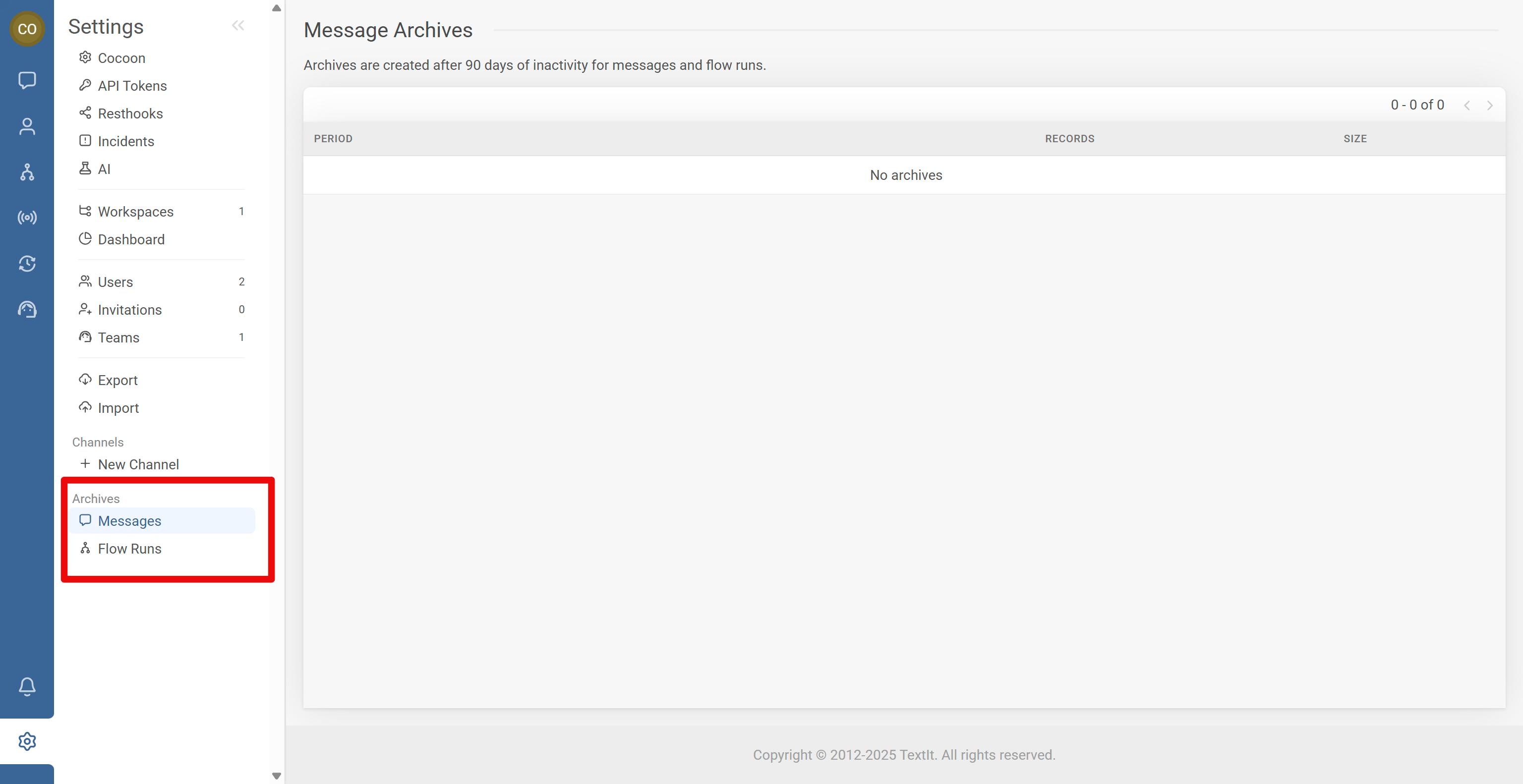
View archives for flows and messages
- In workspace settings, open the Archives section.
- From here you can:
- Review archived flows that are no longer active but kept for reference.
- Access archived messages or message-related records (depending on configuration).
Tip: Use archives to keep your active flows and message lists clean while still keeping important historical content available if you need to review or audit it later.
Common Issues & Fixes
Problem: I can’t find the workspace settings page.
Fixes:
- Look at the left-hand sidebar and check the bottom for the gear (Settings) icon.
- Make sure you are inside a workspace, not on a generic landing or login page.
- If you still don’t see the settings, you may not have the right role (for example, you might be an Agent). Ask an Admin to confirm your access level.
Problem: I don’t see billing, API tokens, or user management.
Fixes:
- Check your role in the workspace:
- Admins usually see all sections.
- Editors may only see configuration options related to flows, channels, and basic settings.
- Agents often have very limited access.
- Ask a workspace Admin to:
- Confirm your current role.
- Upgrade your role if you need to manage billing, tokens, or users.
Problem: My dates and times look wrong after changing timezone or format.
Fixes:
- Go back to Workspace settings → Timezone & date/time format and check:
- The timezone matches where your team or contacts are based.
- The date format (for example
DD/MM/YYYYvsMM/DD/YYYY) matches your regional convention.
- Check a few known events (for example, a specific broadcast or campaign) to verify times are shown as expected.
- If your team is spread across multiple regions, agree on a single reference timezone and document it.
Problem: My flows stopped sending after changing workspace settings.
Fixes:
- In workspace settings, open the Channels section:
- Check that at least one active, connected channel is available.
- Look for any warning or error messages next to a channel.
- Open Incidents to see if there are issues such as:
- A suspended workspace.
- Channel connection problems or delivery failures.
- If you removed or changed a channel:
- Confirm that flows, triggers, and campaigns are still mapped to a valid channel.
Problem: I can’t see or manage child workspaces.
Fixes:
- Confirm that your account or deployment is configured to use child workspaces.
- Make sure you are an Admin on the parent workspace, not just a user in a child workspace.
- If child workspaces should exist but are not visible, contact your internal admin or support to verify the configuration.
Problem: I can’t find archived flows or messages.
Fixes:
- On the workspace settings page, look for an Archives or Archived items section.
- Open this section to view:
- Archived flows.
- Archived messages or related records (depending on configuration).
- If the archives are empty, confirm with your team whether anything has actually been archived, or if data has been removed according to retention policies.