



Activate 2FA in a few steps
If you already know what 2FA is and just need the “fast path”, follow this:
- Open your Account page from your profile icon
- Go to Two-Factor Authentication
- Click Activate
- Scan the QR code with your authenticator app
- Save the authenticator secret in a secure place
- Enter the 6-digit Authenticator code from your app
- Click Activate and confirm your password if prompted
You’re done. From now on, RapidPro.app will ask for a 2FA code when you log in.
Step-by-Step Process
1
Open your account settings
- Log in to your RapidPro.app workspace.
- Locate your profile icon ( initials ) in the interface (for example, in the top-left or side navigation).
- Click the profile icon to open the menu.
- Select Account to open your profile and security settings.
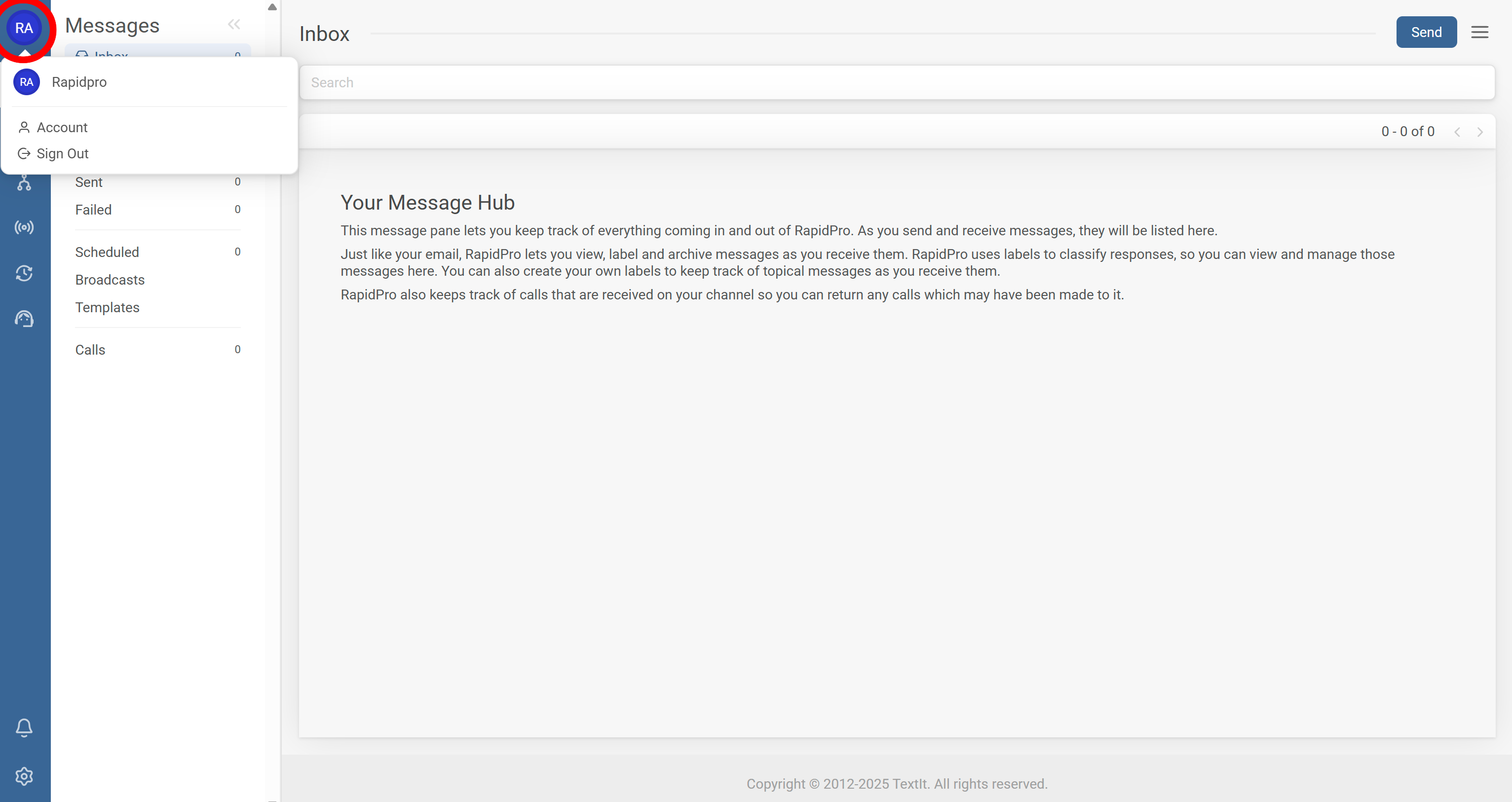
Tip: If you use multiple devices or browsers, 2FA will protect your user account across all of them.
2
Go to the Two-Factor Authentication section
- On the Account page, locate the Two-Factor Authentication (2FA) section.
- Check the current status. If 2FA is off, you will see an Activate button.
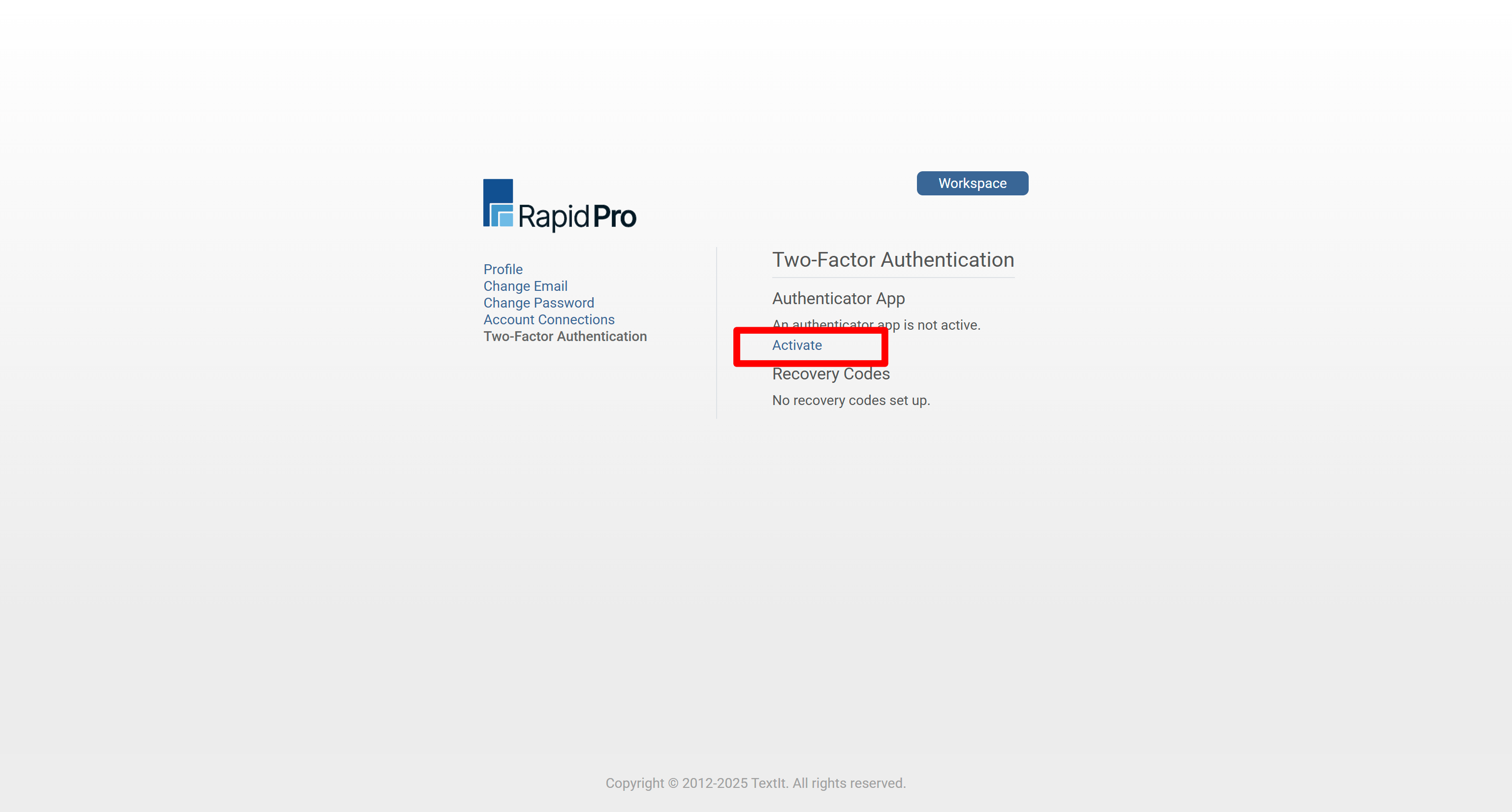
Technical Detail: This setting controls whether RapidPro.app requires a time-based one-time code (TOTP) from an authenticator app during login.
3
Start the 2FA activation flow
- Click Activate in the Two-Factor Authentication section.
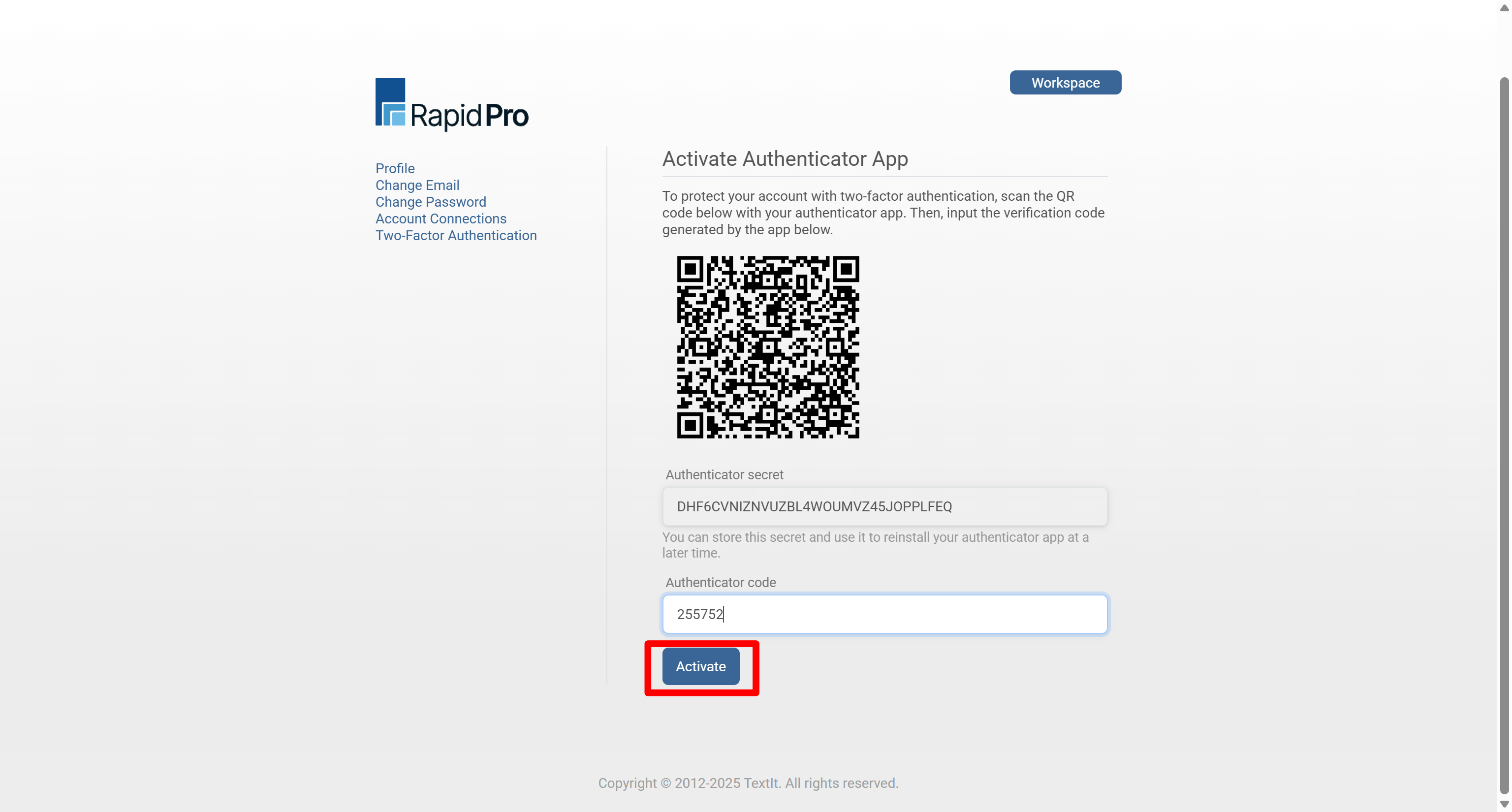
- A setup panel appears showing:
- A QR code
- An Authenticator secret (a long string, e.g.
7KURWQIPOK9CUP6B5UK37MWLHEAH2QZT) - A field for your Authenticator code (the 6-digit code from your app)
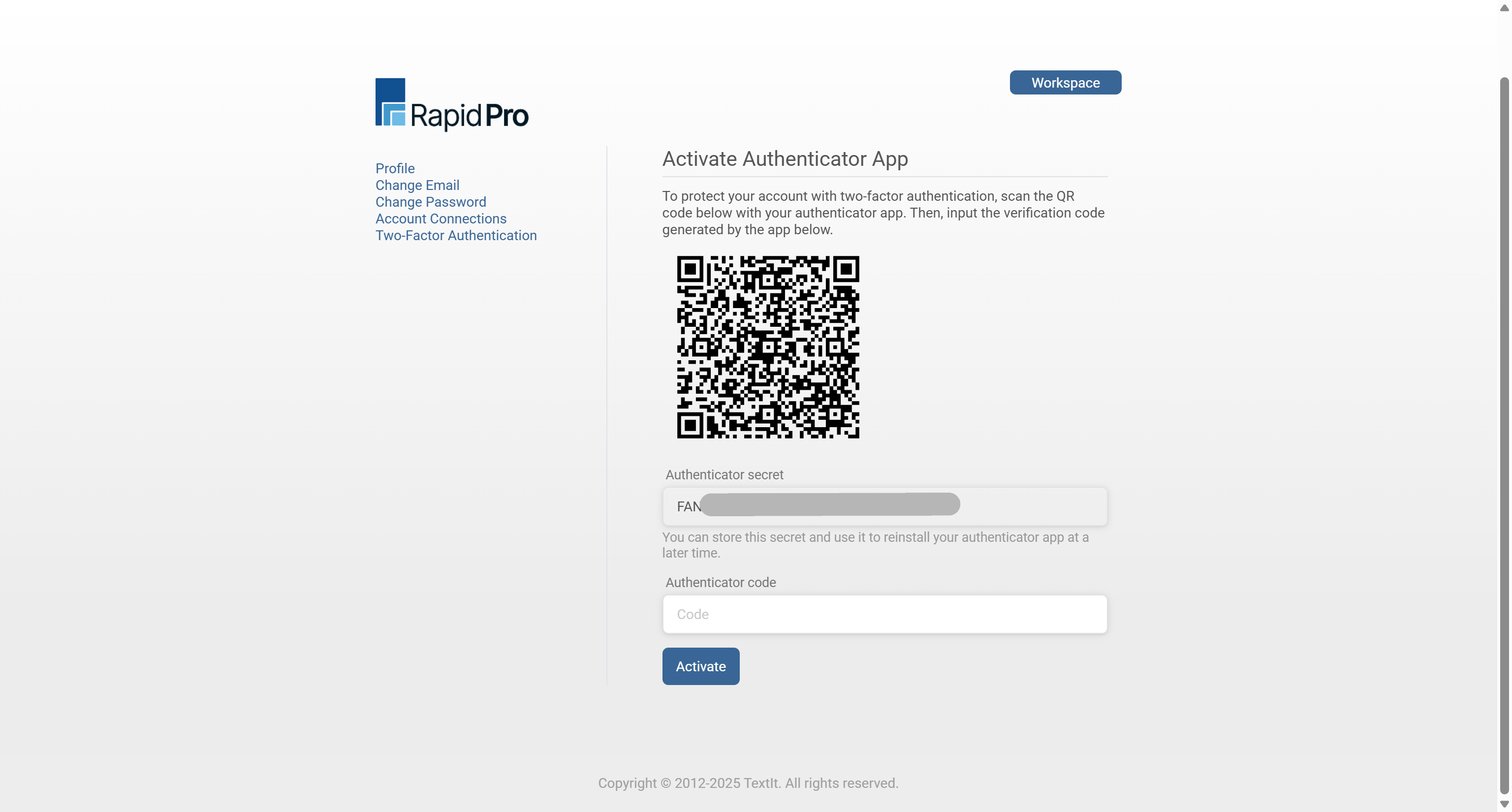
Warning: Do not share the QR code or the authenticator secret with anyone. Anyone with this information can generate valid 2FA codes for your account.
4
Scan the QR code with your authenticator app
- On your phone, open your authenticator app (for example, Google Authenticator, Authy, or Microsoft Authenticator).
- Tap Add account or the + button.
- Select Scan QR code.
- Point your camera at the QR code displayed in RapidPro.app until the app recognizes it.
- After scanning, the app will show a 6-digit code for RapidPro.app that refreshes every few seconds.
Tip: If your camera cannot scan the QR code, most authenticator apps let you add an account manually by entering the Authenticator secret displayed in RapidPro.app.
Technical Detail: The QR code and the authenticator secret represent the same shared key. Your authenticator app combines this secret with the current time to generate time-based one-time passwords (TOTPs).
5
Save your authenticator secret securely
- Locate the Authenticator secret shown on the 2FA setup panel (for example, a long string like
7KURWQIPOKVCUP6B5UK37MW2HEAHMQZT). - Copy this secret and store it in at least one secure place, such as:
- A password manager
- An encrypted secure note
- A printed copy stored in a locked drawer or safe
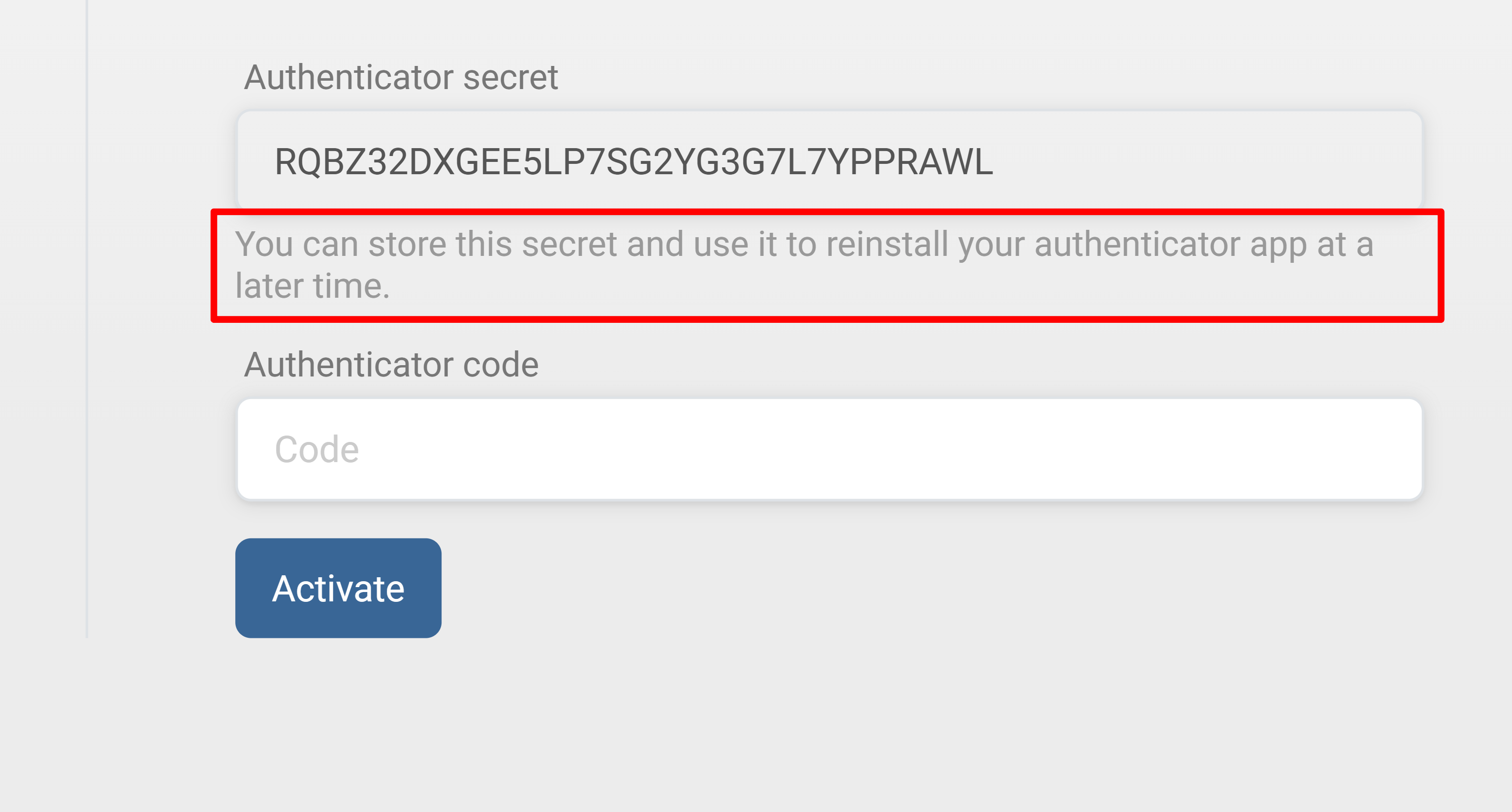
Warning: Treat the authenticator secret like a master key. If someone else gains access to it, they can generate valid 2FA codes for your account. If you suspect it has been exposed, disable 2FA and set it up again to generate a new secret.
6
Enter the 6-digit authenticator code and activate 2FA
- In your authenticator app, look at the 6-digit code next to your RapidPro.app entry.
- In the Authenticator code field on the RapidPro.app 2FA setup panel, type the current 6-digit code.
- Click the Activate button.
- If prompted, enter your RapidPro.app password to confirm the security change.
Technical Detail: RapidPro.app may request your password as an extra safety check when changing critical security settings, to prevent unauthorized changes from an already-open session.
Tip: If the code fails, wait for the next code in your authenticator app and try again. Make sure your phone’s time and date are set automatically.
7
Confirm 2FA is working
- After activation, verify that the Two-Factor Authentication section now shows 2FA as Enabled.
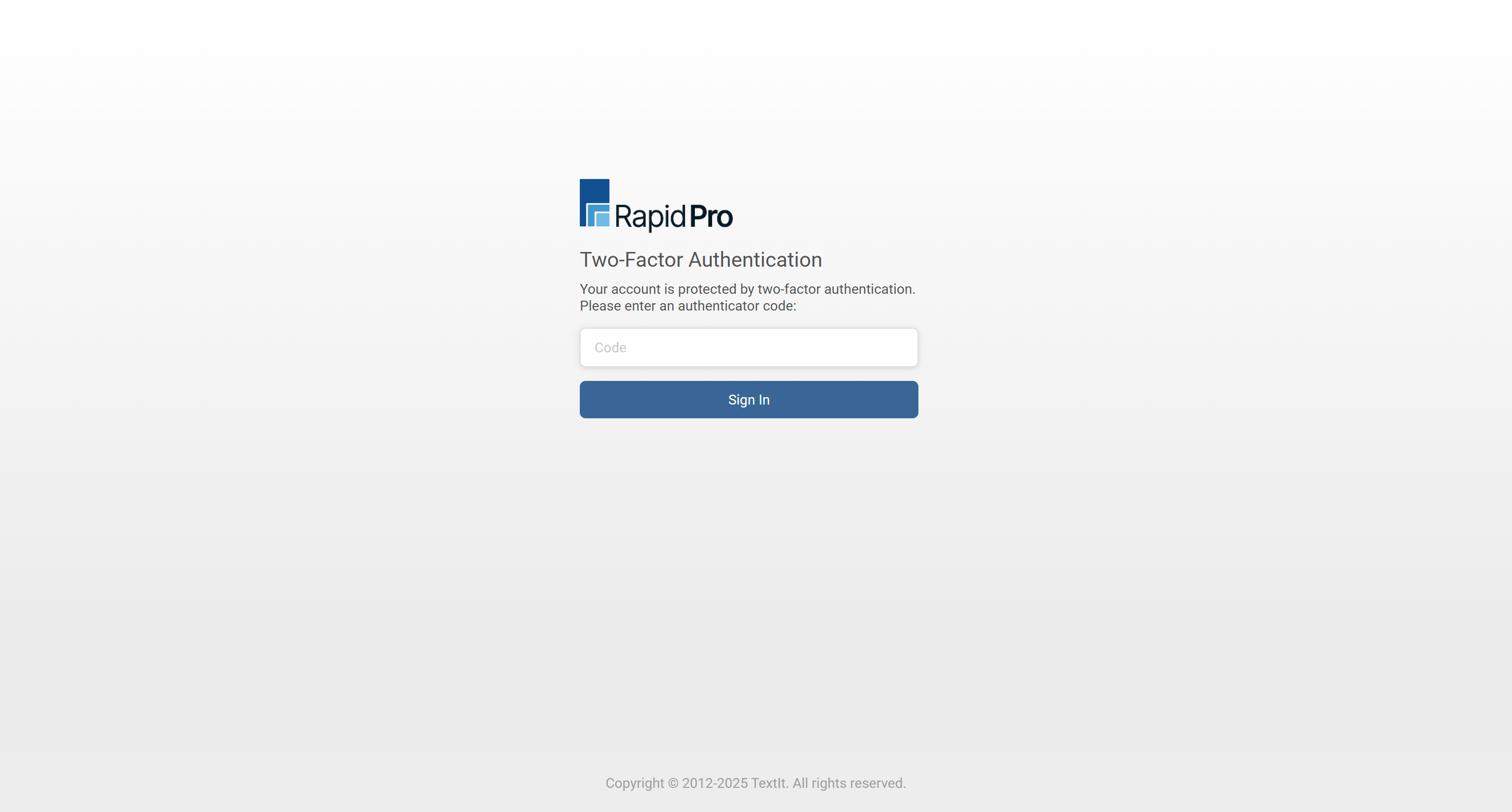
- Log out of RapidPro.app.
- Log back in using:
- Your email
- Your password
- When prompted, enter the 6-digit code from your authenticator app.
- If you can sign in successfully, your 2FA setup is complete and working.
Warning: If you lose both your phone and your authenticator secret, you may be locked out of your account and need help from an administrator or support. Make sure your recovery information is stored safely before relying on 2FA.
Common Issues & Quick Fixes
Problem: I don’t see the QR code.
Fix: Ensure you clicked Activate in the 2FA section and confirmed your password if requested. Refresh the page if needed.
Problem: The 6-digit code is always “invalid”.
Fix: Check that your phone’s time and date are correct and set to automatic. Wait for the next code and enter it quickly.
Problem: I changed my phone and lost my authenticator app.
Fix: Use the stored authenticator secret to re-add RapidPro.app in your new authenticator app. If you don’t have it, contact your admin or support for assistance.