


Go live with your first test flow (fast path)
If you just want the short version, follow this:
- Log in and confirm you can access your workspace
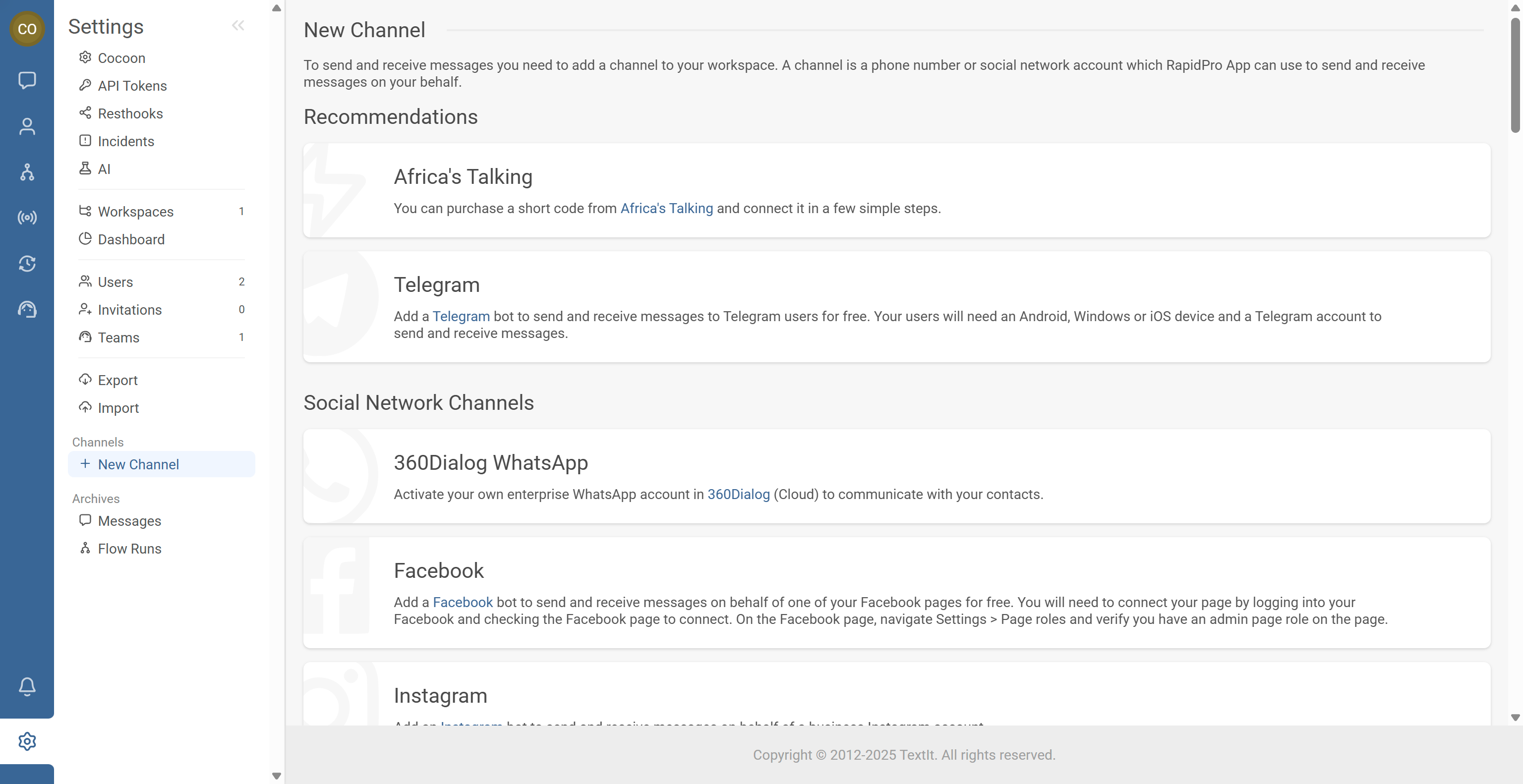
- Add your first channel (Workspace settings → Channels)
- Create a new Messaging flow from the Flows tab
- Add a Send Message node that asks for the contact’s name
- Add Wait for Response and store the result (e.g., Name)
- Use Update the Contact to save
@results.nameinto a contact field - Add the contact to a Completed Registration group
- Send a final confirmation message using
@contact.first_name - Test end-to-end using the simulator
Once that works in the simulator, you’re ready to build more complex flows.
Step-by-Step Process
- Open your browser and go to your RapidPro.app login URL.
- Log in with your email and password.
- Confirm you land on your workspace home.
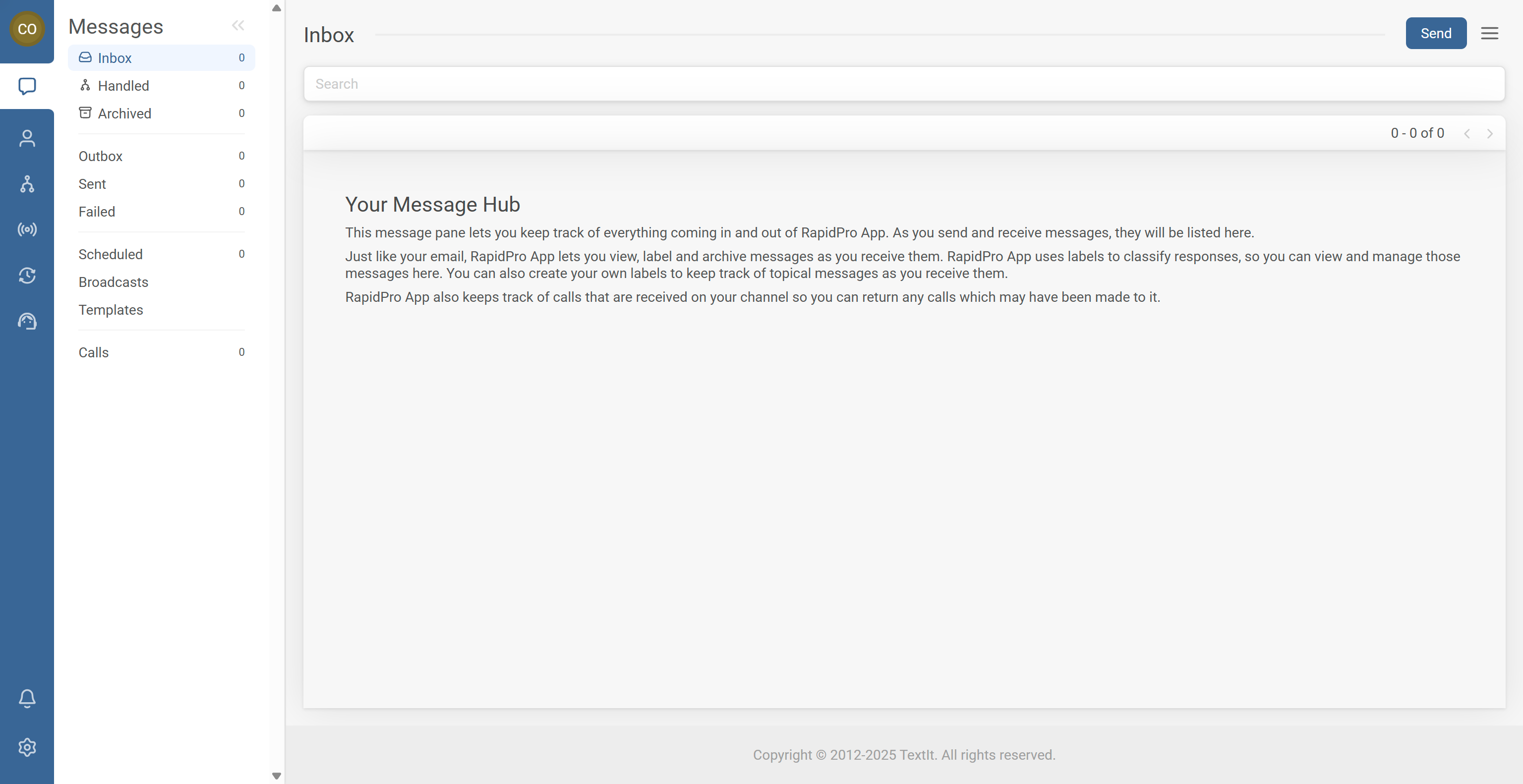
Your flows cannot send messages without at least one connected channel.
- In the left sidebar, click the Settings gear icon to open Workspace settings.
- Go to the Channels section.
- Click New channel and connect a channel such as:
- SMS
- Another supported messaging channel
- Follow the on-screen instructions to complete setup.
- From your workspace, click the Flows tab in the top navigation.
- Review any sample flows (if provided).
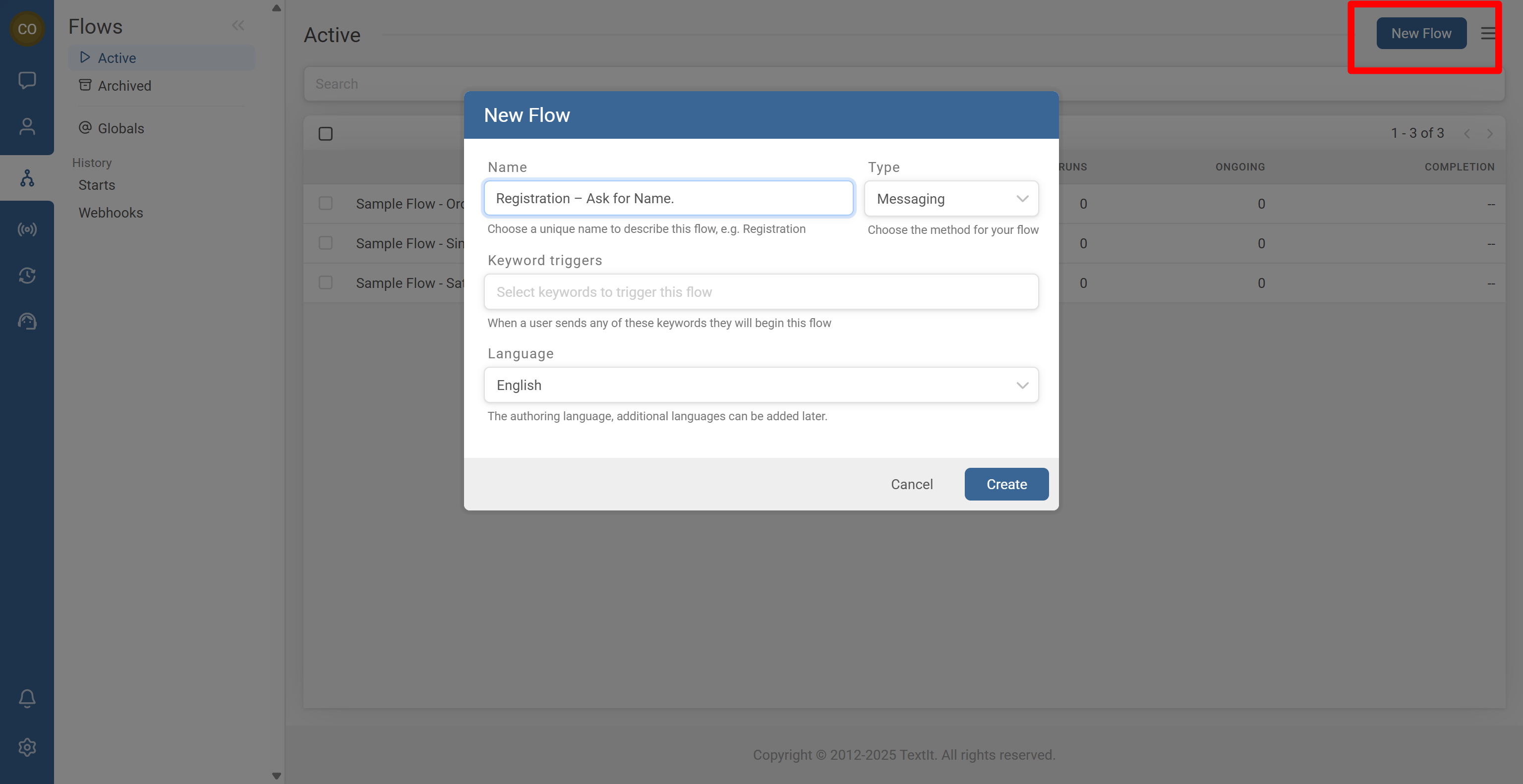
- Click New Flow.
- In the New Flow dialog:
- Enter a name, for example: Registration – Ask for Name.
- (Optional) Add keyword triggers later if you want contacts to start via SMS/chat.
- Choose Messaging as the flow type.
- Confirm the Language for editing.
- Click Create to open the flow editor.
- In the flow editor, start from the first node (or create one if needed).
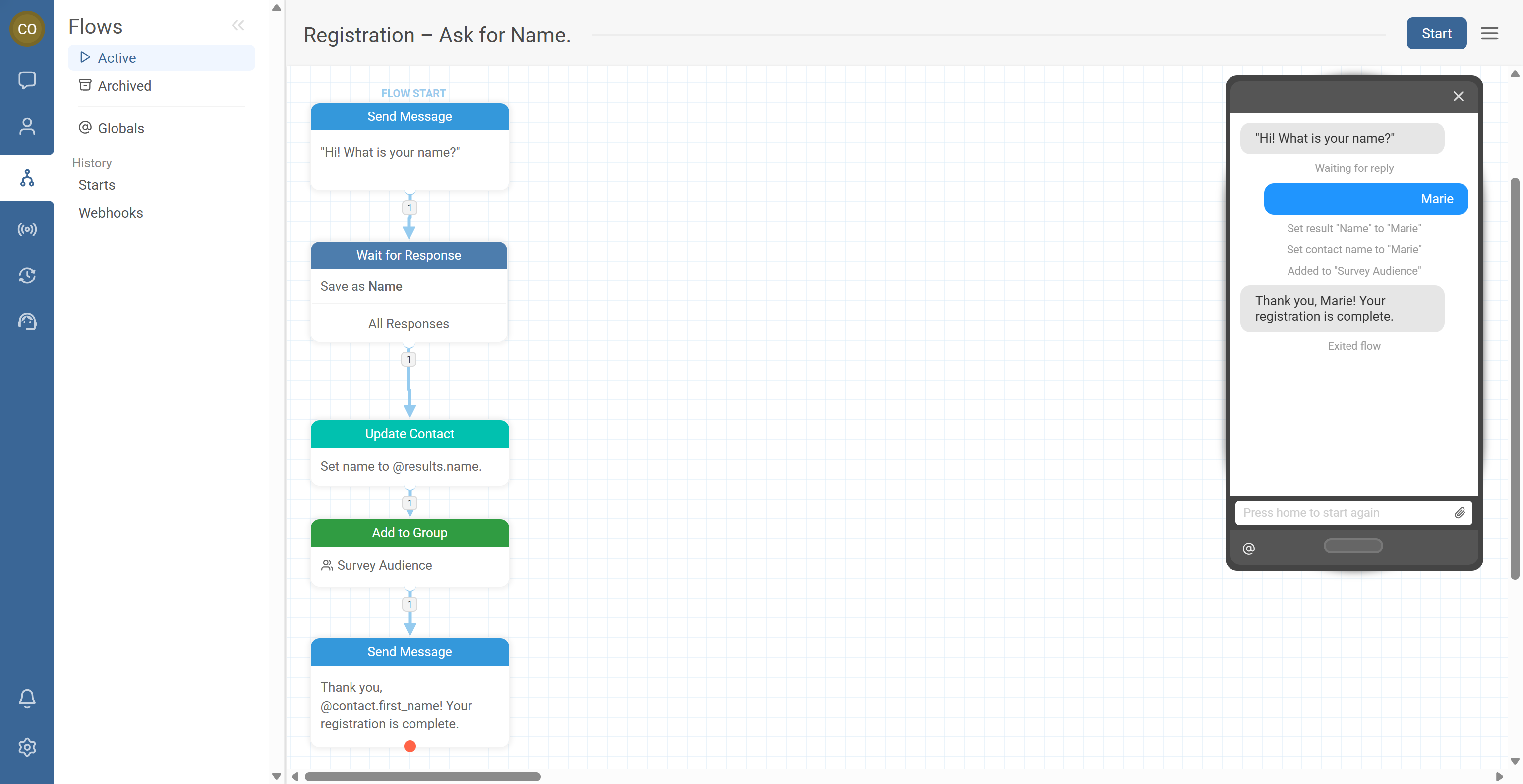
- Add a Send Message action.
- Write a simple prompt, for example: “Hi! What is your name?”
- Save the node.
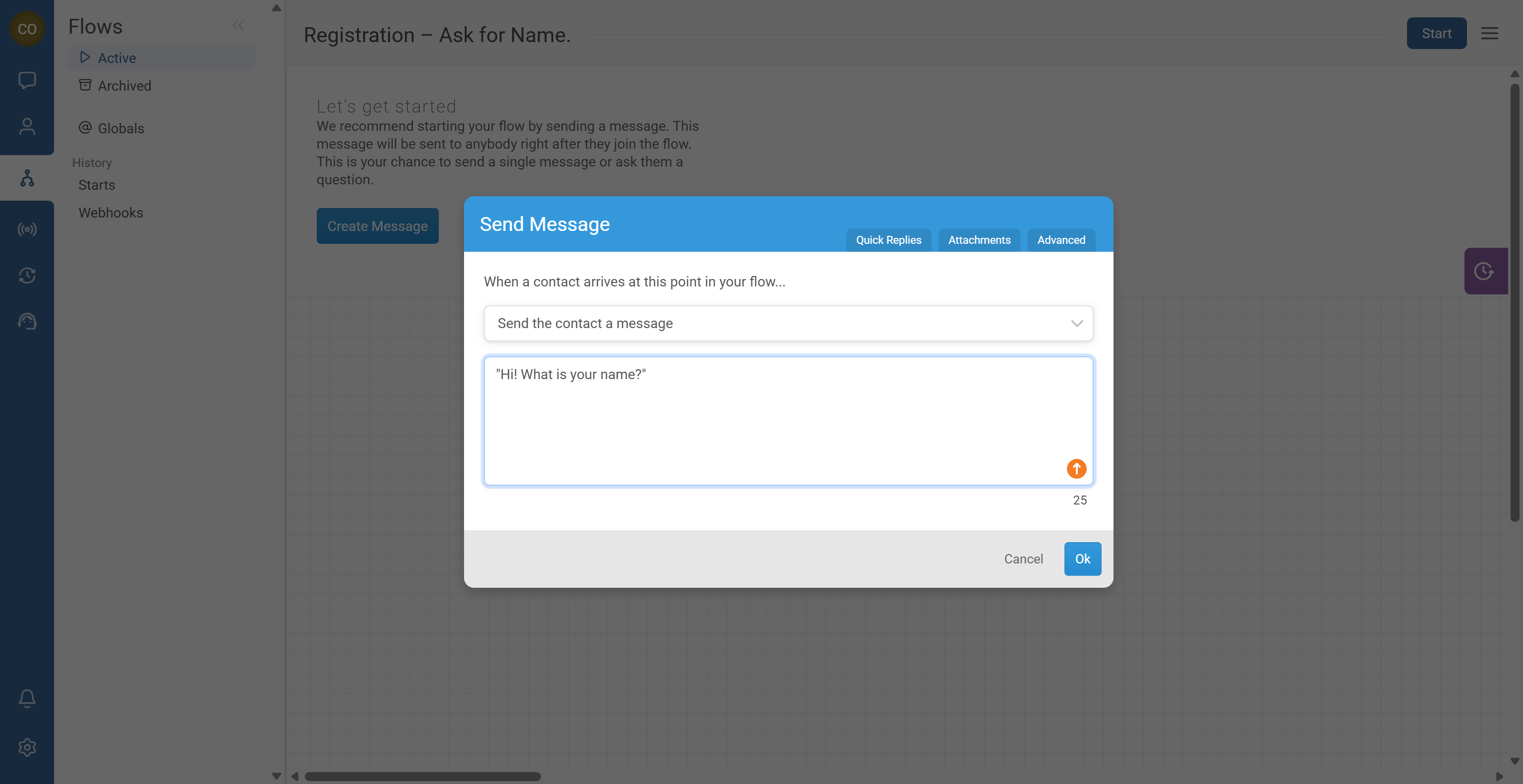
Now you need to capture whatever the contact replies.
- On the Send Message node, find the exit dot (a small red dot).
- Click and drag the exit dot downward to create a new node.
- Select Wait for Response.
- In the Wait for Response settings:
- Set the result name to something like Name.
- Leave response rules open/blank to accept All Responses.
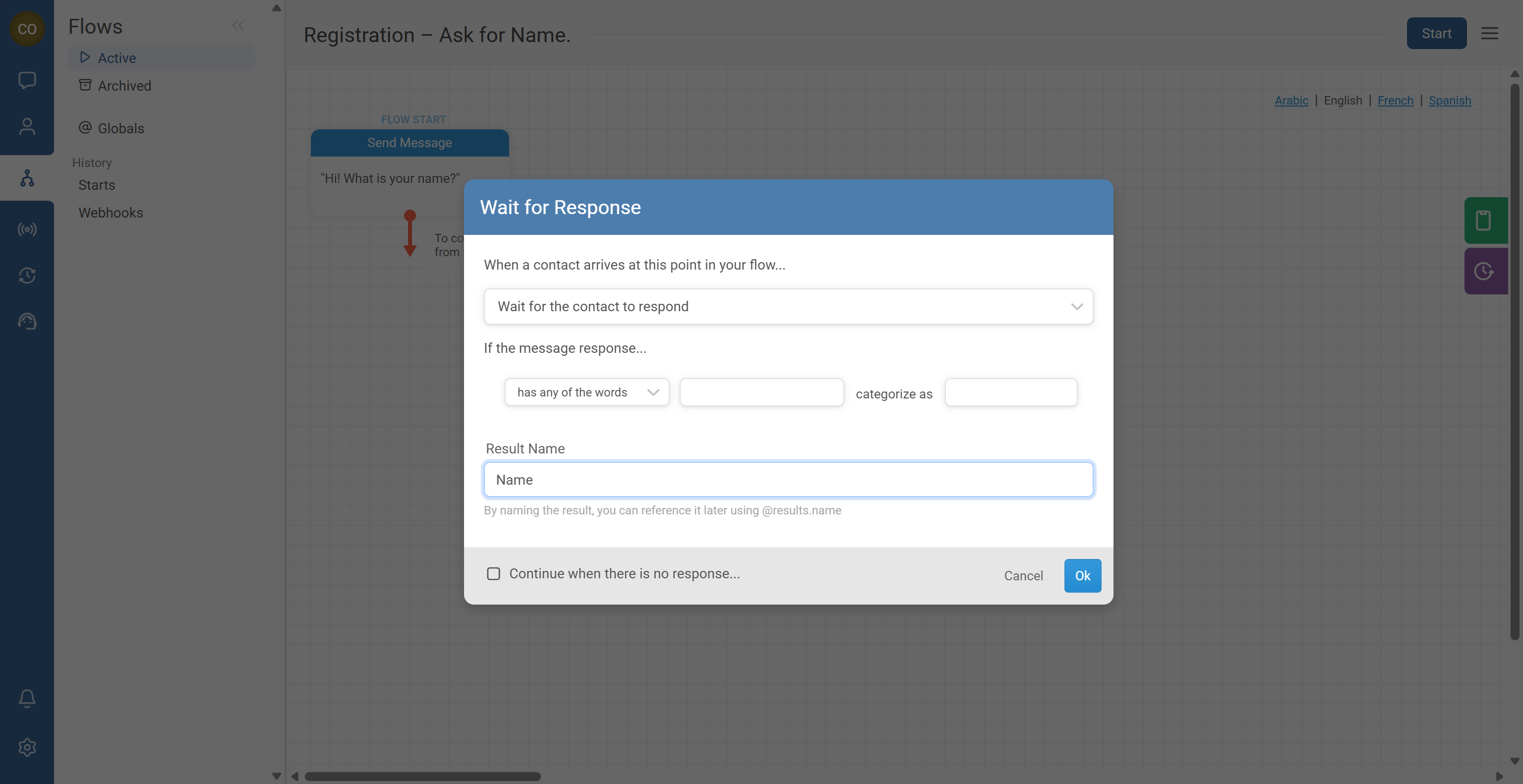
@results.name).To reuse the contact’s name later, save it to a contact field.
- From the Wait for Response node, drag the exit dot downward to create another node.
- Change the node type to Update the Contact.
- In the Update the Contact configuration:
- Choose the target contact field (e.g., Name or your workspace’s preferred field).
- Set the value to the result variable, for example
@results.name.
- Save the node.

Groups help you mark progress and segment contacts later.
- After the Update the Contact step, add an action to Add Contact to a Group.
- If your editor shows a blue + button on the node, use it to stack the next action. Otherwise, create a new node from the exit dot.
- Select an existing group or create one.
- Save the action.
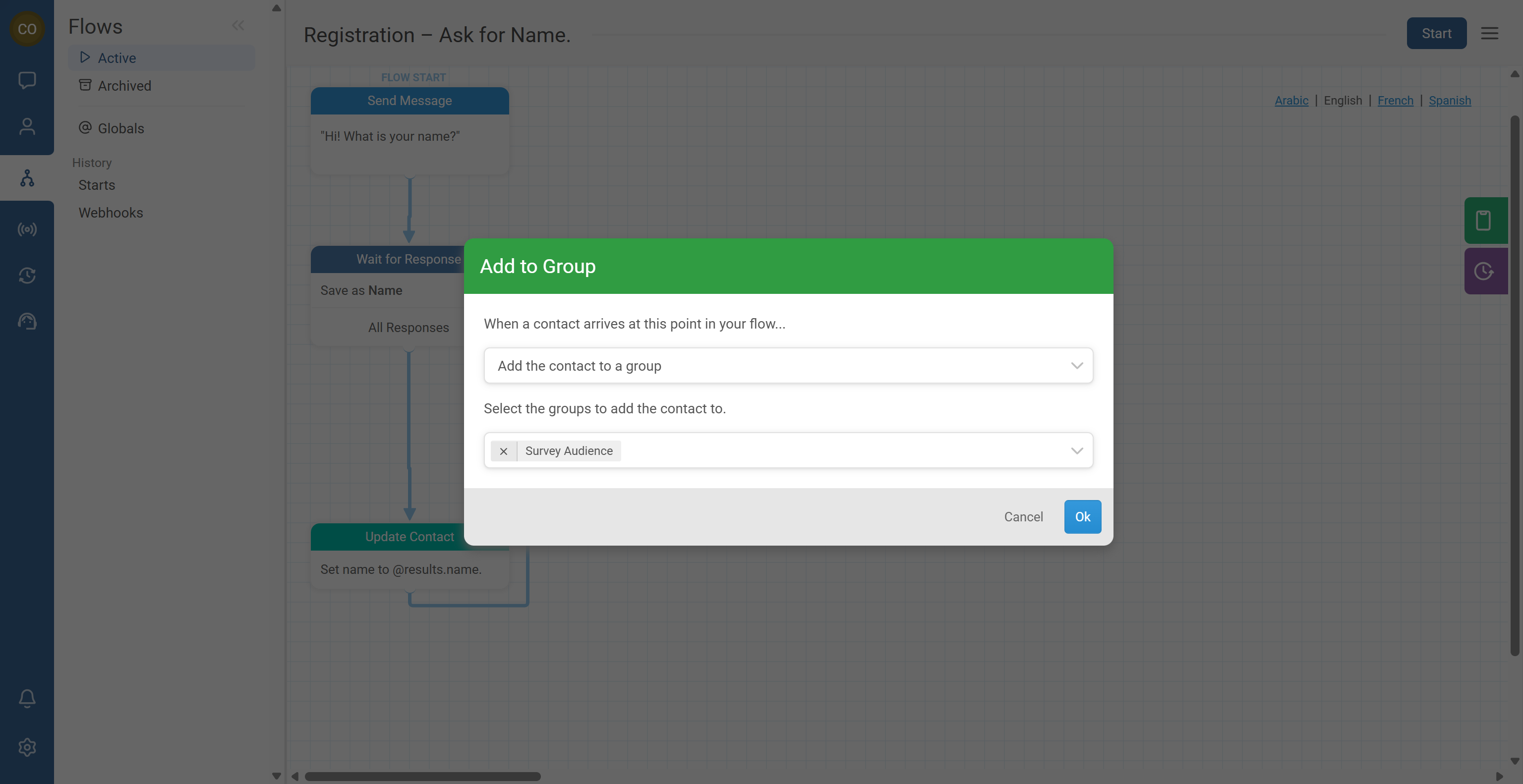
- After adding to the group, create a final Send Message action.
- Personalize the message using a contact variable, for example:
“Thank you, @contact.first_name! Your registration is complete.”
- Save the node.
- Confirm your flow now does:
- Ask name → capture reply → save to contact → add to group → confirm
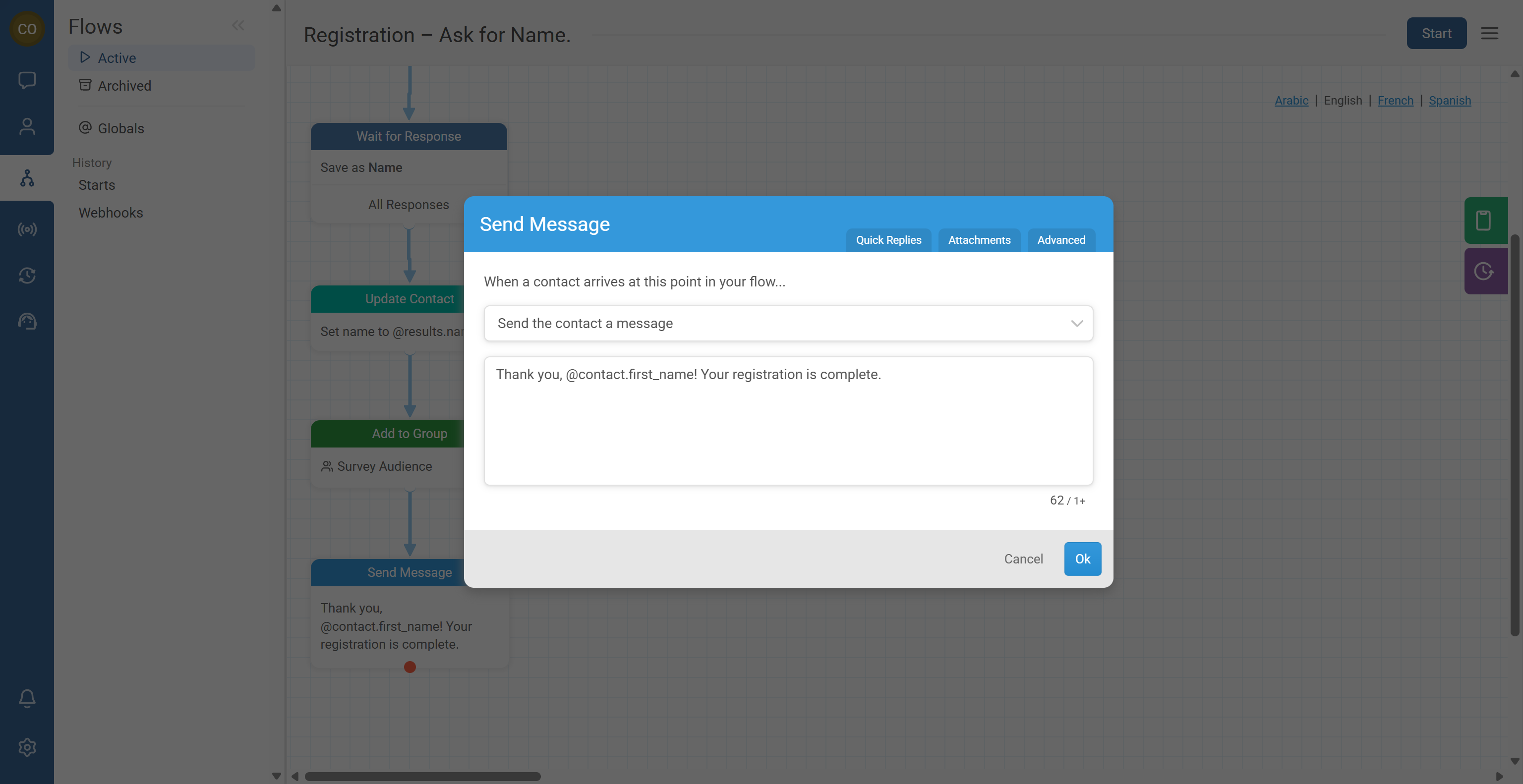
@contact.first_name keeps confirmation messages short and friendly.- In the flow editor, locate the simulator panel (on the right side).
- Start the flow in the simulator.
- In the simulator:
- Confirm the first message appears.
- Type a test name as the response.
- Follow the flow until you see the confirmation.
- Open the simulated contact details (if available) to verify:
- The Name field is saved correctly.
- The contact is in the Completed Registration group.
Common Issues & Quick Fixes
Problem: My flow doesn’t send any messages.
Fix: Confirm at least one active channel exists in Workspace settings → Channels. Then ensure the flow is started (manually via Start Flow, or via a trigger/campaign). Use the simulator to validate logic.
Problem: The flow doesn’t save the contact’s name.
Fix: In Wait for Response, confirm the result name is set (e.g., “Name”). In Update the Contact, verify the field is correct and the value points to @results.name (matching your result key).
Problem: Contacts are not added to the “Completed Registration” group.
Fix: Confirm the selected group is correct (and spelled consistently), and that the flow path connects correctly from Update Contact to Add to Group (no missing/broken links). Re-test in the simulator.
Problem: I can’t see the simulator.
Fix: Confirm you are inside the flow editor (not just the Flows list). Look for a Simulator/Test panel on the right. On smaller screens it may be collapsed—try resizing or zooming out.
Problem: I’m not sure which flow type to use.
Fix: For SMS and chat channels (WhatsApp, Telegram, etc.), choose Messaging. It’s the default and best for your first end-to-end test.