
Introduction: In voice-based interactions, calls can fail due to network issues, busy lines, or unanswered calls. By configuring retry behavior, RapidPro.app can automatically attempt to call again after a failed attempt—improving reach, reliability, and completion rates for your Voice (IVR) flows.



Automatically retry failed calls (without rebuilding logic)
If you just need the essentials, follow this quick path:
- Open the Voice (IVR) flow you want to configure
- Open ☰ → Edit to access flow-level settings
- Select a “Retry after failed call” delay and save
- Validate behavior with Call Logs (and tune intervals)
Retries help you recover from no-answer, busy lines, and connection failures—without adding extra branches to your flow.
Step-by-Step Process
Goal: Access the flow settings where retry behavior is configured.
- Log in to your RapidPro.app workspace.
- Click Flows in the top navigation.
- Open the Voice (IVR) flow you want to configure.
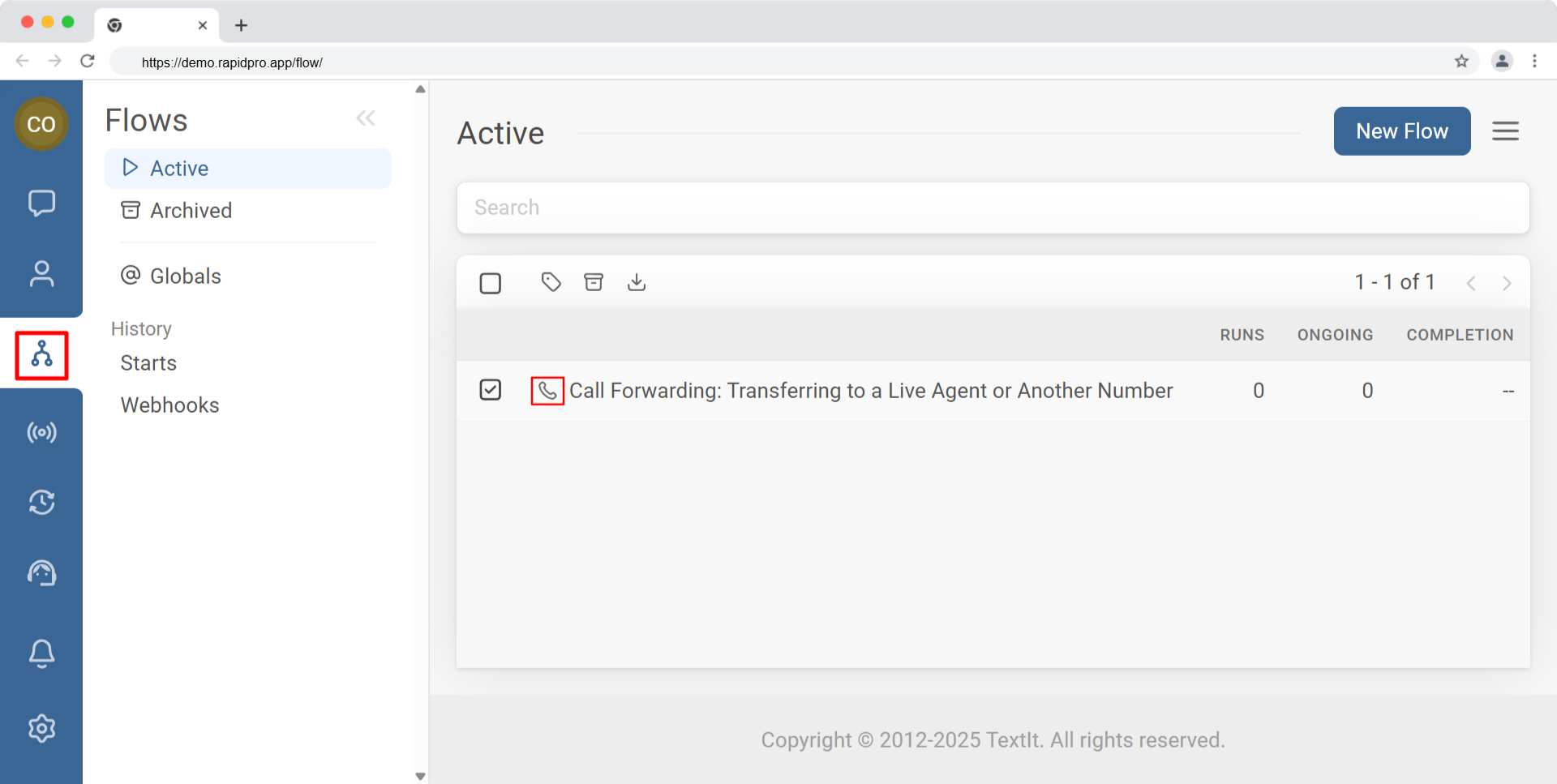
Check your work: You should be inside the flow editor of a voice-enabled flow.
Goal: Access advanced configuration options for the flow.
- In the top-right corner of the flow editor, click the ☰ menu icon.
- Select Edit from the dropdown menu.
[CAPTURE: Flow editor showing the ☰ menu expanded with the “Edit” option highlighted.]
Check your work: A dialog box titled Edit Flow should appear.
Goal: Define when RapidPro.app should retry the call if it fails.
- In the Edit Flow dialog, locate Retry after failed call (wording may vary slightly).
- Choose one of the available retry delays (examples): 30 minutes, 1 hour, or 1 day.
- Save your changes.
[CAPTURE: Edit Flow dialog showing retry timing options selected.]
Check your work: The retry option is selected and the dialog has been saved successfully.
- If a contact does not answer, RapidPro.app schedules a new call after the selected delay.
- If the call fails to connect, the retry follows the same logic.
- If the call is answered, no retry is scheduled.
- Retries apply only to failed call attempts, not completed calls.
[CAPTURE: Call log or run detail showing an initial failed call followed by a scheduled retry attempt.]
Common Issues & Quick Fixes
The retry option is not visible
Likely cause: The flow is not a Voice (IVR) flow.
Fix: Confirm the flow type is set to Phone Call (IVR). Retry settings are not available for Messaging or Background flows.
Calls are not retried after failure
Likely cause: Retry timing was not saved, or the call did not qualify as a failure.
Fix: Reopen ☰ → Edit, verify a retry delay is selected, and confirm the call ended as No Answer, Busy, or Failed in Call Logs.
Contacts receive too many repeated calls
Likely cause: Retry delay is too short for your audience or context.
Fix: Increase the retry interval or review your call logic to avoid unnecessary retries.
Retry works in testing but not in production
Likely cause: Voice channel limitations or provider issues (Twilio/Vonage).
Fix: Check Call Logs and confirm your voice-enabled number is active and properly configured.