



Start a flow after a ticket closes in a few steps
If you just need the essentials, follow this:
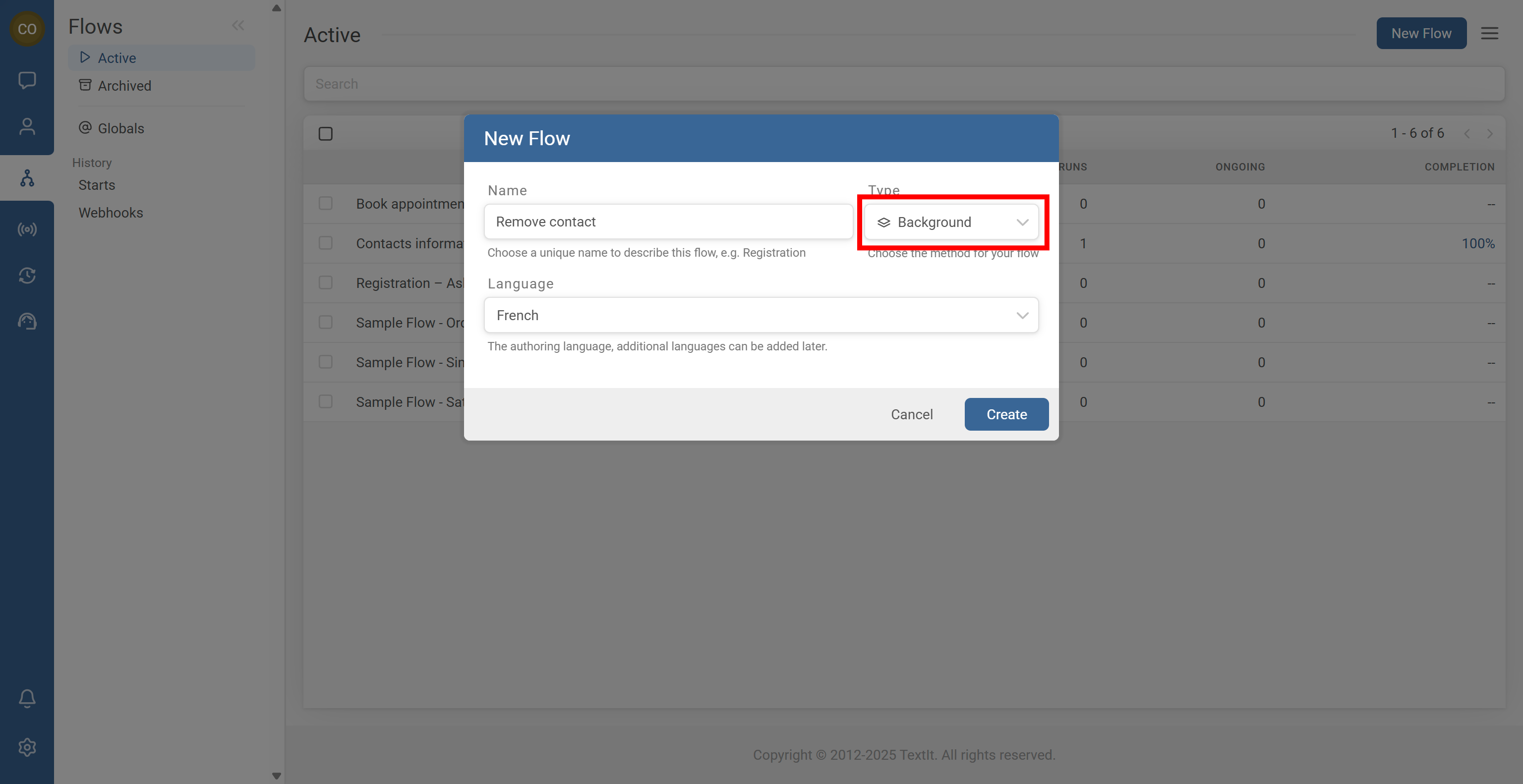
- Create a Background Flow for post-ticket actions (cleanup, group removal, follow-up logic)
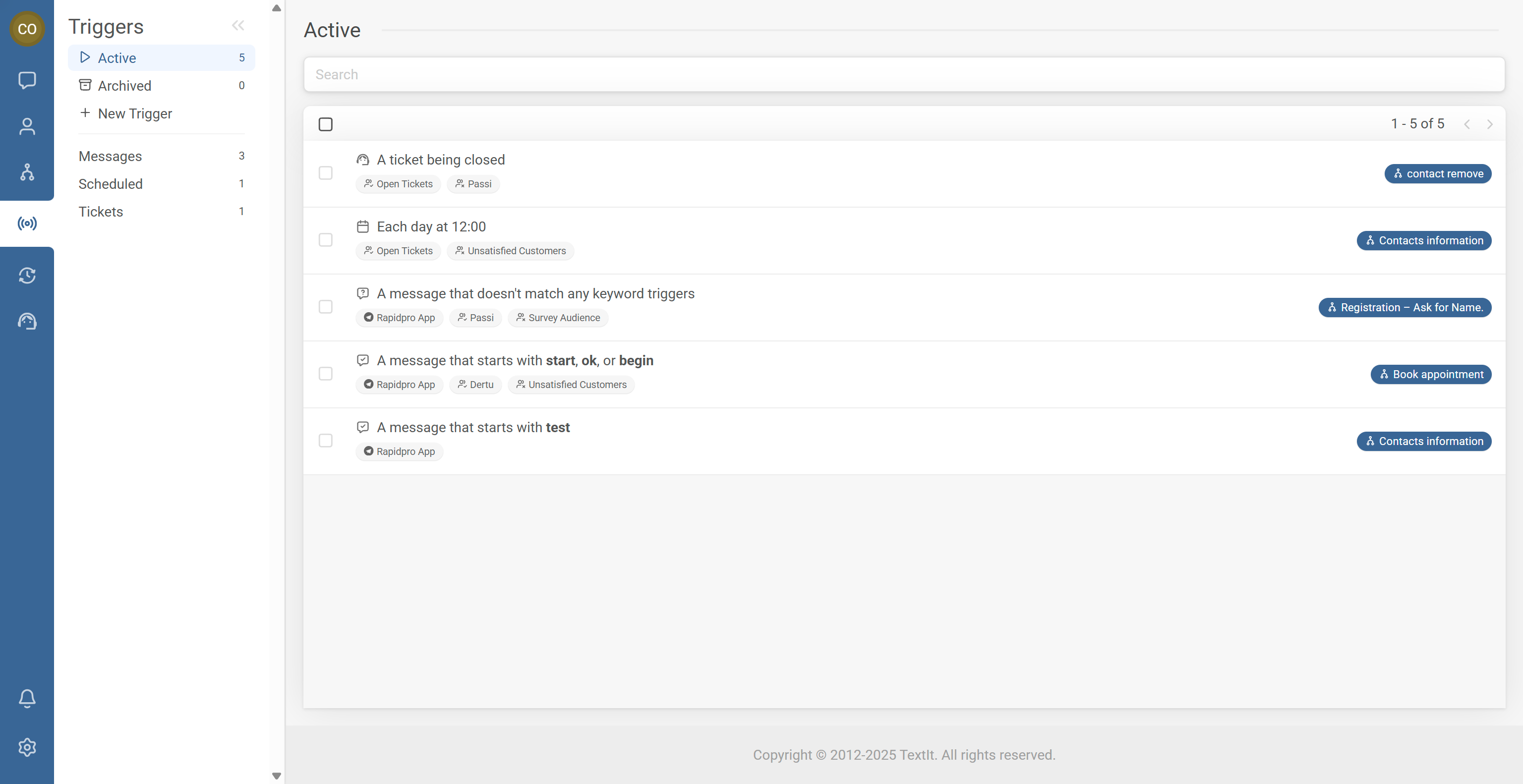
- In Triggers, click + New Trigger and select Start a flow after a ticket is closed
- Select your Background Flow and optionally set include/exclude group rules
- Save the trigger and confirm it’s listed as active
- Test by closing a ticket and confirming the flow ran as expected
You’re done. When an agent closes a ticket, RapidPro.app will start the selected flow for that contact.
Step-by-Step Process
- An agent closes an open ticket.
- RapidPro.app fires the Ticket Closed trigger.
- RapidPro.app starts the selected flow for that contact.
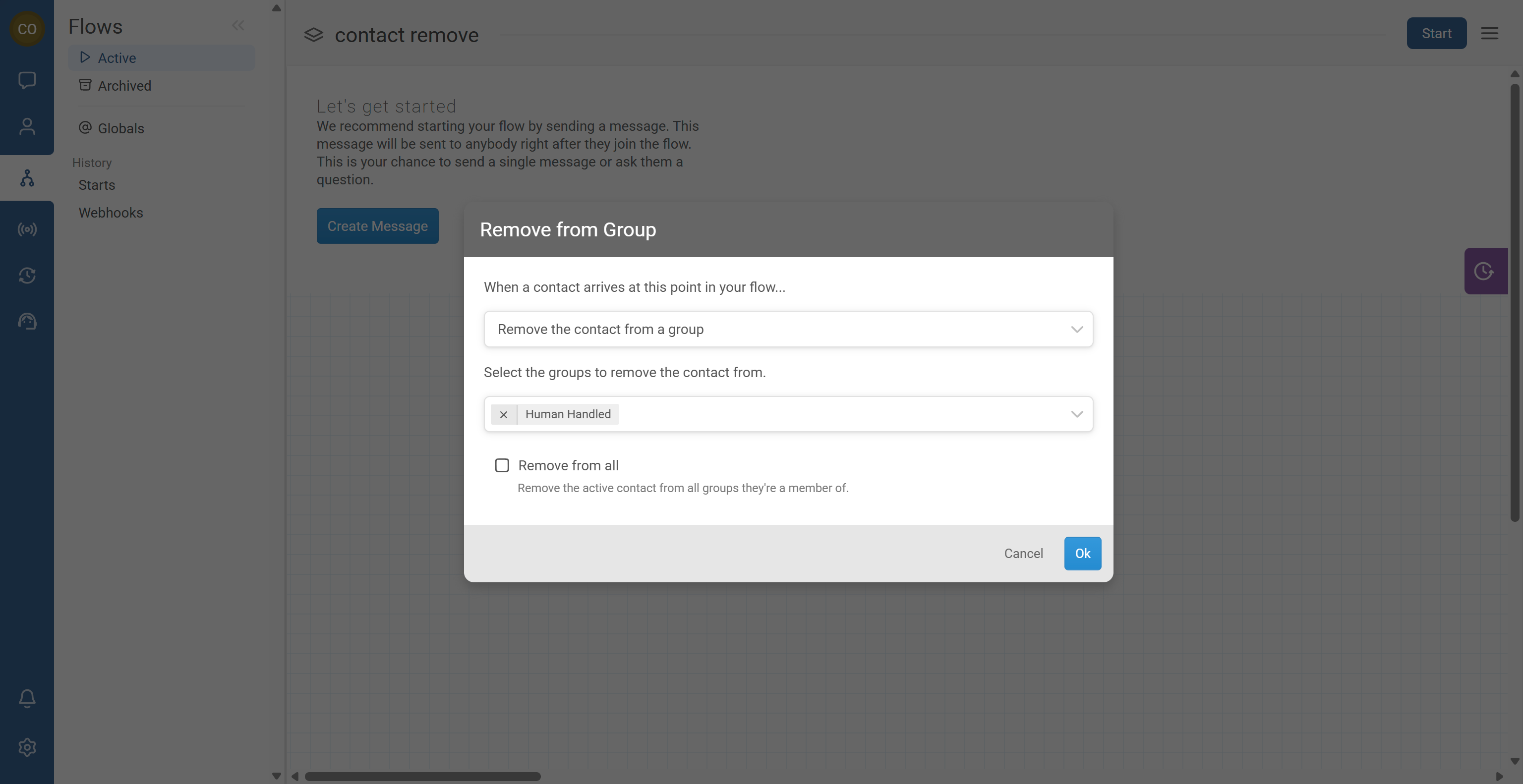
In this example, the flow removes the contact from a group named Human Handled, which is used to prevent keyword/catch-all triggers
from firing while a human agent is handling the case.
- Go to Flows and create a new Background Flow.
- Add an action: Remove contact from group.
- Select the group Human Handled from the dropdown.
- Save the flow.
- Go to the Triggers tab.
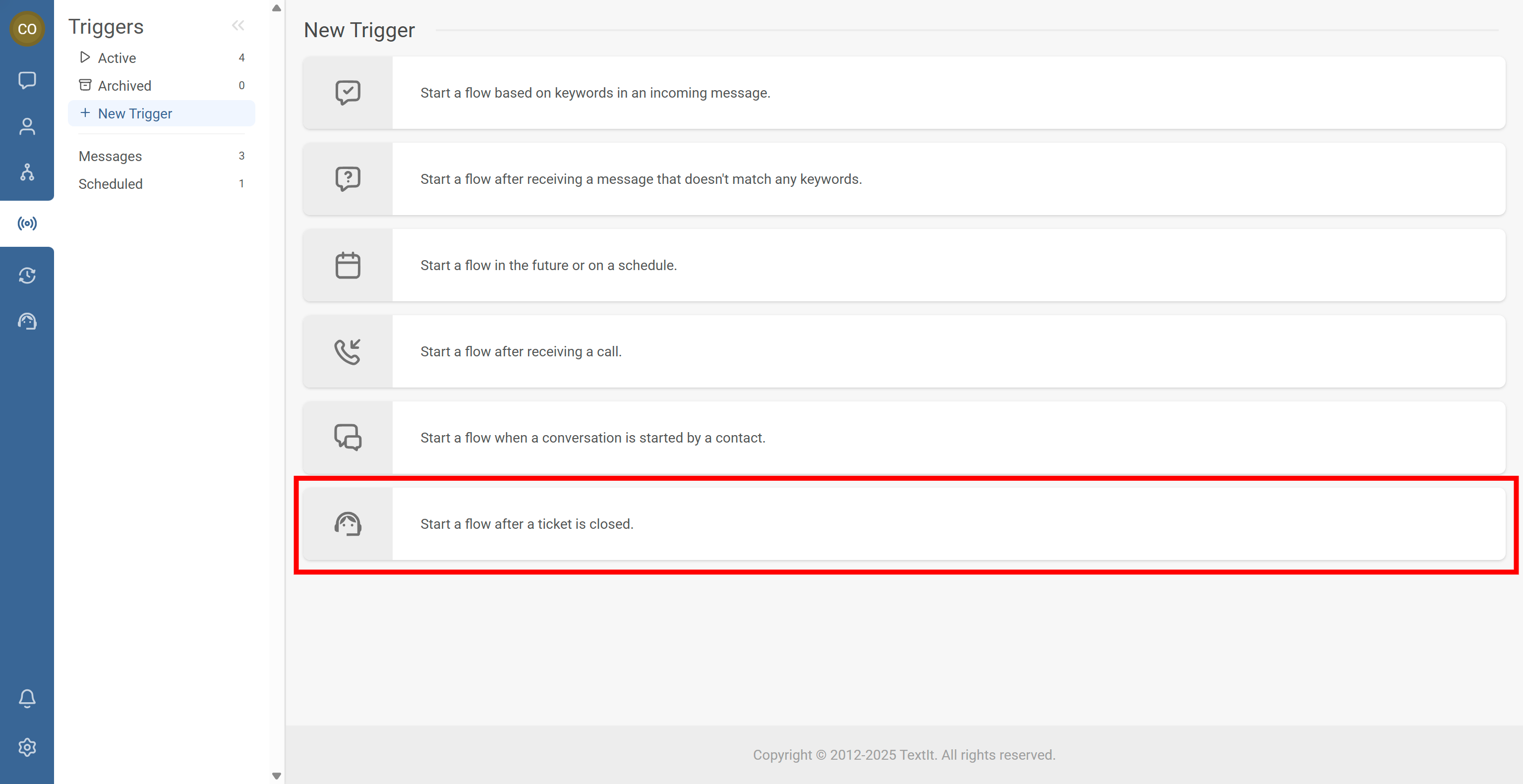
- Click + New Trigger.
- Select Start a flow after a ticket is closed.
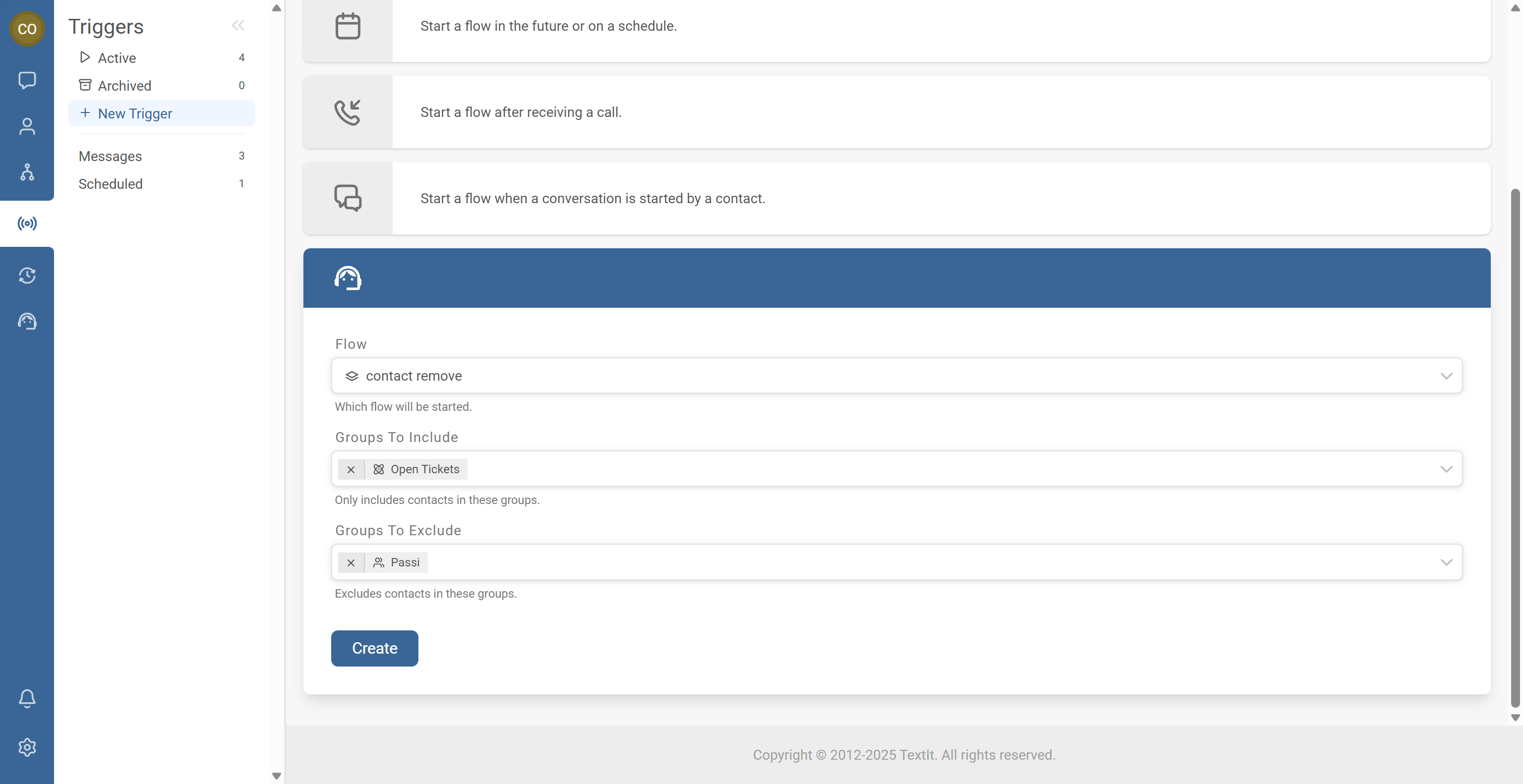
- Choose the Background Flow you created (for example, “Remove from Human Handled”).
- Optional: Set group include/exclude rules.
- Save the trigger.
- During human support, contacts are placed in Human Handled to prevent automation from triggering.
- When the agent closes the ticket, RapidPro.app starts a Background Flow that removes the contact from Human Handled.
- After cleanup, the contact’s future messages are handled normally again by other triggers.
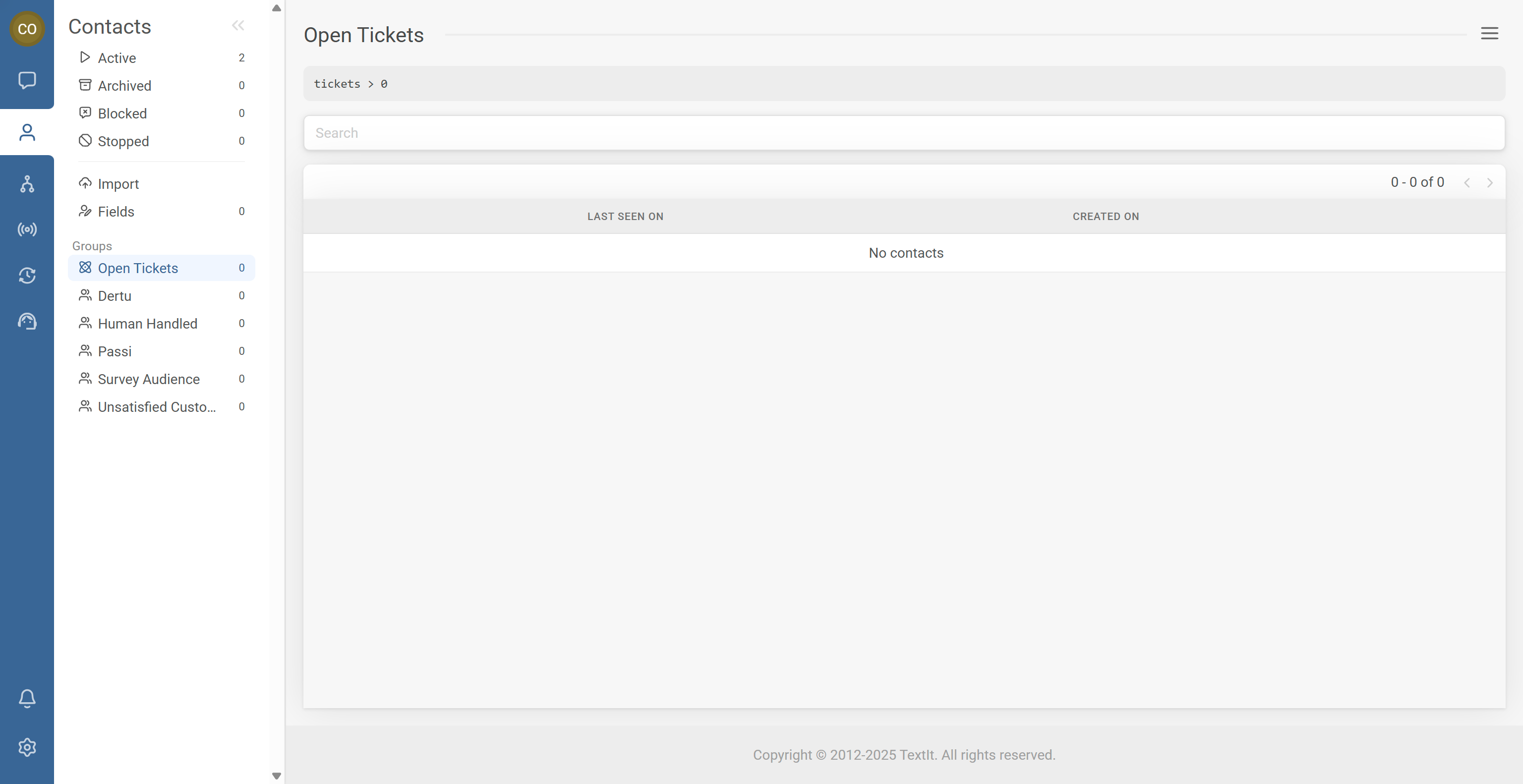
RapidPro.app can provide a Smart Group in Contacts named Open Tickets, which helps you quickly identify contacts who still have unresolved tickets.
Common Issues & Quick Fixes
Problem: The flow doesn’t start when the ticket is closed.
Fix: Confirm the trigger is enabled and listed as active, verify you selected the correct “Start a flow after a ticket is closed” trigger type, and review any include/exclude group filters.
Problem: The action interrupts active flows.
Fix: Make sure the triggered flow is a Background Flow, not a Messaging Flow.
Problem: The contact isn’t removed from the group.
Fix: Confirm the flow action is Remove contact from group (not add), and verify the correct group is selected (for example, Human Handled).