



Create and test a Voice (IVR) flow
If you just need the essentials, follow this quick path:
- Confirm a voice-enabled channel is available
- Create a new flow and select Phone Call
- Design IVR logic with audio and keypad input
- Test the flow with real calls
Voice flows are ideal for low-literacy contexts and real-time engagement.
Step-by-Step Process
1
Check voice channel availability
Before creating a Voice flow, your workspace must support phone calls.
- Open Workspace Settings.
- Confirm at least one voice-enabled channel is connected:
- Twilio voice number, or
- Vonage voice number.
- If voice numbers are not available locally, verify Twilio voice with an Android channel (if supported).
[CAPTURE: Workspace settings showing a connected Twilio or Vonage voice channel.]
Warning: Without a voice-enabled channel, the Phone Call flow type will not appear.
2
Start creating a new flow
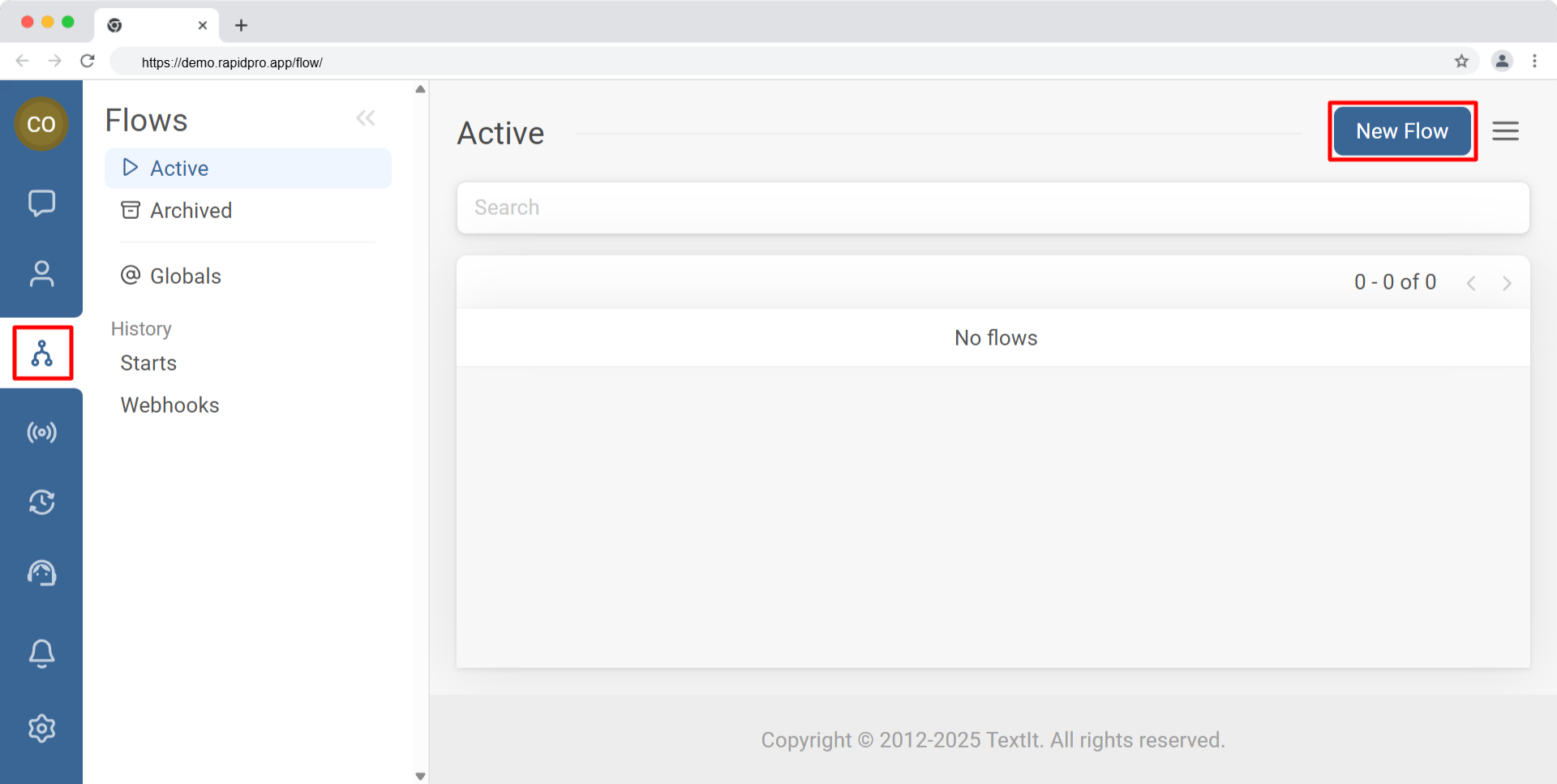
- Go to the Flows tab.
- Click New Flow.
3
Select the Voice (Phone Call) flow type
- Enter a clear flow name.
- Open the Flow type dropdown.
- Select Phone Call.
- Click Create.
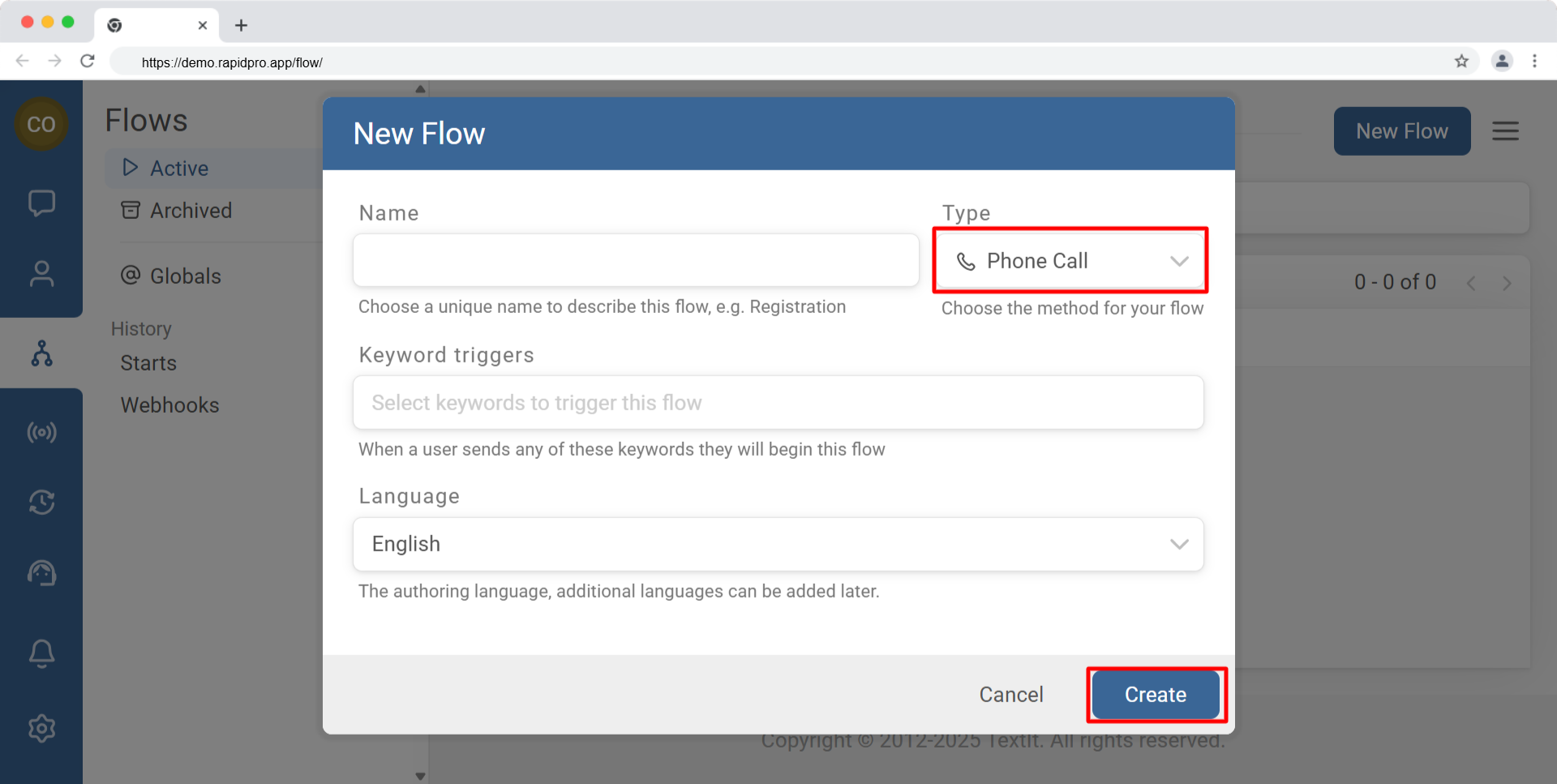
Technical Detail: Voice flows use IVR-specific actions optimized for audio playback, keypad (DTMF) input, and voice recordings.
4
Build your IVR logic
Typical Voice (IVR) flows include:
- Playing recorded or text-to-speech messages
- Collecting keypad input (DTMF)
- Recording voice responses
- Routing callers based on input
Common Voice actions:
- Play Message
- Wait for Digit Input
- Record Response
- IVR-compatible split actions
[CAPTURE: Voice flow editor showing Play Message followed by a keypad-based split.]
Tip: Keep IVR menus short and explicit (for example: “Press 1 for information, press 2 to speak to an agent”).
5
Save and test your Voice flow
- Save your flow.
- Test by calling the connected voice number.
- Review Call Logs to verify:
- Audio playback
- Input handling
- Correct routing
[CAPTURE: Call Logs view showing recent IVR test calls.]
Warning: Always test Voice flows with real calls before launch to avoid blocked callers or infinite loops.
Common Issues & Quick Fixes
The Voice (IVR) option does not appear
- Confirm a voice-enabled Twilio or Vonage number is connected.
- Verify Android + Twilio voice setup if applicable.
- Check that you have Admin permissions.
Keypad input is not recognized
- Use IVR-compatible split actions.
- Match response rules to expected digits.
- Add a fallback message for invalid input.
Callers get stuck in the flow
- Ensure all branches are connected.
- Add timeouts or retry limits.
- Provide a clear exit path.