



Create an API token in minutes
If you already know what API tokens are and just need the fast path, follow this:
- Open Workspace settings → API Token
- Click Create token and reveal the token value
- Copy the token value and store it securely
- Paste the token into your external app and test the integration
- Keep in mind the maximum of 3 tokens per user
- Rotate or delete tokens you no longer need
You’re done. Your external tool can now authenticate using your token (without your password).
Step-by-Step Process
- Log in to your RapidPro.app workspace.
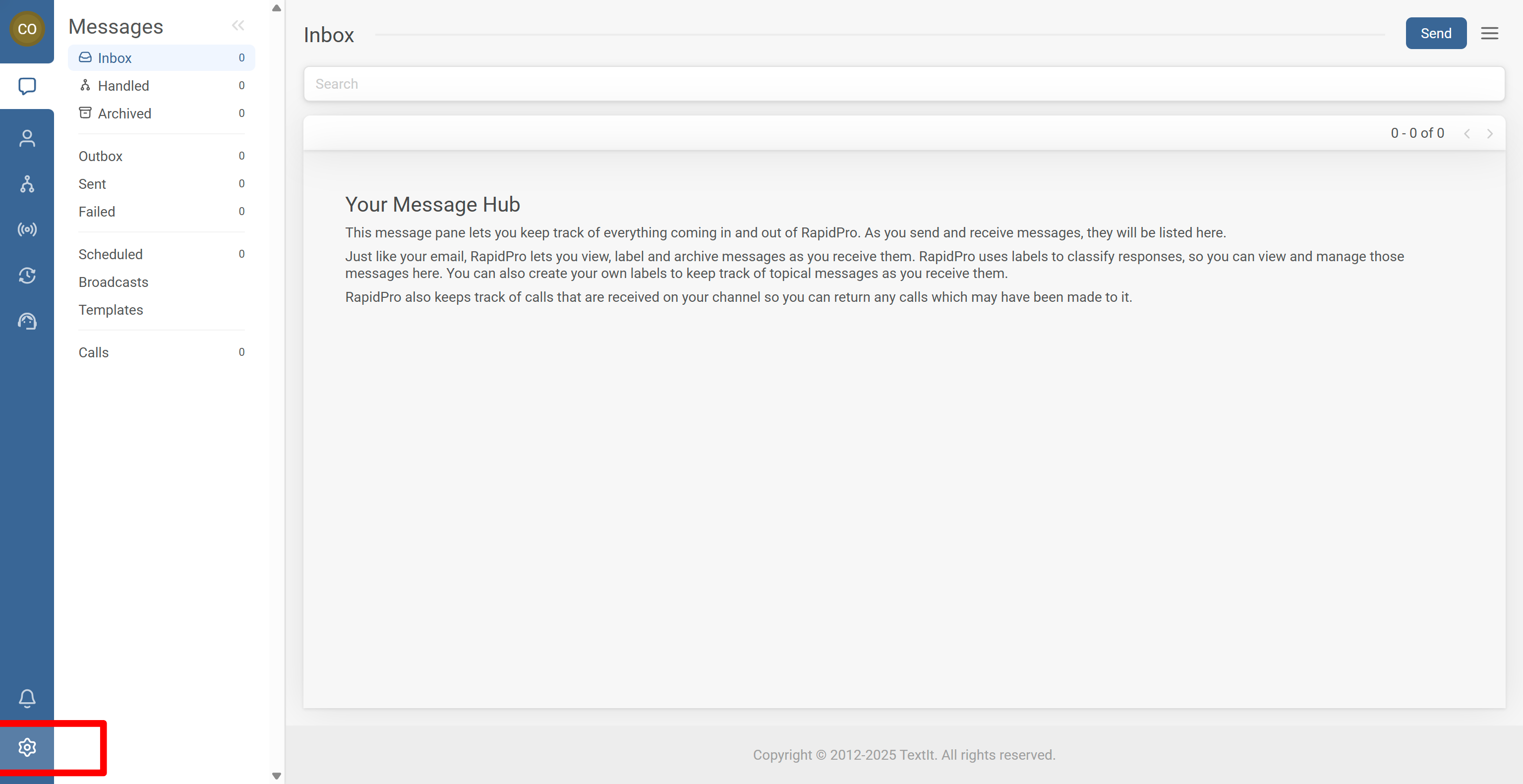
- In the left sidebar, click the Settings gear icon to open Workspace settings.
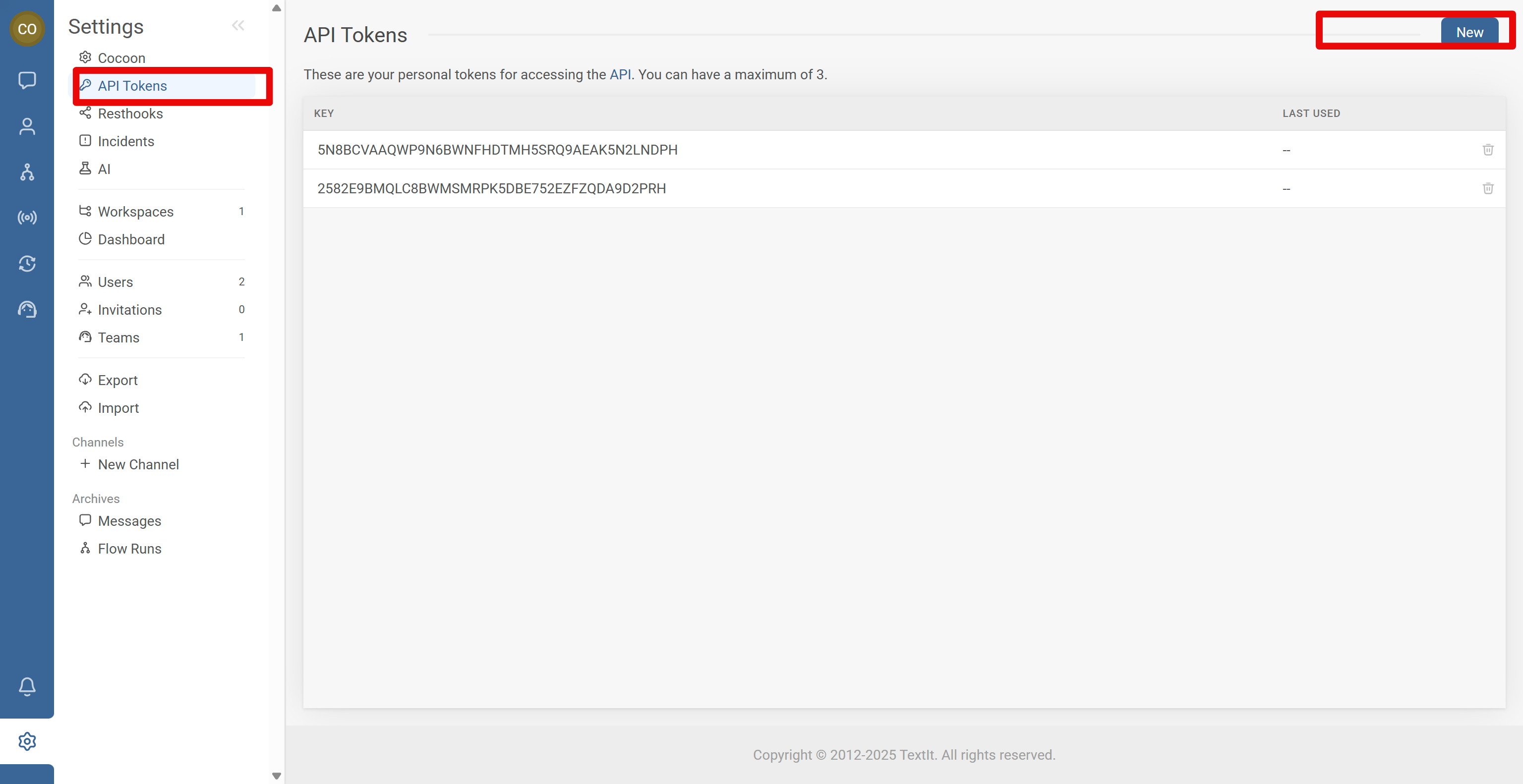
- In the settings menu, click API Token.
- On the API Token page, click New token.
- A new token value appears (a long string of letters and numbers).
- Copy the full token immediately and store it in a secure place (password manager / secrets manager).
- Paste the token into your external tool configuration and test the integration.
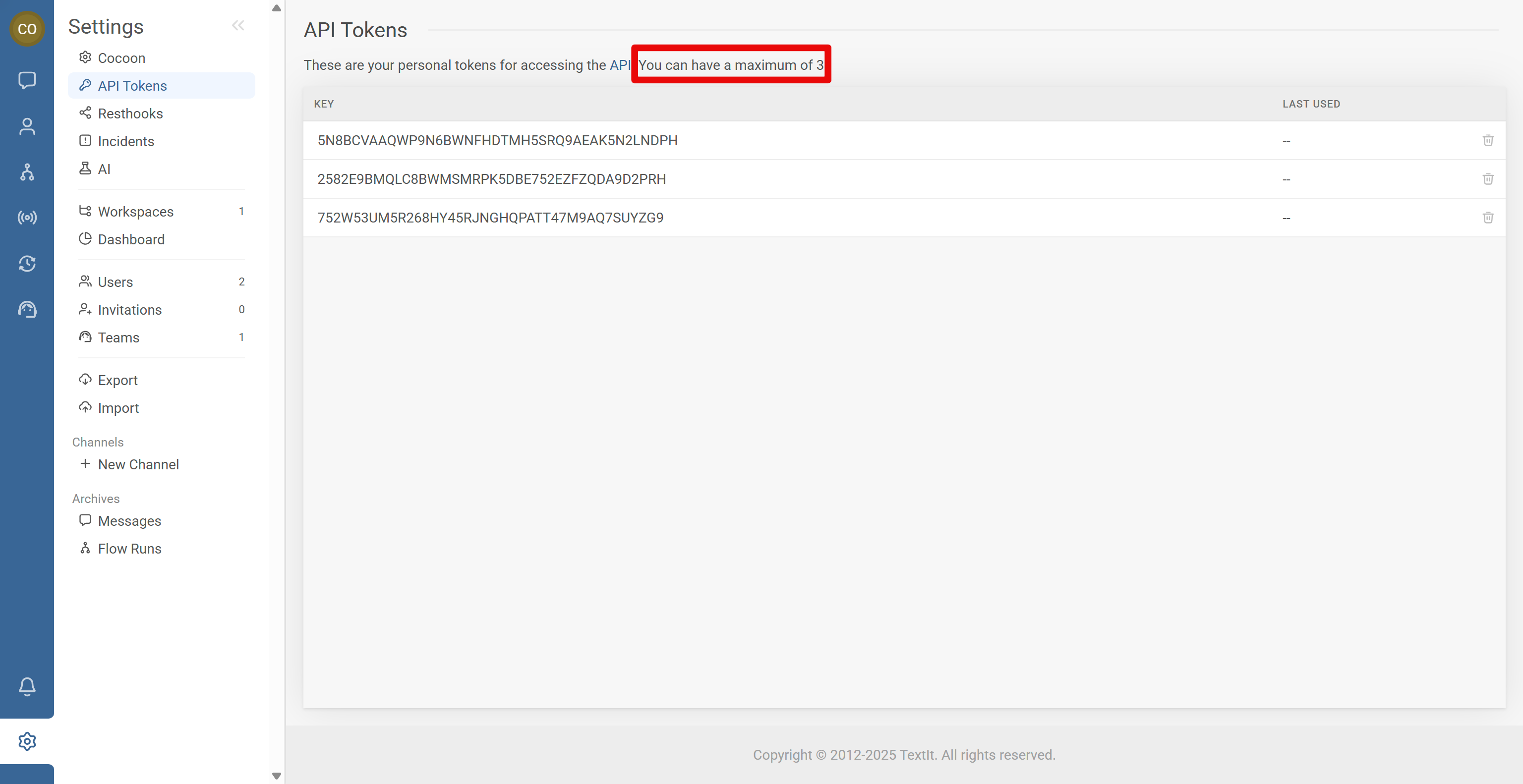
- Review your existing tokens on the page (up to 3).
- Plan which integration uses which token.
- When you reach the limit, you must delete one token to create another.
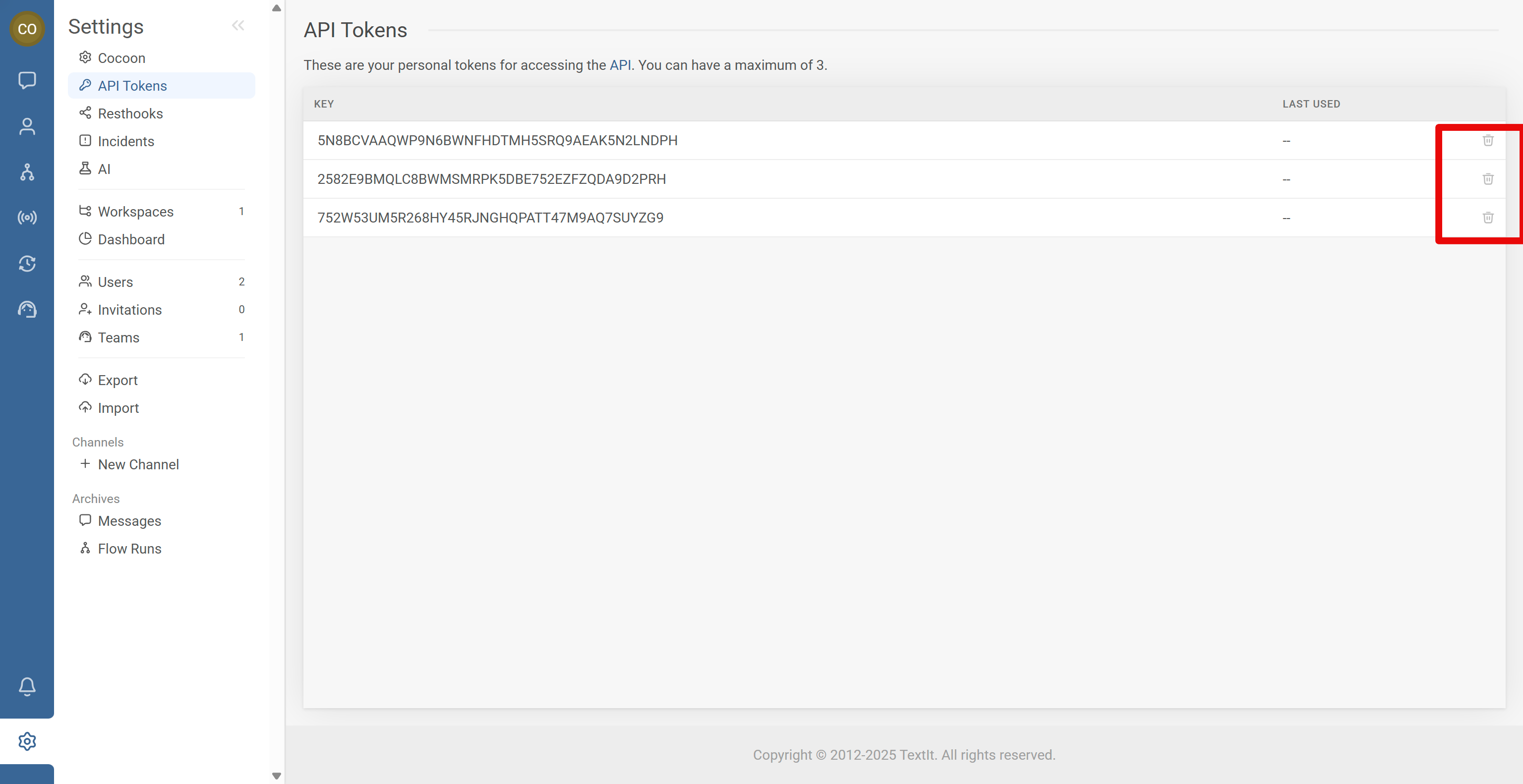
- To delete a token, click the trash/delete icon next to it and confirm.
- To rotate a token (replace it):
- Create a new token (or delete one first if you’re at the 3-token limit).
- Update your external tool to use the new token.
- Test the integration.
- Delete the old token once you’re sure the new one works.
- Store tokens in a password manager, encrypted environment variables, or a secrets manager.
- Rotate tokens when staff leave, when you suspect exposure, or on a periodic schedule.
- Use different tokens for different tools (within the 3-token limit).
- Avoid embedding tokens in screenshots, repositories, or shared docs.
Common Issues & Quick Fixes
Problem: I lost my token value and can’t view it again.
Fix: Delete the unusable token (so you don’t keep a “ghost” token), then create a new token and store it securely right away. Update your integration with the new token.
Problem: I hit the limit: “You can have a maximum of 3 tokens”.
Fix: Delete one token you no longer need (or one you can safely rotate), then click Create token again. Update the relevant integration with the new token.
Problem: An integration stopped working after I deleted a token.
Fix: Create a new token, update the failing tool/script with the new value, and test again. If possible, confirm which token the integration was using.
Problem: I don’t know which token is used by which integration.
Fix: Check each tool (dashboard/script/partner config) to see which token it uses, then create a simple internal mapping so future rotations are easy.
Problem: I think a token was exposed (chat/email/screenshot/repo).
Fix: Create a new token, update the affected integration, then delete the exposed token. If the exposure was public, assume it is compromised.