


Configure workspace languages in a few steps
If you just need the essentials, follow this:
- Open Workspace settings (gear icon at the bottom of the sidebar)
- Go to the Language section
- Set your default workspace language (editor language)
- Add additional languages you want to translate flows into
- Choose the default language for each flow when needed
- Make sure contacts have the right preferred language for correct message delivery
You’re done. Your workspace can now support clean translation workflows, and contacts can receive messages in the most appropriate language when translations exist.
Step-by-Step Process
- Log in to your RapidPro.app workspace.
- In the left-hand sidebar, scroll down.
- Click the Settings gear icon at the bottom to open Workspace settings.
- In the settings menu, look for Language section.
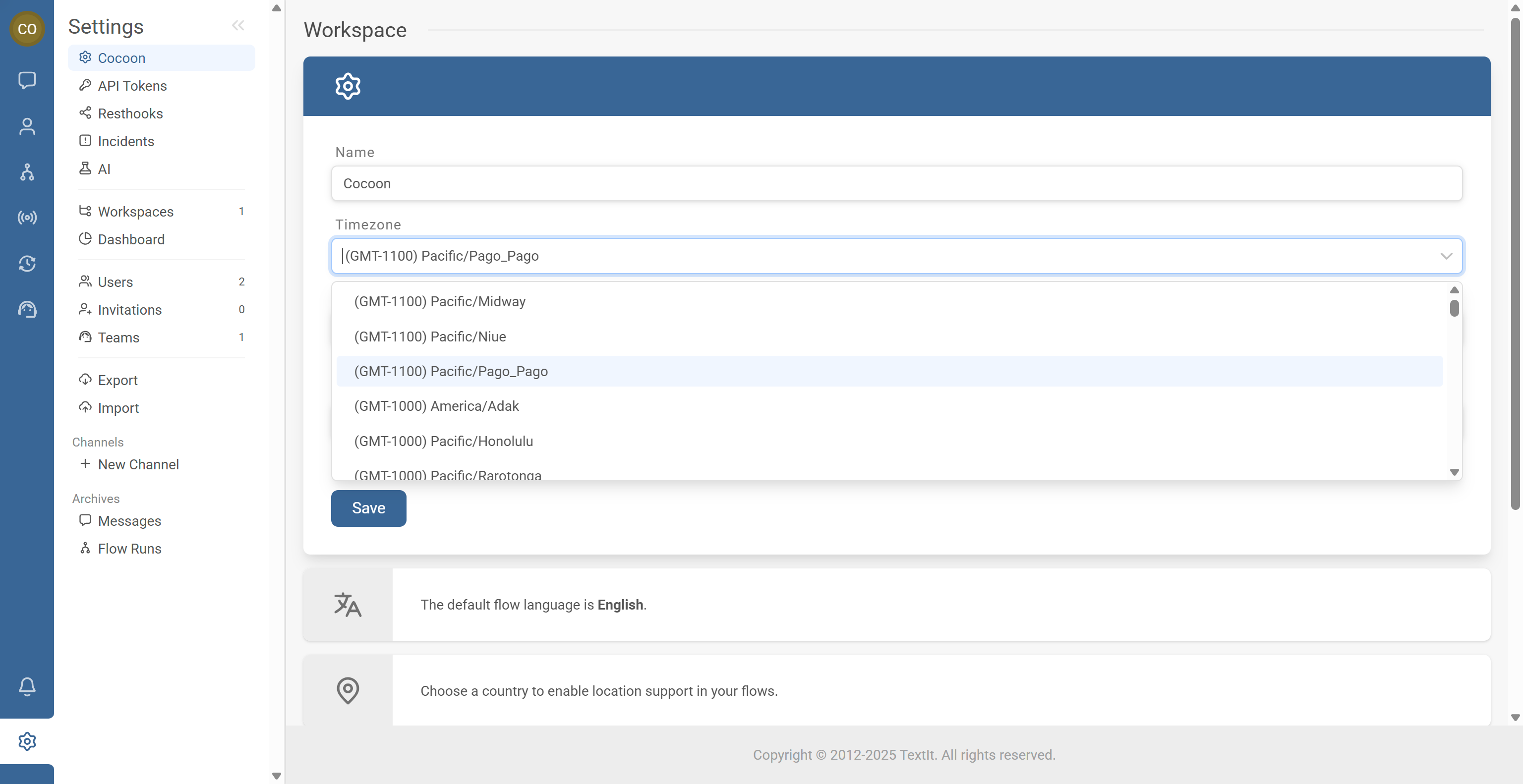
- In the Language section, find the Default language field.
- Choose the language your team uses to build and maintain flows (for example: English, French, Spanish).
- Save your changes.
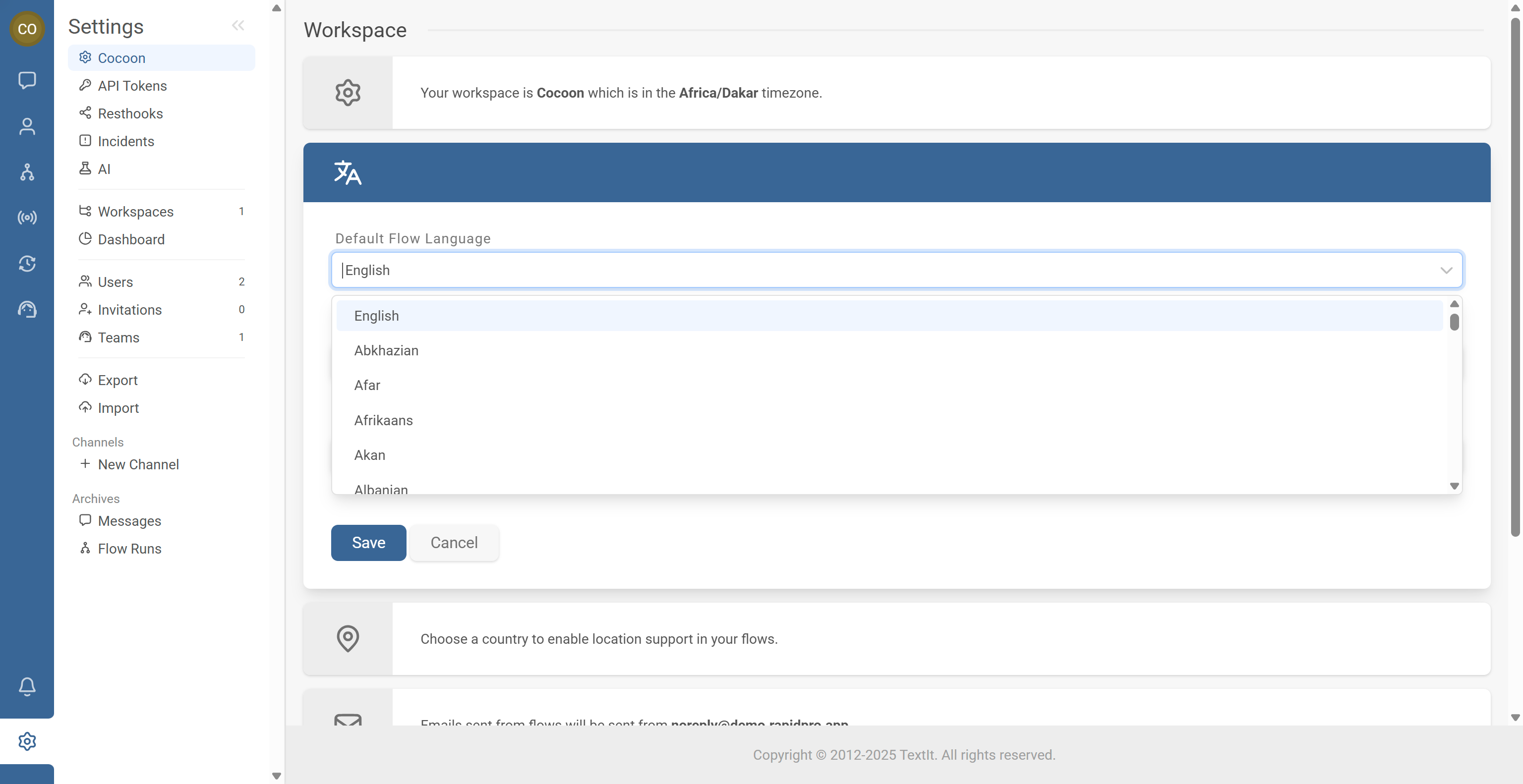
- In the Language section, look for an Additional languages area.
- Use the dropdown to add the languages you want to support in flows.
- Save the updated list of languages.
Once added:
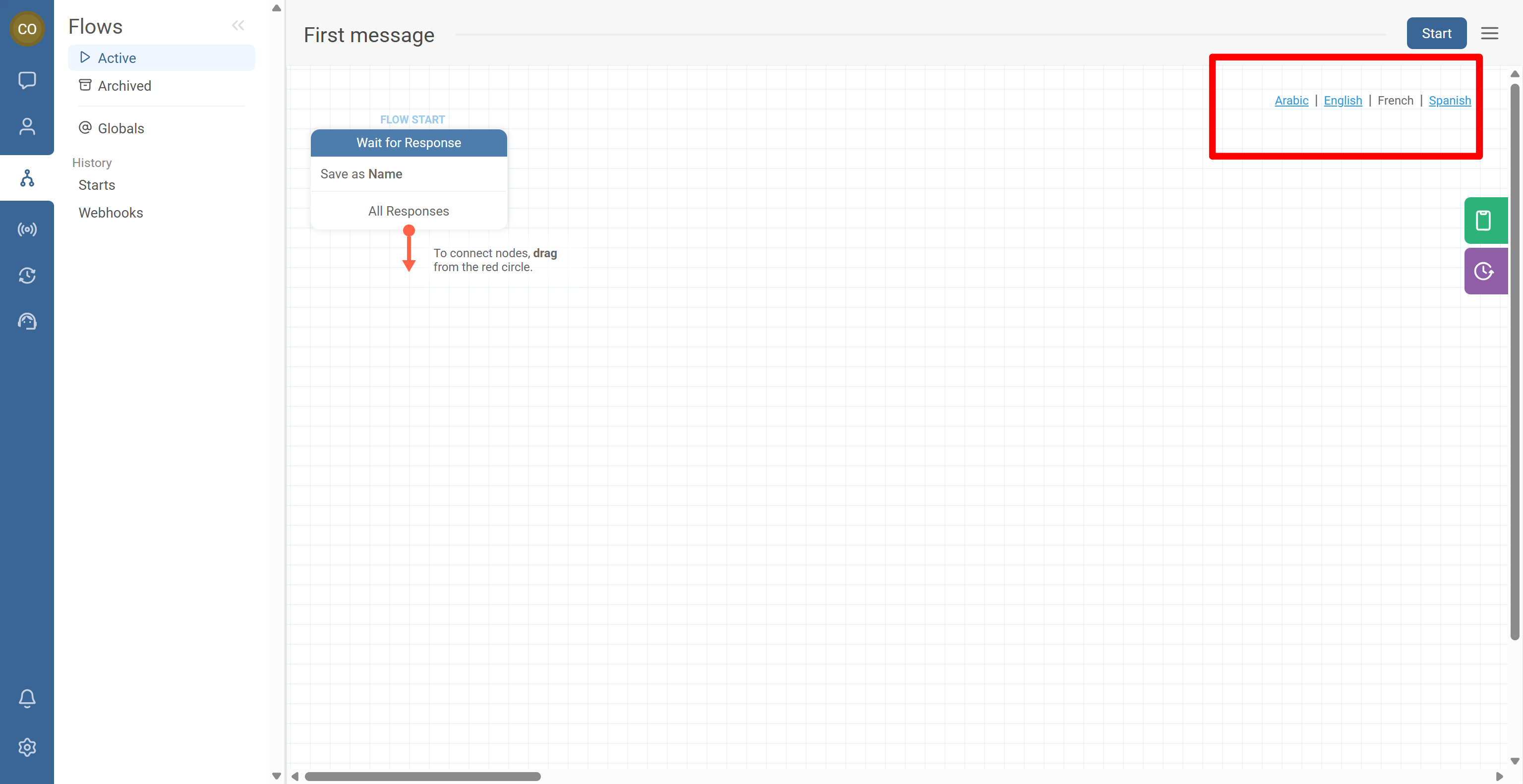
- These languages appear in the flow editor beneath the Start button and settings menu.
- The flow’s default language typically appears first; other languages show beside it.
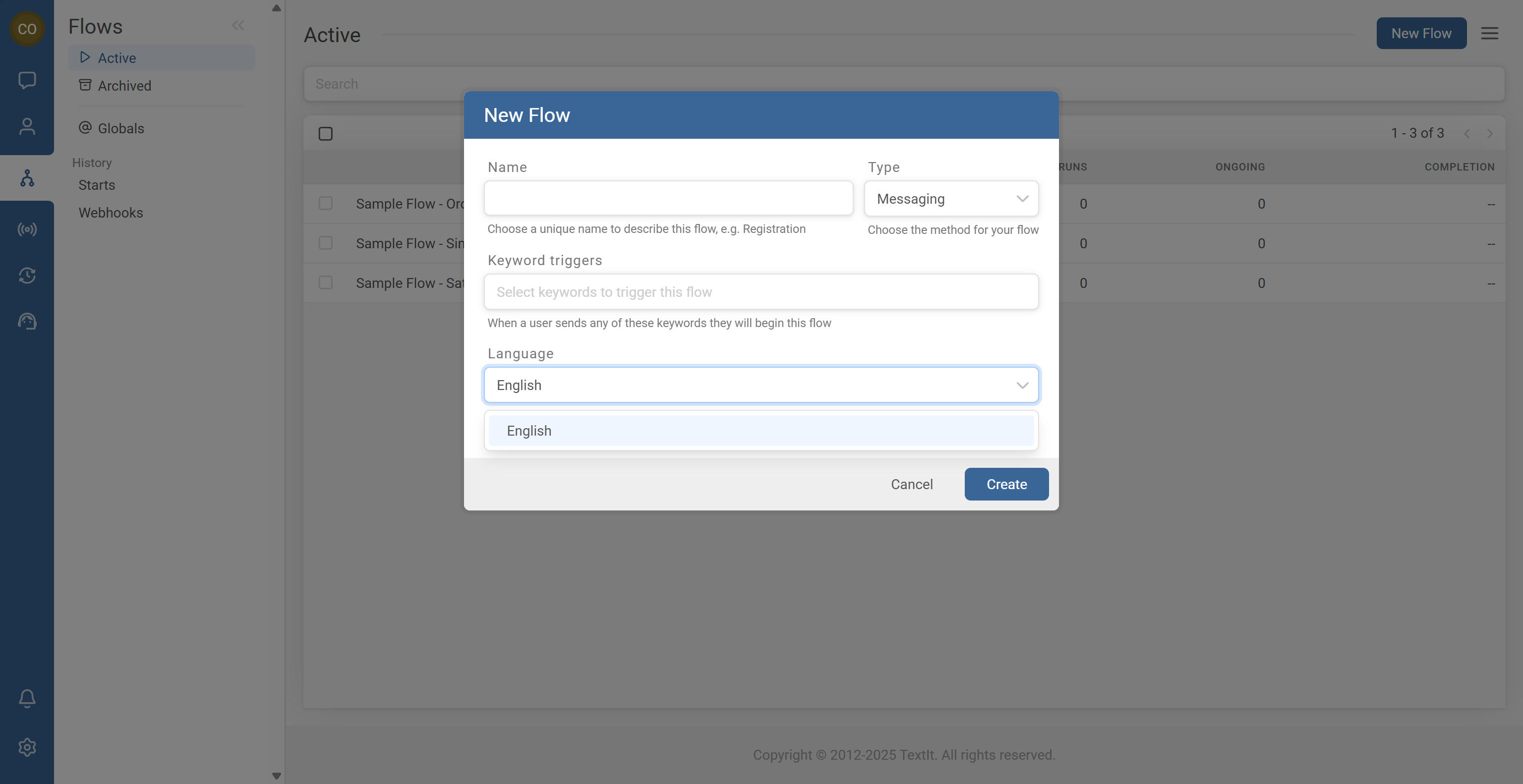
- When creating a new flow, click New Flow in the Flows tab.
- In the New Flow dialog, find the Language dropdown.
- Select the language you want as the default for that flow.
- Create the flow as usual.
In the flow editor:
- You’ll see a language bar beneath the Start button and settings menu.
- The leftmost language is the default language for that flow.
- The language shown in black typically indicates which language you’re currently editing.
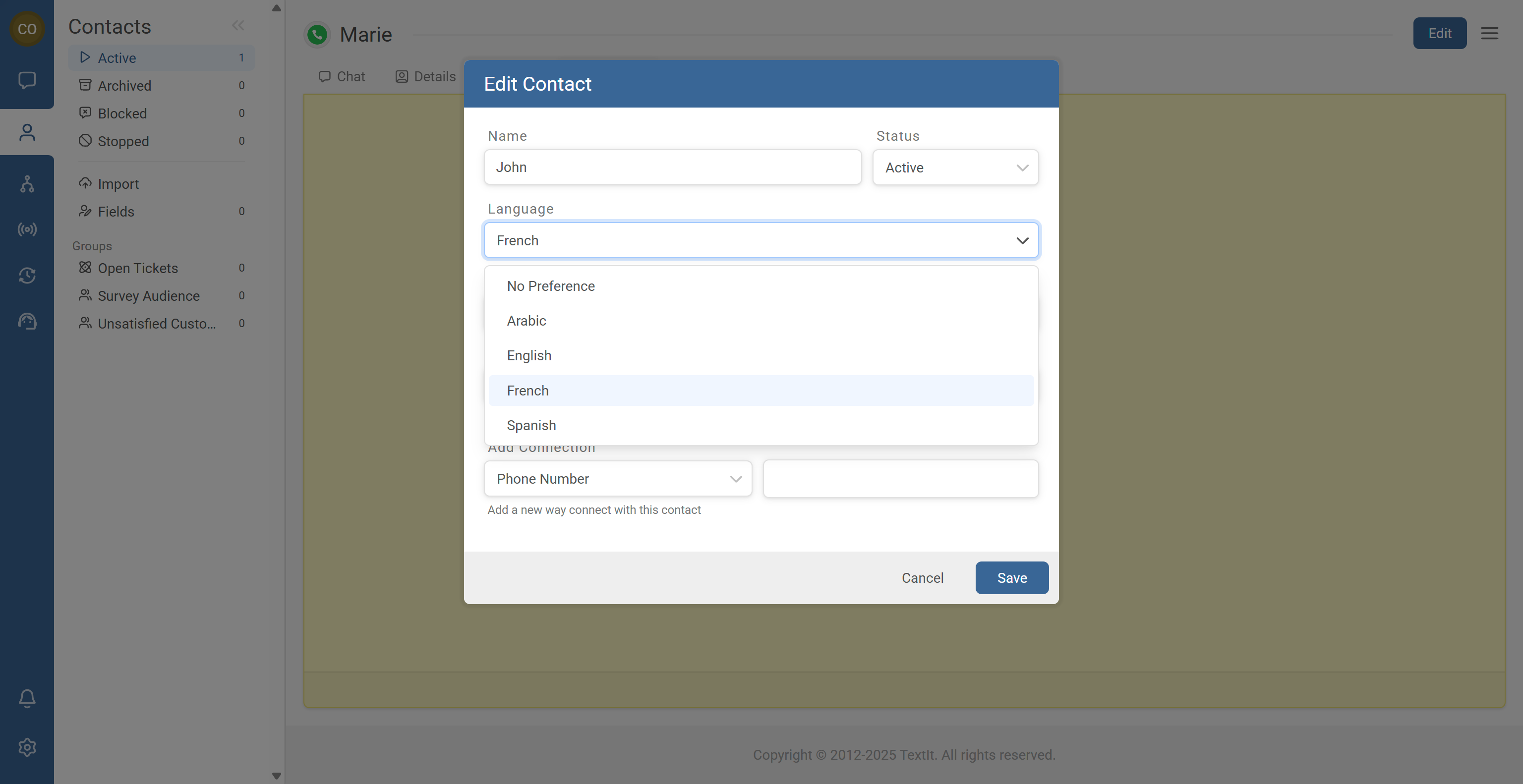
The language a contact receives is not determined only by workspace or flow defaults. It depends on the contact’s preferred language and whether translations exist.
- Each contact can have a preferred language.
- If a flow is translated into multiple languages, RapidPro.app can send messages in the contact’s language when available.
- If a translation is missing, behavior may fall back to the flow’s default language.
Common Issues & Quick Fixes
Problem: The flow editor is not in the language my team expects.
Fix: Open Workspace settings → Language , update the Default language, save, then reopen the flow editor to see the change.
Problem: Contacts receive messages in the wrong language.
Fix: Verify the contact’s preferred language is set correctly, confirm the flow has translations for the target languages, and ensure the flow default language makes sense as a fallback. Test with a few contacts per language.
Problem: I added additional languages but don’t see them in the flow editor.
Fix: Make sure you saved the additional languages in settings, then close and reopen the flow editor. For new flows, verify the language list first, then create/refresh the flow.
Problem: The default language of a flow is different from my workspace language.
Fix: Check the language bar under the Start button. The leftmost language is the flow default. Remember the New Flow dialog can set a flow default that differs from the workspace default. Duplicate/recreate the flow if you need a different default.
Problem: I can’t find where to change language settings.
Fix: Click the Settings gear icon at the bottom of the left sidebar and look for Language. If it’s missing, check your role—workspace-level changes may require Editor or Admin permissions.