
Introduction: In Voice (IVR) flows, callers can leave spoken responses. The Play a Contact Recording action lets you replay that audio back to the caller—useful for confirmation, quality checks, and allowing callers to re-record if they’re not satisfied.



Replay caller recordings for verification (and allow re-recording)
If you just need the essentials, follow this quick path:
- Collect a recording with Wait for Audio and save a clear result name
- Replay it using Play a Contact Recording and reference @results.<recording_name>
- Add a confirmation menu (confirm vs re-record) and route accordingly
This pattern helps callers confirm what they said and reduces low-quality or accidental recordings.
Step-by-Step Process
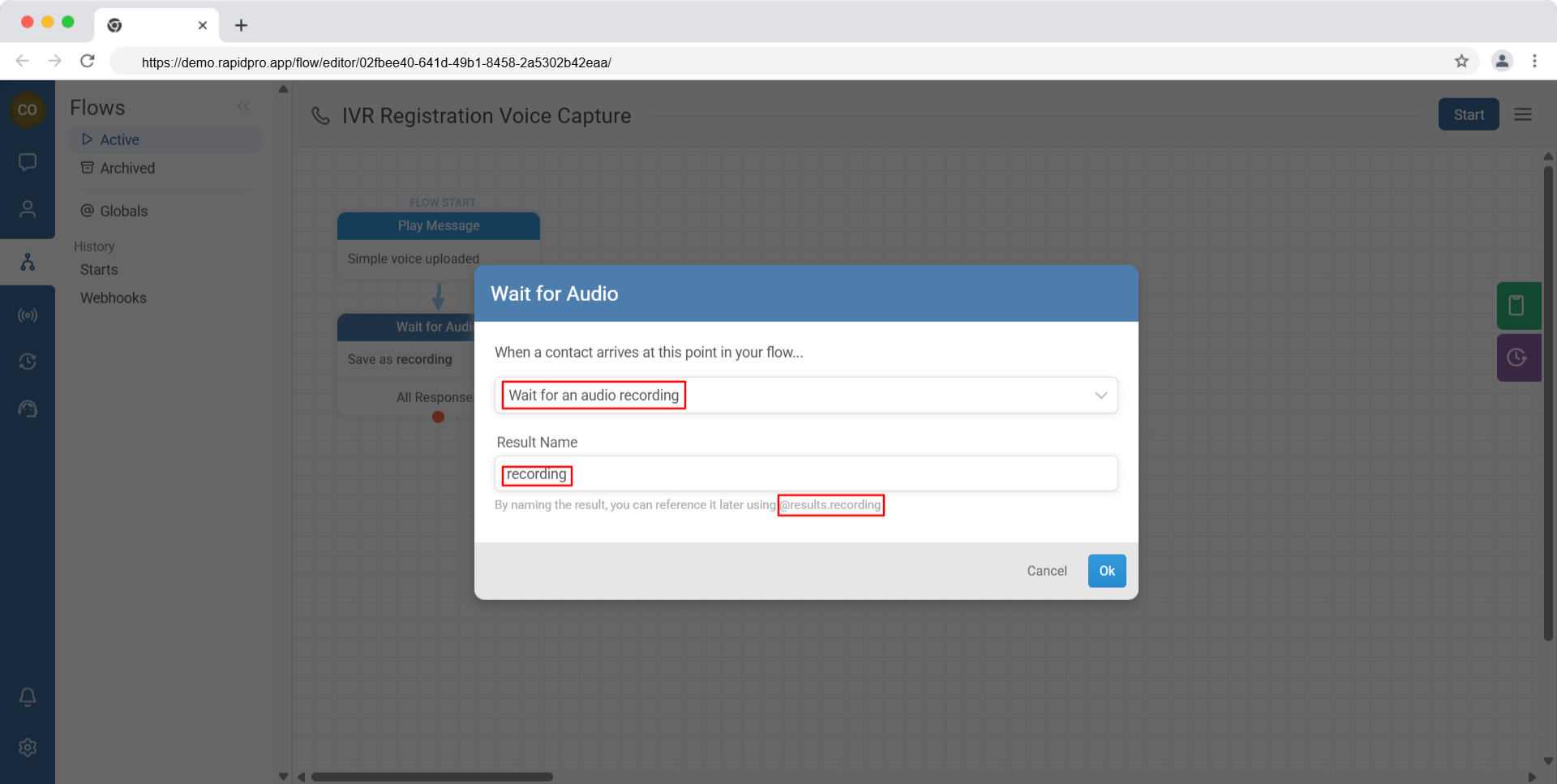
Goal: Capture a spoken response and store it for later use in the flow.
- Open an existing Voice (IVR) flow (or create a new one).
- Add a Wait for an audio recording split action.
- Configure the prompt message that asks the caller to speak.
- Assign a clear Result name (example: recording).
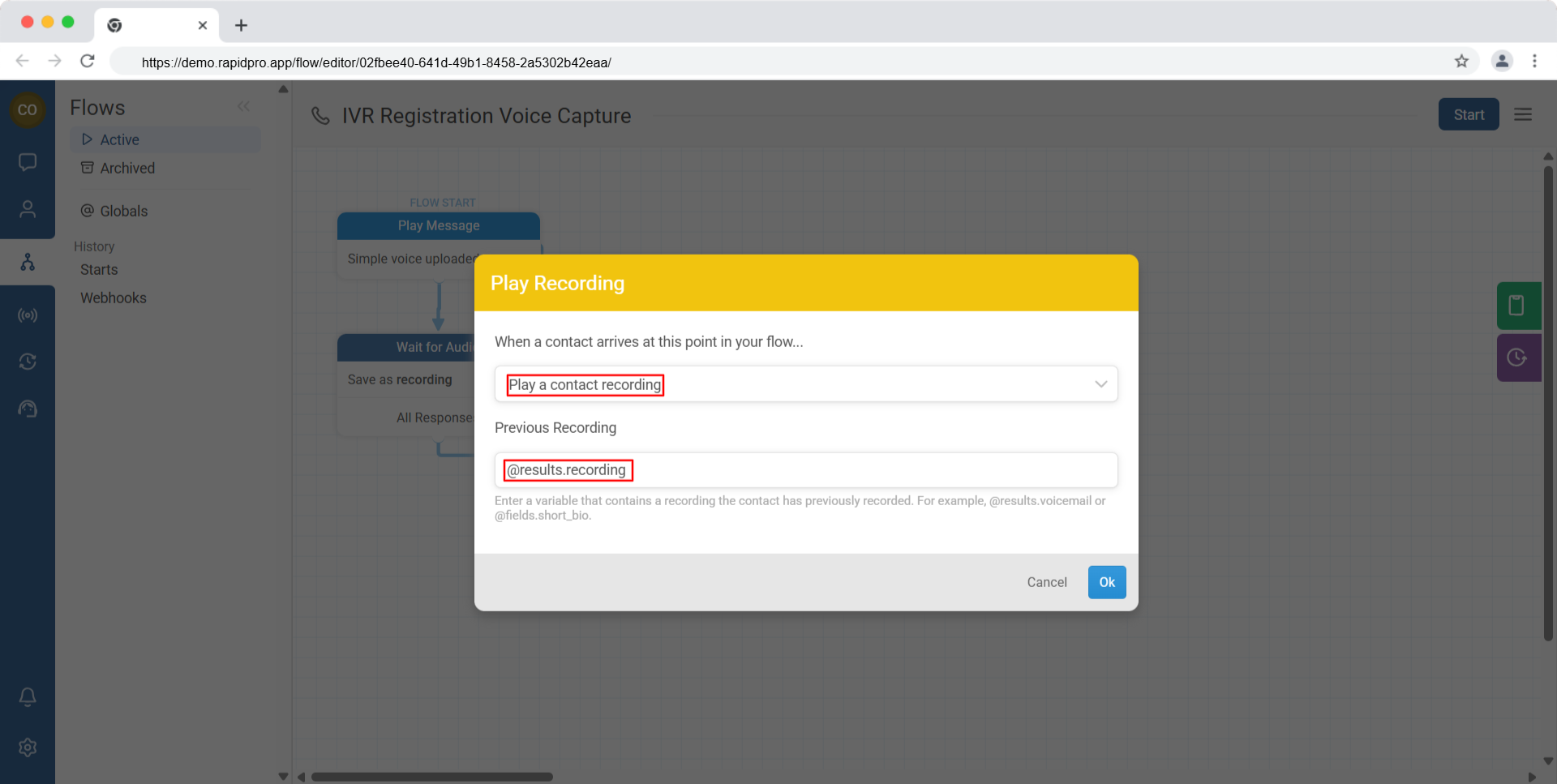
Goal: Play back the caller’s recorded audio during the same IVR session.
- Immediately after the Wait for Audio step, add a new node.
- From the action list, select Play a Contact Recording.
- In the recording field, enter the variable that stores the recording (example: @results.recording).
- Save the action.
Goal: Decide what happens after playback (confirm, redo, escalate, or end).
Common options include:
- Ask the caller to confirm the recording.
- Give the caller the option to re-record their message.
- Forward the call to an agent for review (when appropriate).
- End the call with a short confirmation message.
[CAPTURE: Flow branch showing playback followed by an IVR menu with “Confirm” and “Re-record” options.]
Common Issues & Quick Fixes
The recording does not play back
Cause: The referenced variable does not exist, or it was not created by a Wait for Audio action.
Fix:
- Ensure a Wait for Audio action runs before the playback step.
- Confirm the result name matches exactly (including spelling): @results.<result_name>.
I can’t select a recording to play
Cause: The flow does not contain any Wait for Audio steps.
Fix:
- Add a Wait for Audio action earlier in the flow.
- Assign a result name so the recording can be referenced later.
Callers hear silence instead of their recording
Cause: The caller did not leave a recording, or the recording step was skipped by the flow logic.
Fix:
- Verify your routing always passes through Wait for Audio before playback.
- Replay only after a successful recording path (avoid jumping directly to playback from other branches).
I want the caller to re-record their message
Cause: The flow does not loop back to the recording step after playback.
Fix:
- After replaying the recording, add Wait for Menu Selection with choices like “1 = Confirm” and “2 = Re-record”.
- Route “Re-record” back to the original Wait for Audio step.