



Add audio to Play Message actions
If you just need the essentials, follow this quick path:
- Record a clean voice clip (short, one idea per file)
- Convert the recording to .WAV (recommended for compatibility)
- Upload the .WAV inside a Play Message action
- Preview the audio and confirm clarity/volume
- Troubleshoot upload or playback issues
Clear audio improves caller trust and reduces keypad mistakes during IVR navigation.
Step-by-Step Process
1
Record your audio message
- Use a microphone or headset in a quiet room.
- Record your message using a basic tool (for example: QuickTime on macOS, Voice Recorder on Windows).
- Save the file locally with a clear name (example: ivr_menu_main_v1.mp3).
Tip: Keep each audio clip short (one idea per clip). It’s easier to reuse, swap, and update later.
2
Convert the file to WAV
- Open an audio converter tool (desktop app or trusted online converter).
- Upload your recorded file (MP3/M4A/etc.).
- Convert it to WAV.
- Download the converted .wav file to your computer.
Warning: If your audio format isn’t supported, it may upload but fail to play during calls. Converting to WAV is the safest option.
3
Upload the audio in a Play Message action
- Open your Voice (IVR) flow in the flow editor.
- Add (or select) a Play Message action.
- Click Upload Recording.
- Select your .wav file and confirm the upload.
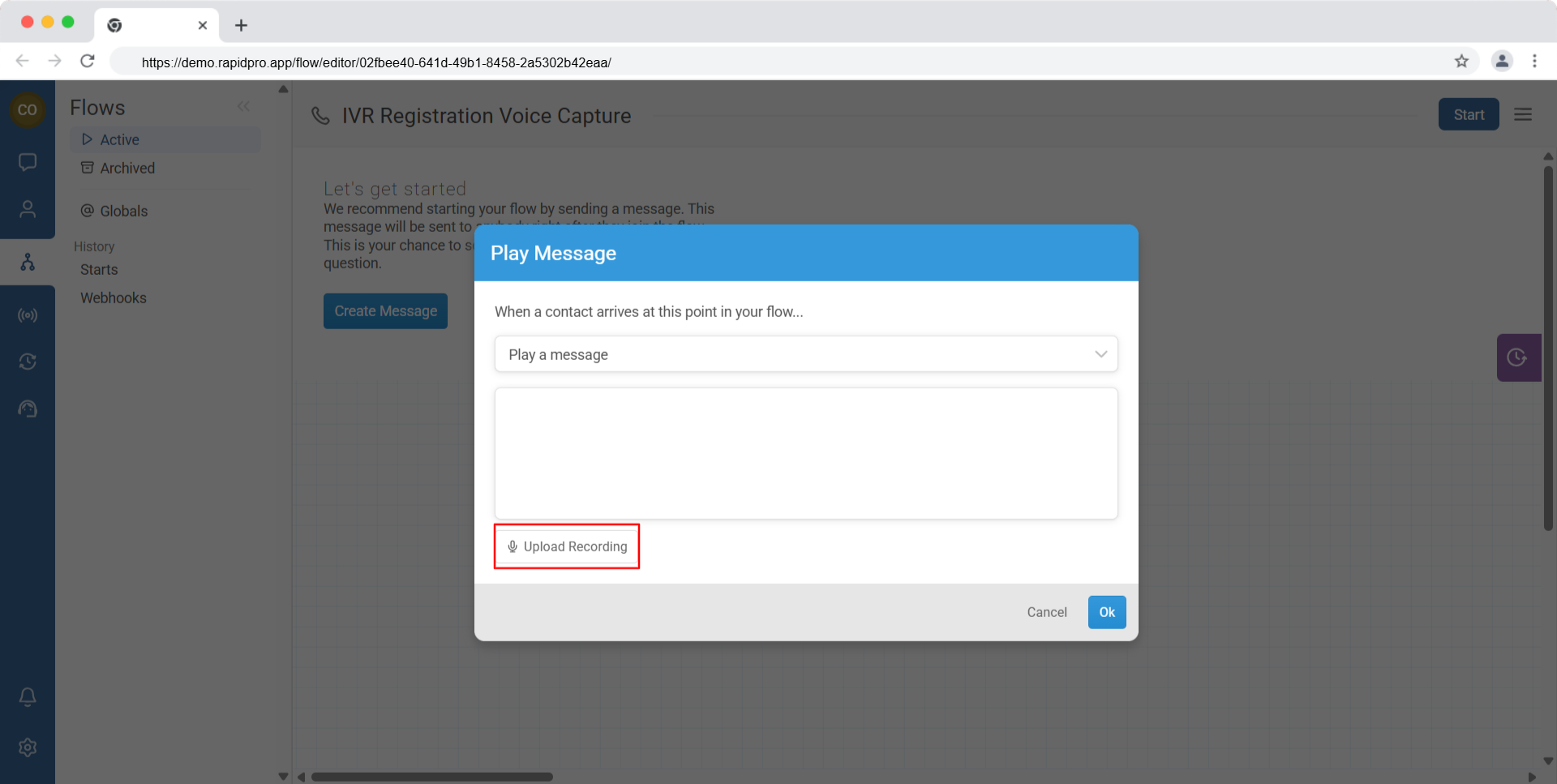
Technical Detail: Each uploaded recording is attached to that specific Play Message step, so you can mix different audio files across your IVR flow.
4
Preview the audio before testing calls
- After upload, find the play control on the audio attachment.
- Click Play to listen and confirm:
- Volume is clear
- The message is complete
- The correct file was uploaded
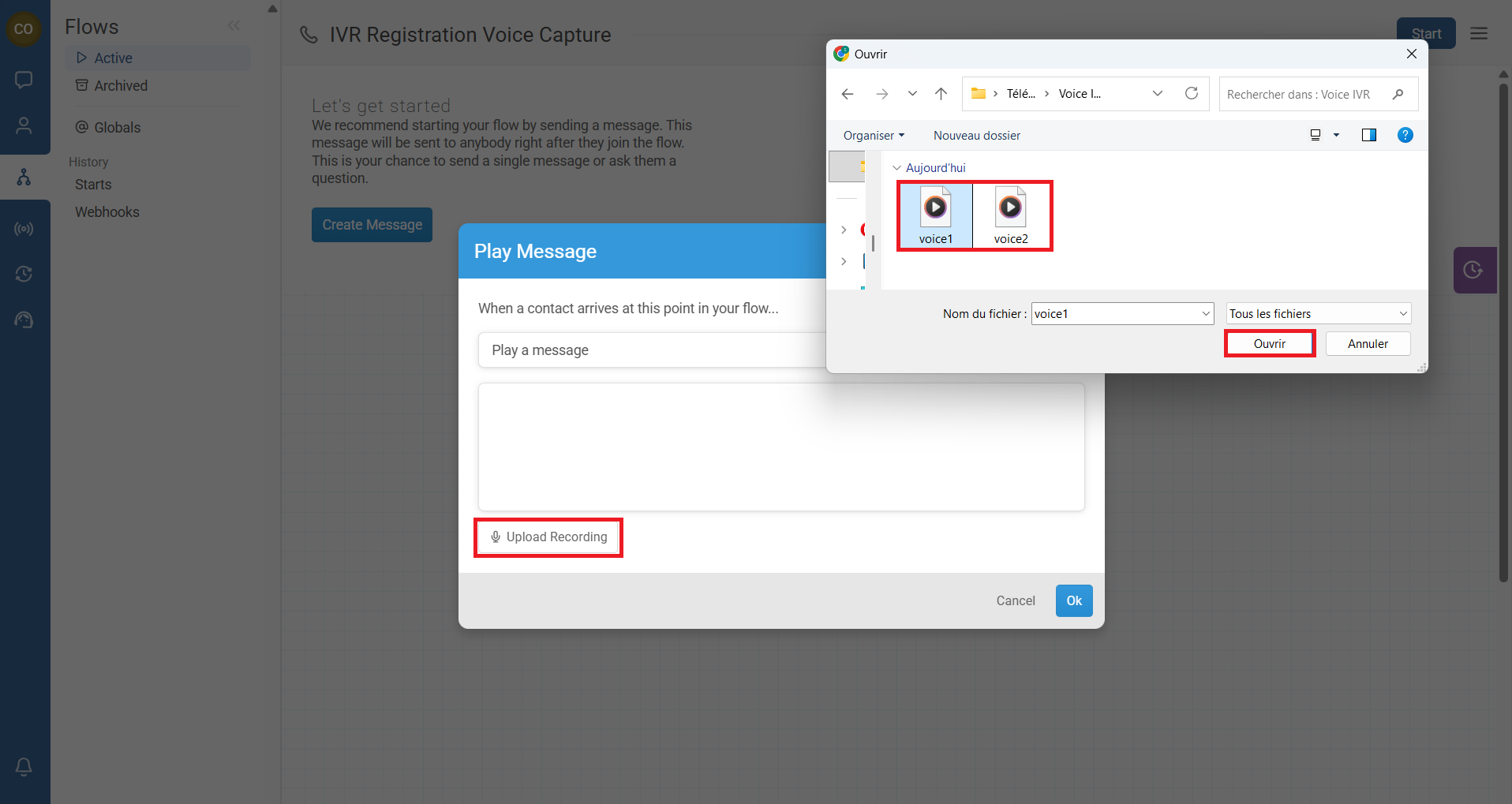
Tip: If you notice noise or inconsistent volume, re-record and re-upload a cleaner clip instead of trying to “fix it later” in the flow.
Common Issues & Quick Fixes
The recording won’t upload
Fix:
- Confirm the file is .WAV (convert again if needed).
- Rename the file to a simple name (avoid special characters).
- Try a smaller file (shorter recording) and re-upload.
The audio uploads, but won’t play during calls
Fix:
- Re-convert the audio to WAV and upload the new version.
- Re-check the Play Message action to ensure the correct file is attached.
- Test using a real call and review call/session logs for errors.
The audio sounds low or unclear
Fix:
- Re-record with the mic closer and reduce background noise.
- Speak slightly slower and leave a short pause at the start/end.
- Split long recordings into shorter clips.